Instagram
  by
by 
 10 min read

Many people wonder how to delete Instagram conversations as soon as they discover what Instagram Direct is . After all, when you start using the chat and have conversations with various contacts, over time your chat list starts to become disorganized. So, deleting some of these dialogues ends up becoming a necessity. In Instagram Direct, messages are in a tab of the application and all conversations appear in a single list. Therefore, the more ongoing conversations you have in the application, the longer this list will become, making it difficult to quickly find specific dialogues you are looking for. Therefore, deleting old conversations, conversations with already resolved issues, or even dialogues with people you don't talk to much, can help keep your Direct list more organized. If you want to learn how to delete Instagram conversations step by step, keep reading!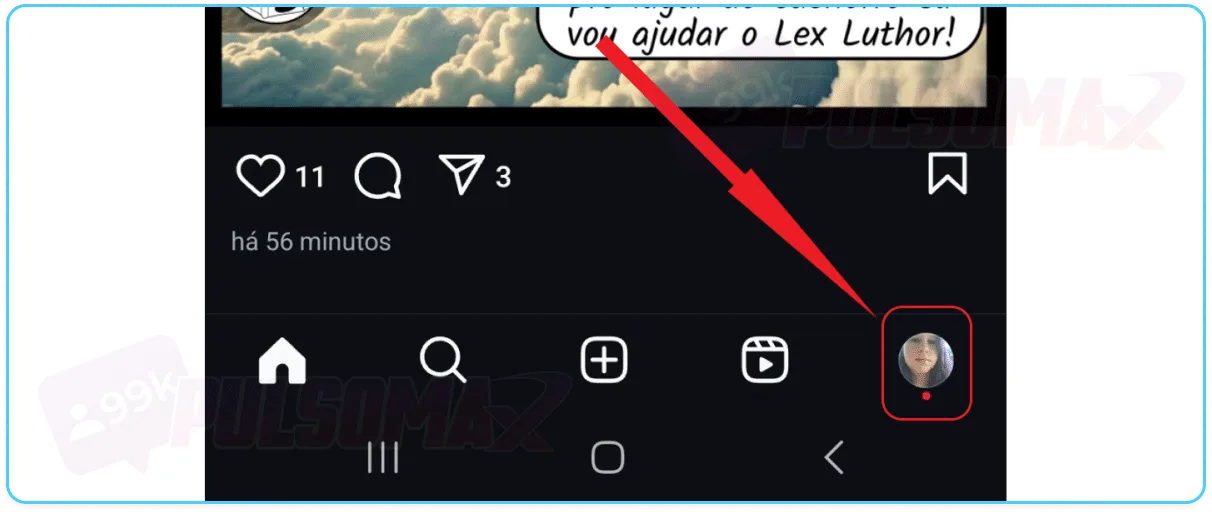
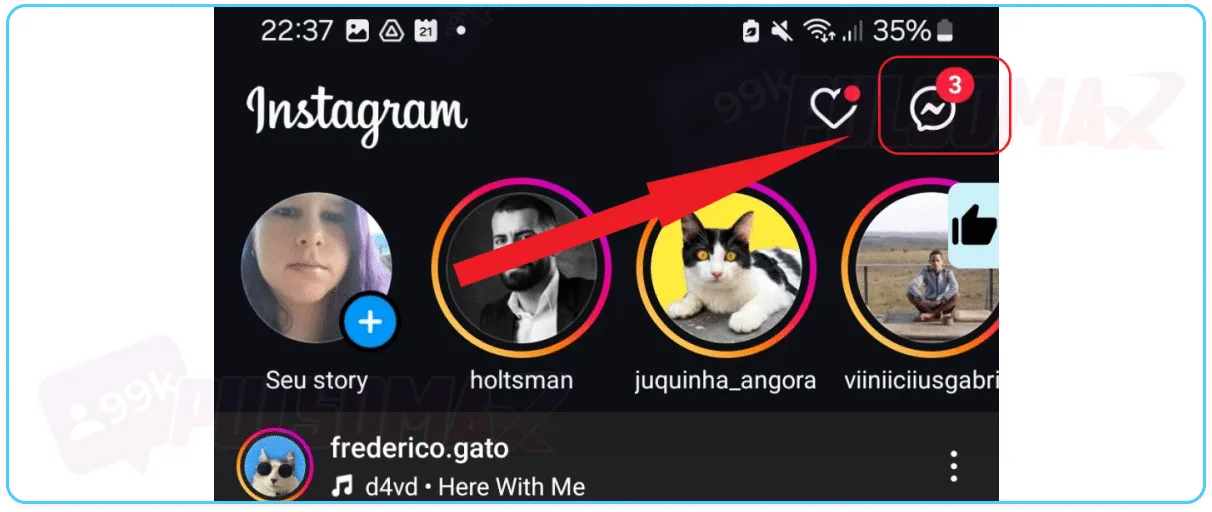 Tip: This button may have an airplane-shaped design, depending on your version of Instagram.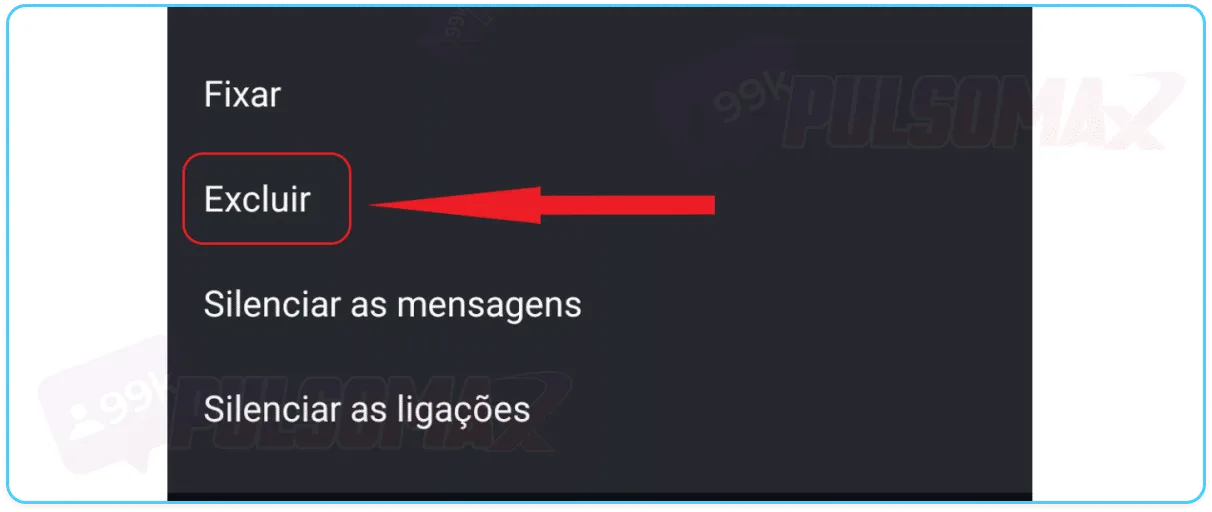
 Done! You've learned how to delete a conversation from Instagram on your Android or iOS app!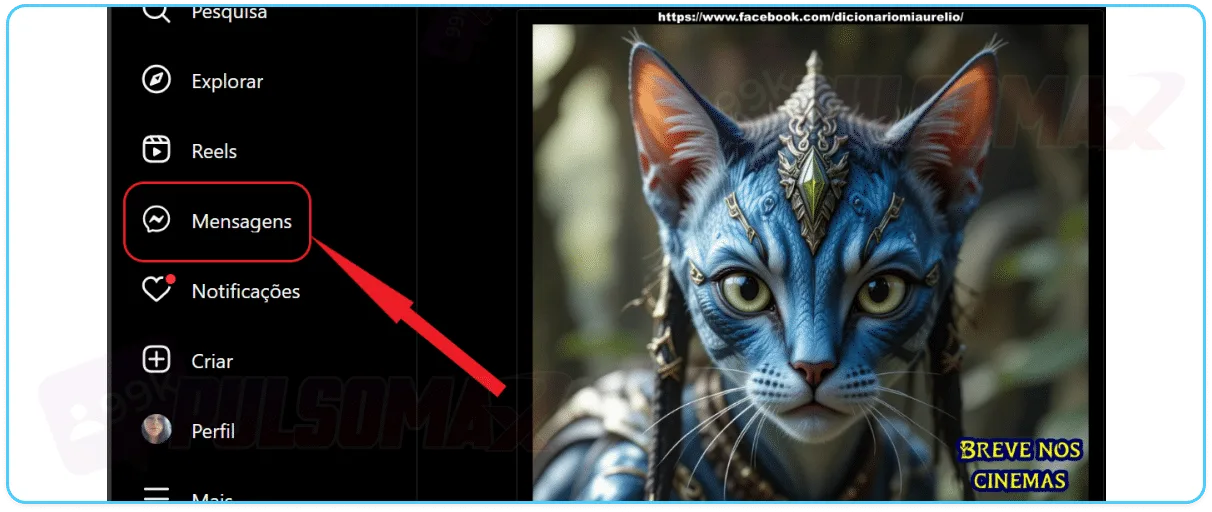
 Done! You've learned how to delete Instagram conversations using your computer. Now you can delete as many conversations as you want, whenever you want! But, if for any reason you need one of those conversations back, read our other post: how to recover deleted Instagram conversations .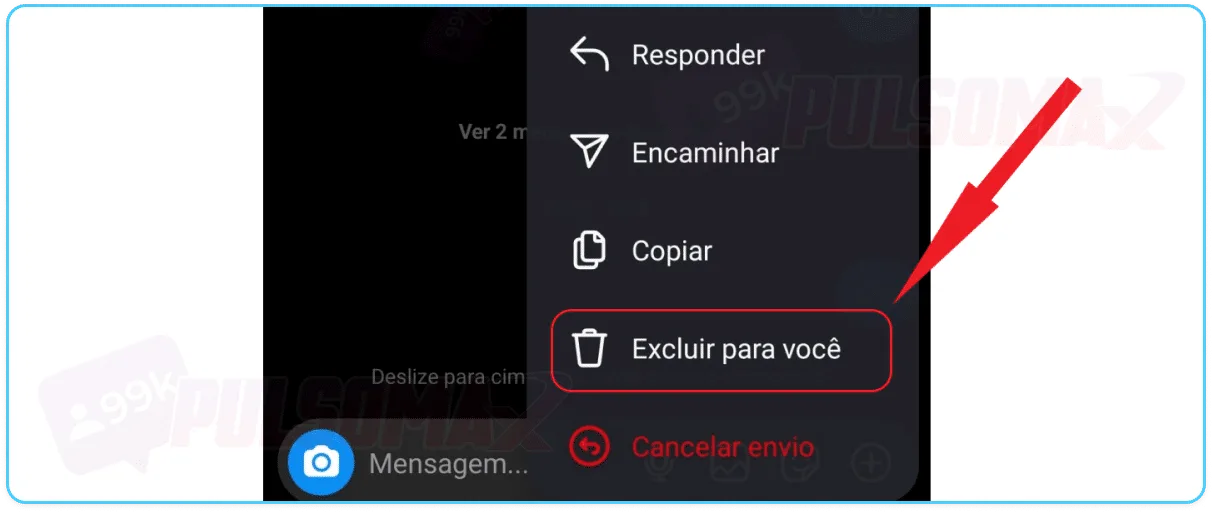
 Tip: This function is useful if you want to delete multiple messages at once.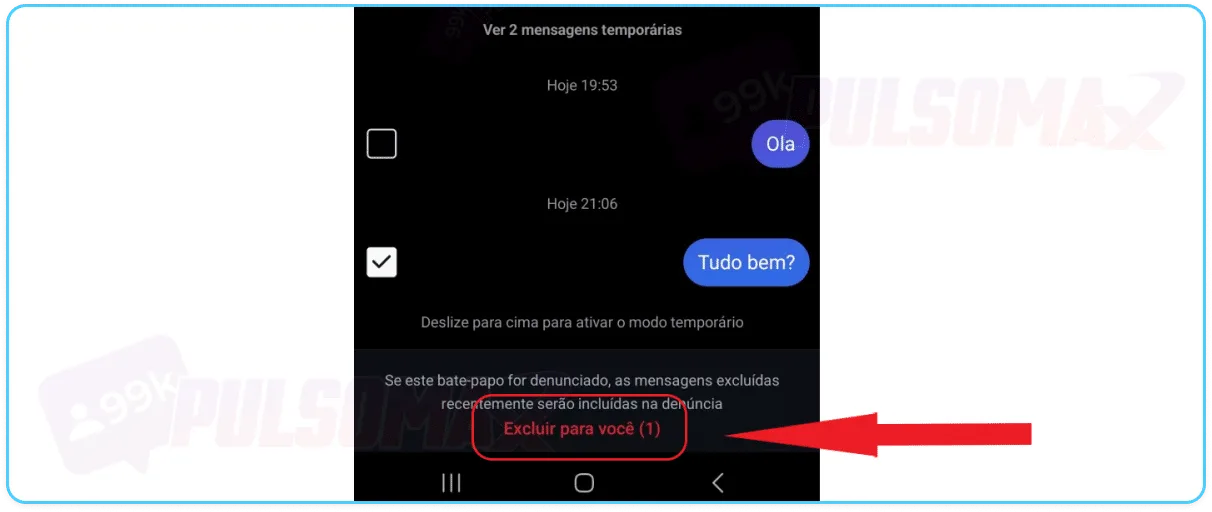
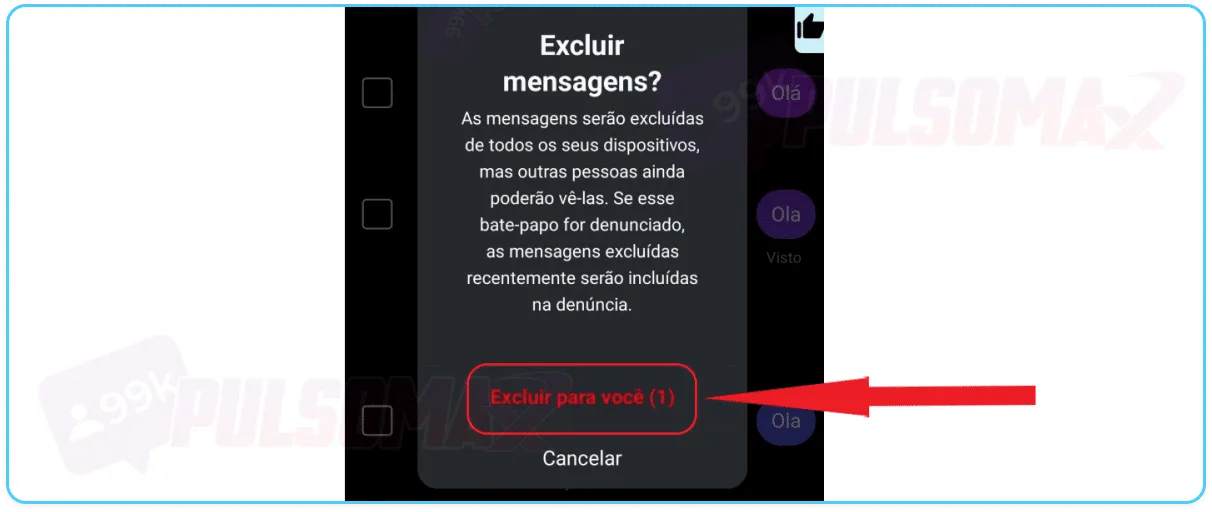 Done! Message deleted. However, this step-by-step process only deletes the message from the conversation for you. If you want to delete it for both of you, select the desired message: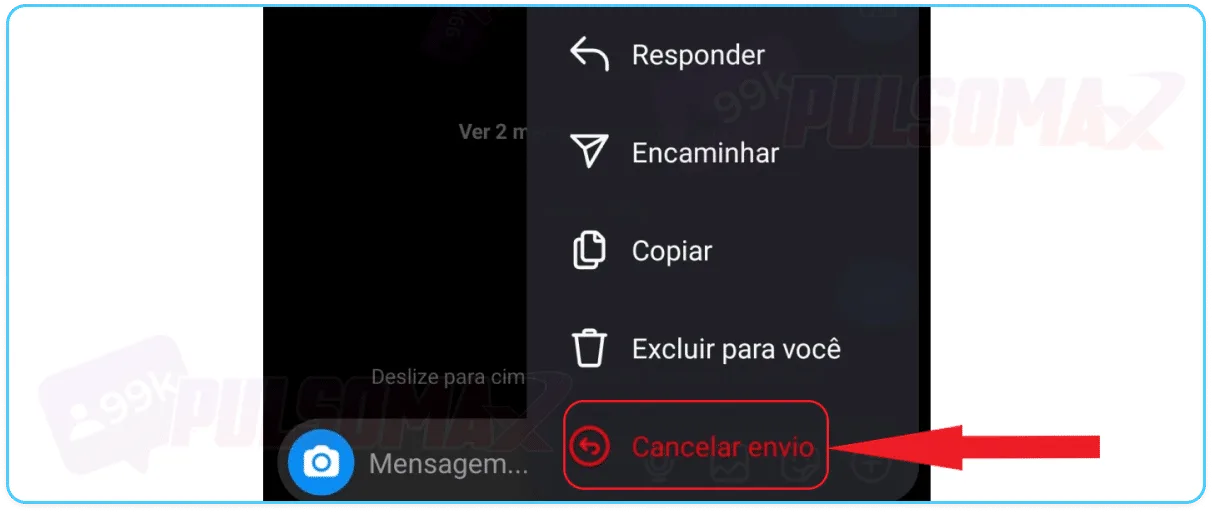
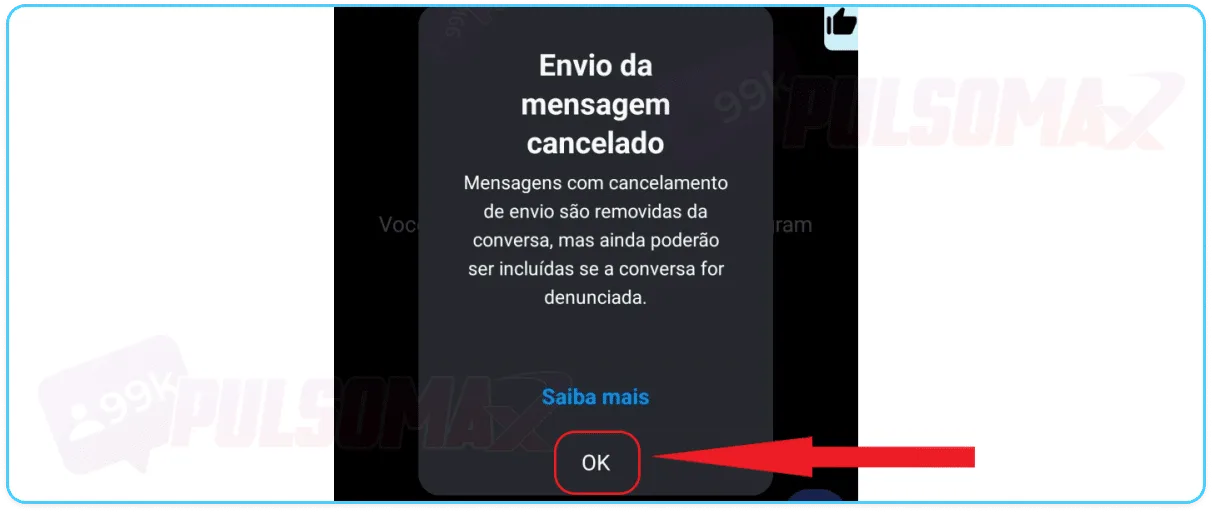 Done! No further action is required.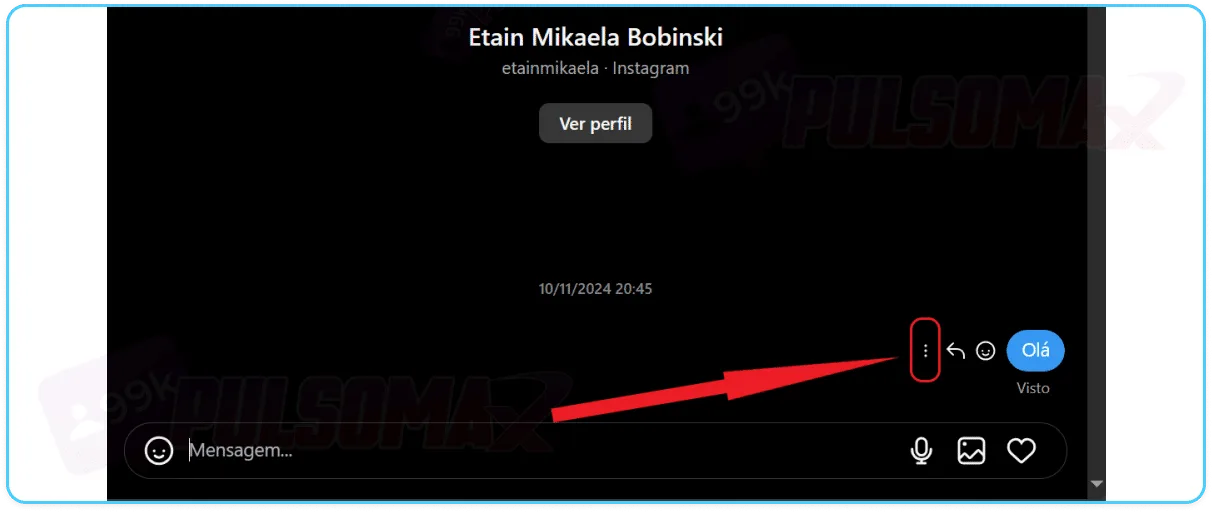
 Note that the "delete for yourself" option is not available. Therefore, if you choose to delete the message via Instagram Web, you will have to delete it for everyone in the conversation.
 Done! Your message has been deleted for everyone in the conversation. But, if you accidentally delete a message this way, or need your messages back for any reason later, read our other tutorial: where are deleted Instagram messages located .
How to delete an Instagram conversation on your phone, step by step?
Instagram is one of the most feature-rich social networks available to users, and we've already seen this in other posts here on the blog, such as our complete guide on how to unarchive photos on Instagram . Therefore, if for any reason you want to delete your Instagram conversations, know that it's very easy to do! To begin, log into your Instagram profile on your Android or iOS app and follow the steps in our tutorial!Tap on your photo thumbnail in the bottom right corner:
Now, tap the button that looks like a speech bubble:
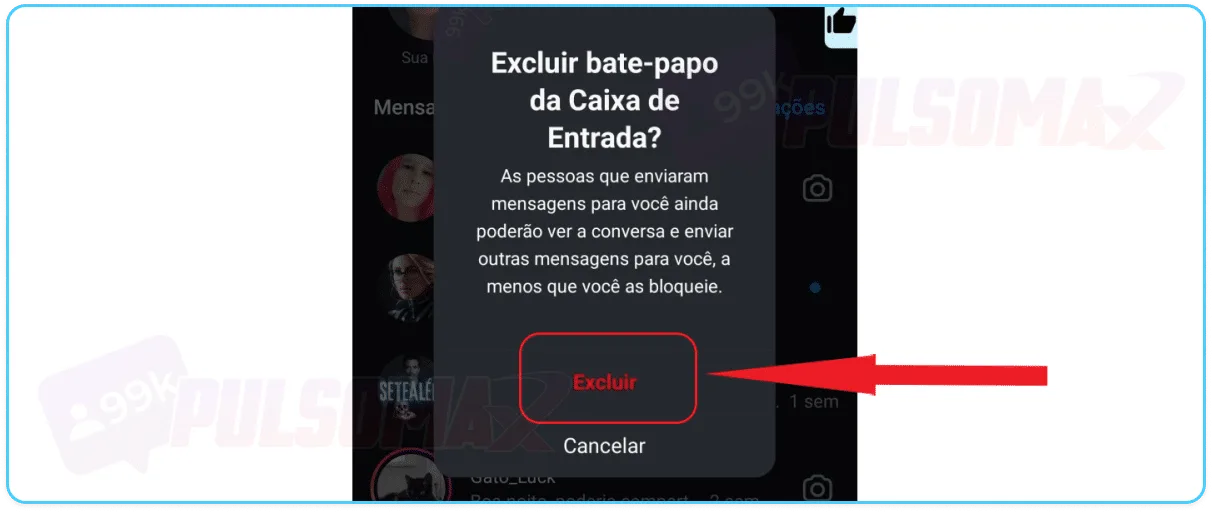
Tip: This button may have an airplane-shaped design, depending on your version of Instagram.Tap and hold on the conversation, then click delete.
Click delete again to confirm the deletion.
Done! You've learned how to delete a conversation from Instagram on your Android or iOS app!How do I delete an Instagram conversation on an iPhone?
To delete an Instagram conversation on your iPhone, the process is simple and identical to the step-by-step instructions above. The way to delete Instagram conversations is the same for both Android and iOS. After all, although the operating systems are different, and this impacts some Instagram app settings on your device, within Instagram, the features available for both Android and iOS are mostly the same. And the process of deleting conversations and messages is one of those features that doesn't change! So, follow the step-by-step instructions from the previous section and learn how to delete an Instagram conversation on your iPhone! If you want more exclusive tips for iPhone, also read: how to hide likes on Instagram iPhone .How do I delete an Instagram conversation on my computer?
If you like accessing your social networks via computer and are wondering how to delete Instagram conversations from your PC, know that the whole process is quite simple. Check it out below: Log in to Instagram Web with your credentials. And follow these steps:Tap on messages in the left corner of the screen:
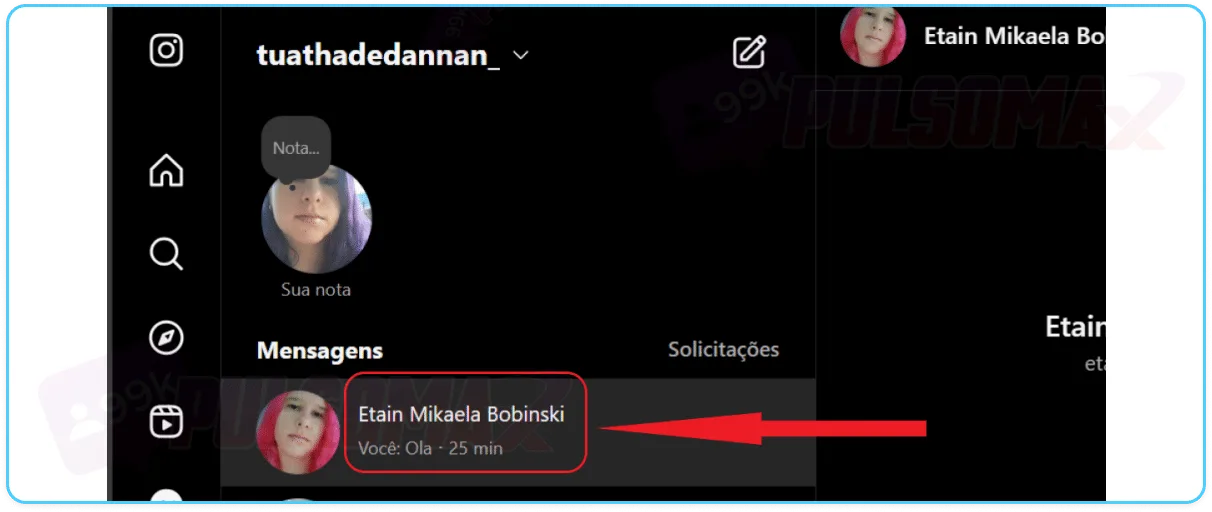
Tap on the chat you want to delete:
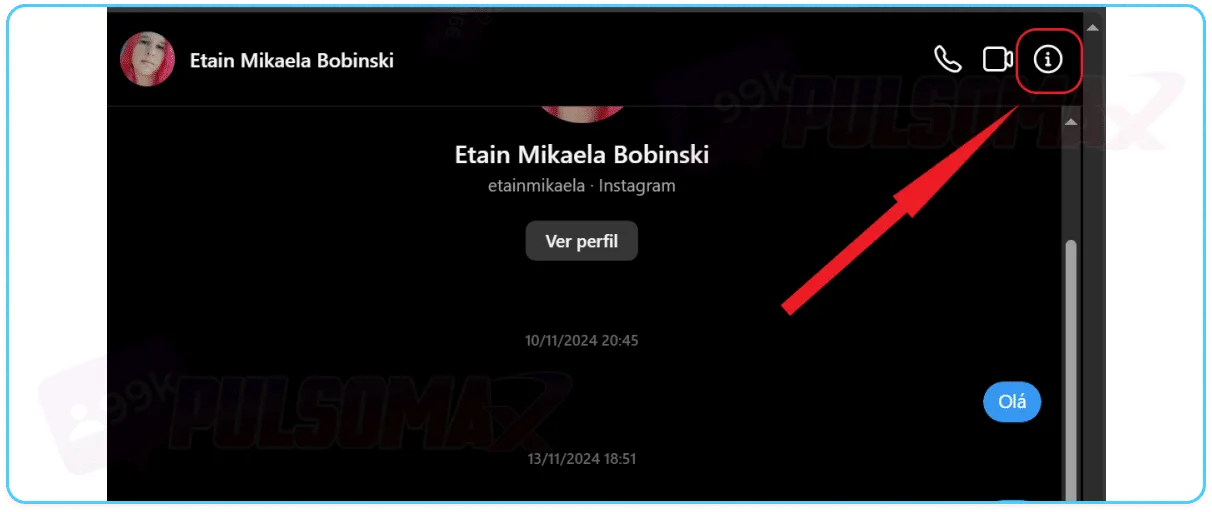
Tap the button with the letter I in the upper left corner:
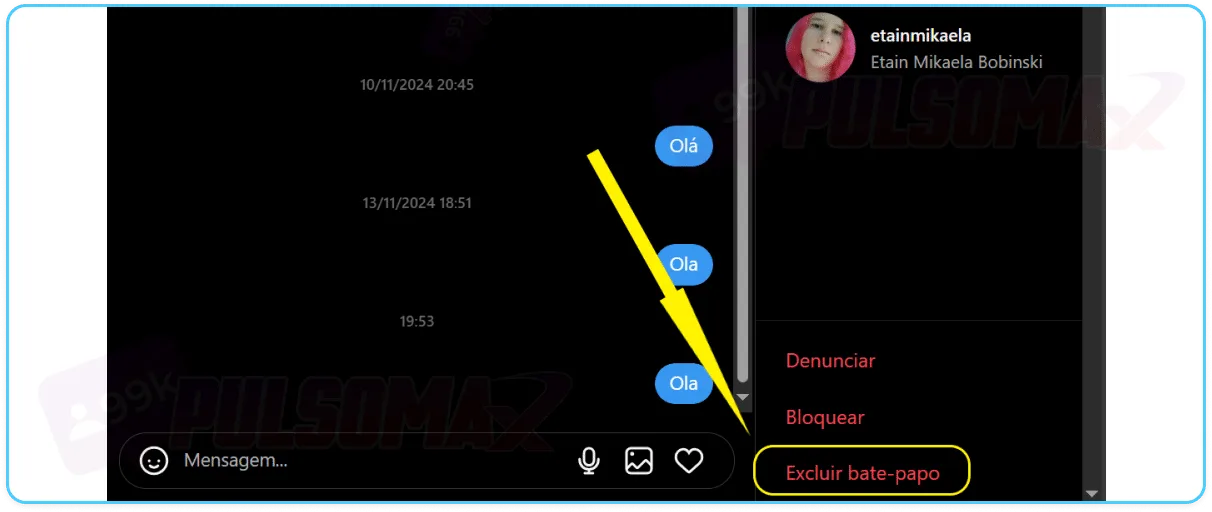
Click on delete chat:
Done! You've learned how to delete Instagram conversations using your computer. Now you can delete as many conversations as you want, whenever you want! But, if for any reason you need one of those conversations back, read our other post: how to recover deleted Instagram conversations .How do I delete a message on Instagram?
As you can see, figuring out how to delete a conversation on Instagram is actually quite simple. However, there are often situations where a user wants to delete only one message from a conversation, or a few messages from that conversation, but without deleting the entire dialogue. If this is the case, know that it's also easy to delete messages on Instagram. To begin, access your Instagram on your Android or iOS app. Then, tap the chat bubble button to access Direct, and then tap on the conversation you want to delete the message from to open the dialogue. If the conversation is already open, proceed with the next steps.Tap and hold the message, then click delete.
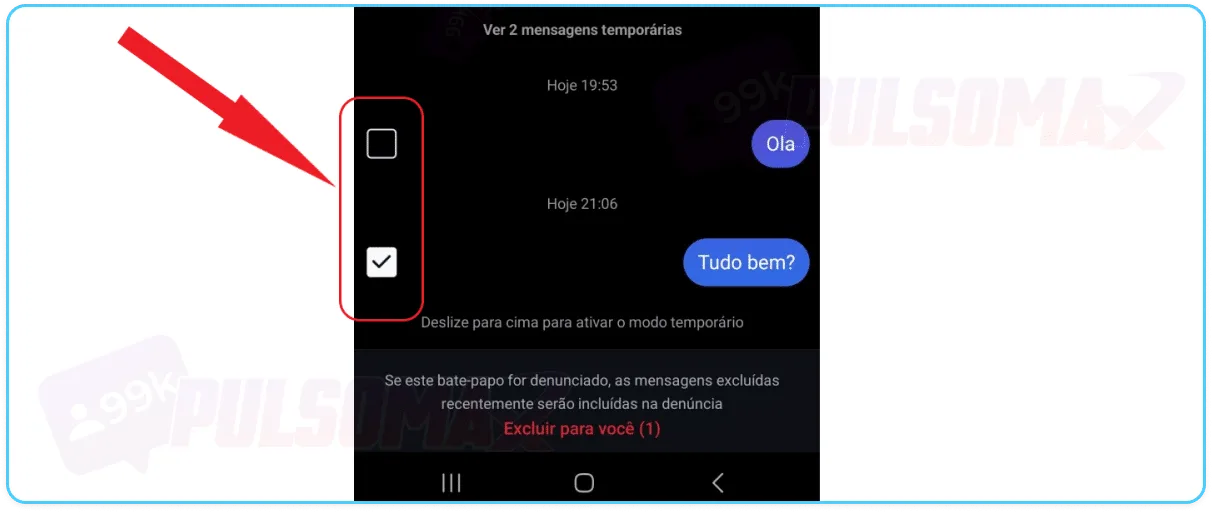
Select the messages to delete:
Tip: This function is useful if you want to delete multiple messages at once.Then tap delete for yourself:
Click again on delete for you:
Done! Message deleted. However, this step-by-step process only deletes the message from the conversation for you. If you want to delete it for both of you, select the desired message:Hold down and click cancel send:
On the next screen, click OK.
Done! No further action is required.How do I delete a message from Instagram on my computer?
Just like deleting Instagram conversations from a computer is possible, deleting direct chat messages from a PC is also possible! This way, users who enjoy chatting on the social network can take advantage of this feature. To begin, log into your Instagram Web account and click on "Messages" again, just as you learned how to delete Instagram conversations on a PC. Once in the chat, tap on the conversation from which you want to delete messages, hover your mouse over the message you want to delete, and:Tap the three dots:
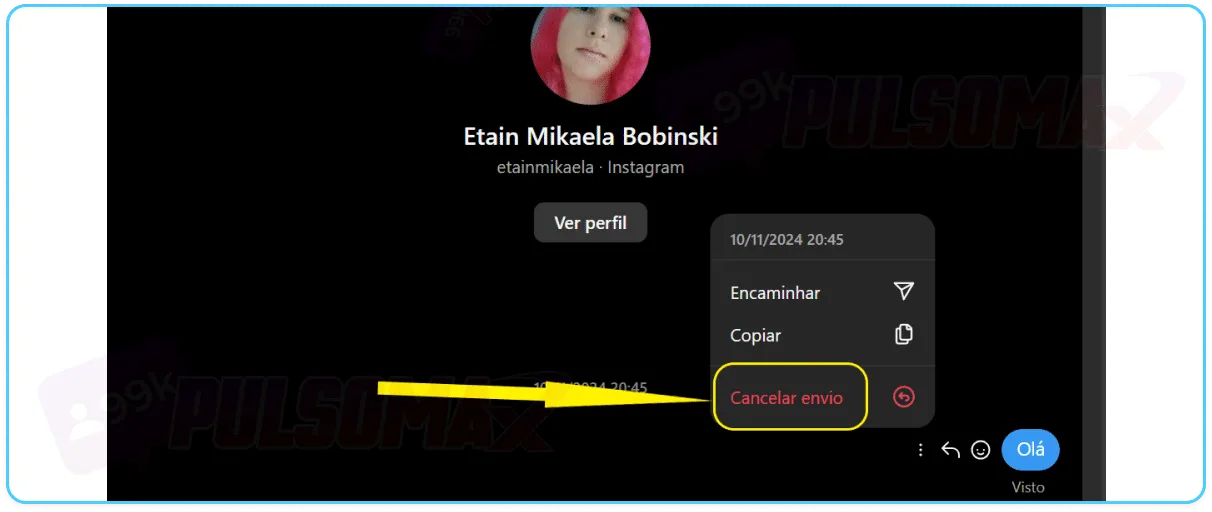
Next, tap cancel send:
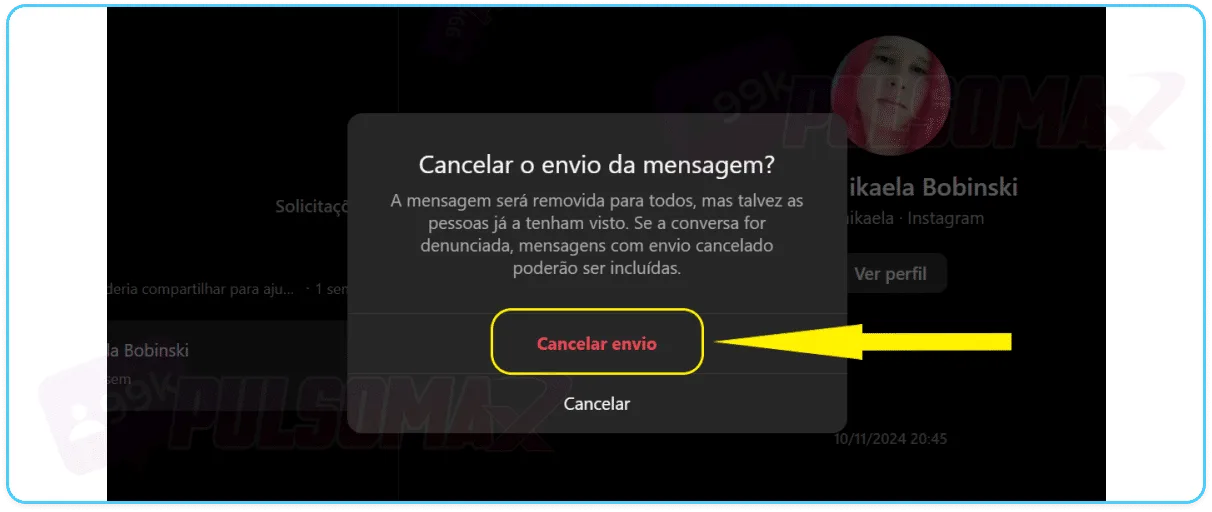
Note that the "delete for yourself" option is not available. Therefore, if you choose to delete the message via Instagram Web, you will have to delete it for everyone in the conversation.Click " Cancel Send" again to confirm:
Done! Your message has been deleted for everyone in the conversation. But, if you accidentally delete a message this way, or need your messages back for any reason later, read our other tutorial: where are deleted Instagram messages located .Can I delete multiple Instagram conversations at the same time?
Yes, it's possible! But if you've learned how to delete Instagram conversations and tried to delete multiple chats at once without success, there's a reason for that: the function to delete multiple Direct conversations at once is only available for professional accounts. If you have a professional Instagram account, or intend to convert yours to one, simply:- To access Direct, click the speech bubble icon in the upper right corner of the screen;
- Click on the menu button with 3 dots;
- Play without selecting chats;
- Select the conversations you want to delete and click delete.
If I delete a message, will the other person know?
It depends! You've learned how to delete Instagram conversations and also how to delete Instagram messages. If you delete the entire conversation, this won't delete the chat for the other person, and therefore they won't know you did it. They will still have a copy of the direct message on their device, and will only lose that conversation if they choose to delete it as well. Regarding deleting messages, if you delete the message only for yourself, the other user also won't know the messages were deleted, as they will still have the complete conversation on their device. This is one of the reasons why people choose to use the "delete for yourself" function instead of "undo send," similar to restricting on Instagram instead of blocking the user. Now, if you choose to undo send, then the undone messages will disappear for everyone in the conversation. Therefore, the other person will notice the deletion, and since they haven't deleted anything, it will be obvious that you were the one who deleted the messages. Even if the chat is in a group, the other users will notice it as well, since the messages sent will include the user's name, just like on WhatsApp.Can I delete an Instagram message after it's been sent?
Yes, you can! And you can do it for all users using the "undo send" function, even if the sent messages are old. Because, unlike other channels like WhatsApp, there's no time limit on Instagram for permanently deleting messages, making that content disappear from the chat. So, when thinking about how to delete an Instagram conversation, you might want to think more carefully about actually deleting the entire conversation. Often, just deleting a few messages solves your problem. Remember: users often regret deleting a conversation completely because they end up needing it later! Don't want to lose your favorite audios, videos, and photos from Instagram posts? Check out our essential Instagram download tools and start downloading your content. All you need is the post link, even if it's from another profile.Can I edit a message I sent on Instagram?
Do you want to learn how to delete Instagram conversations or messages because you sent the wrong messages, regardless of the reason? Well, if that's the case, and especially if it's been less than 15 minutes since you sent those messages, know that there's a simpler solution: edit your content! The process is very simple, just:- Click and hold on the message;
- Tap on edit;
- Organize the contents;
- Click submit.
Why can't I delete a conversation on Instagram?
Have you ever tried to delete a conversation on Instagram but couldn't? This isn't a common problem, and when it happens, it's because there's actually an error causing this anomaly. To check, the first step is to verify if your app is up to date, as this could be an app incompatibility error due to it being an older version. So, go to the Play Store or Apple Store, search for Instagram, and if the update option appears next to the app's name, click on it. If your app is up to date, or updating didn't solve the problem, the reason might be something else:- There is a bug in the app that has not yet been fixed;
- Instagram is experiencing a temporary outage;
- Connection problems with your internet network or mobile data plan.
- The message was sent by the other user (it's only possible to delete your own messages);
- The recipient's account has been deleted or banned by Instagram;
- The user blocked you.