Instagram
  by
by 
 10 min read

If you use social media daily, you've probably wondered where deleted Instagram messages are located. The reasons for this are varied, ranging from concerns about privacy and the use of personal data to the need to recover important messages that were accidentally deleted. Instagram is one of the most popular social networks worldwide. One of the main reasons for this popularity is Instagram Direct , which allows users to exchange text messages, and even photos and videos. However, these messages can be deleted, leading to the loss of content. Of course, most of the time this isn't accidental. But there are always users who delete messages and regret it later. Or those who delete them unintentionally and then can no longer recover what was said in that part of the conversation. For all these people, the questions immediately arise: is it possible to recover them? Where are deleted Instagram messages located? Is there some kind of recycle bin, like on computers and cell phones, where you can see and recover deleted content? If you're one of those people looking for answers to these and similar questions, keep reading, because this article was written to help you!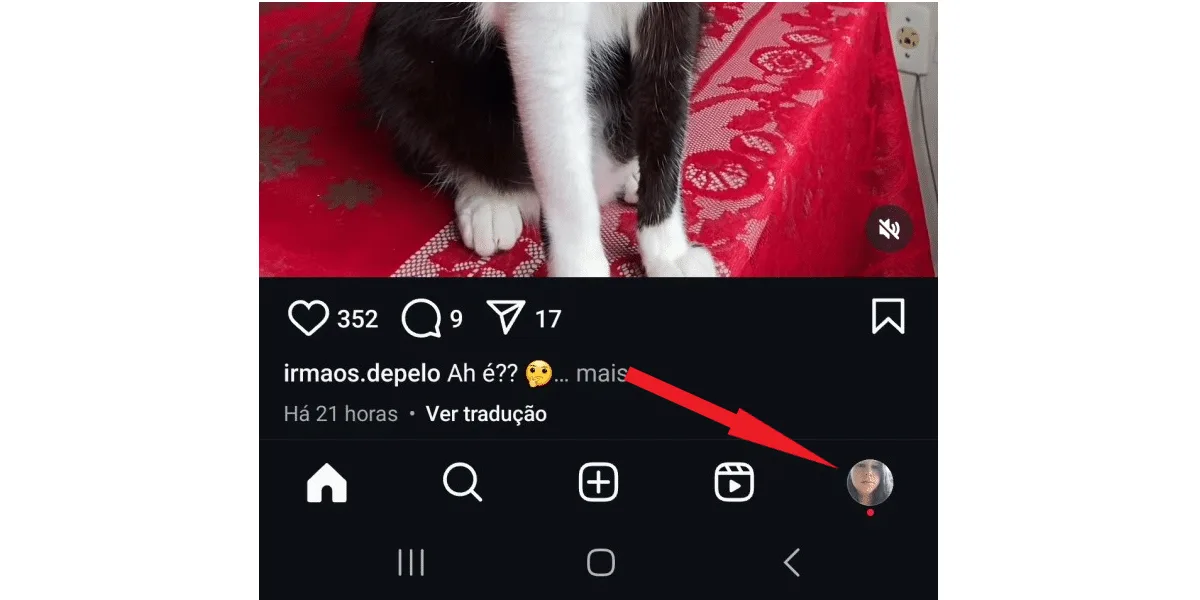 Next, tap the 3-line button .
 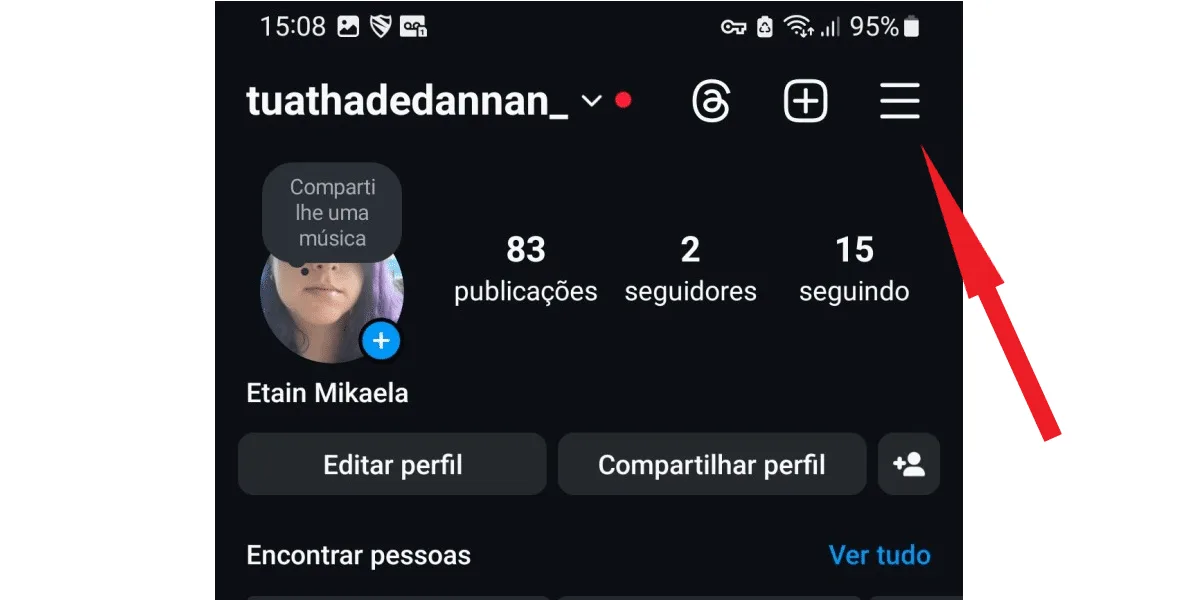 On the next screen, log in to your activity .
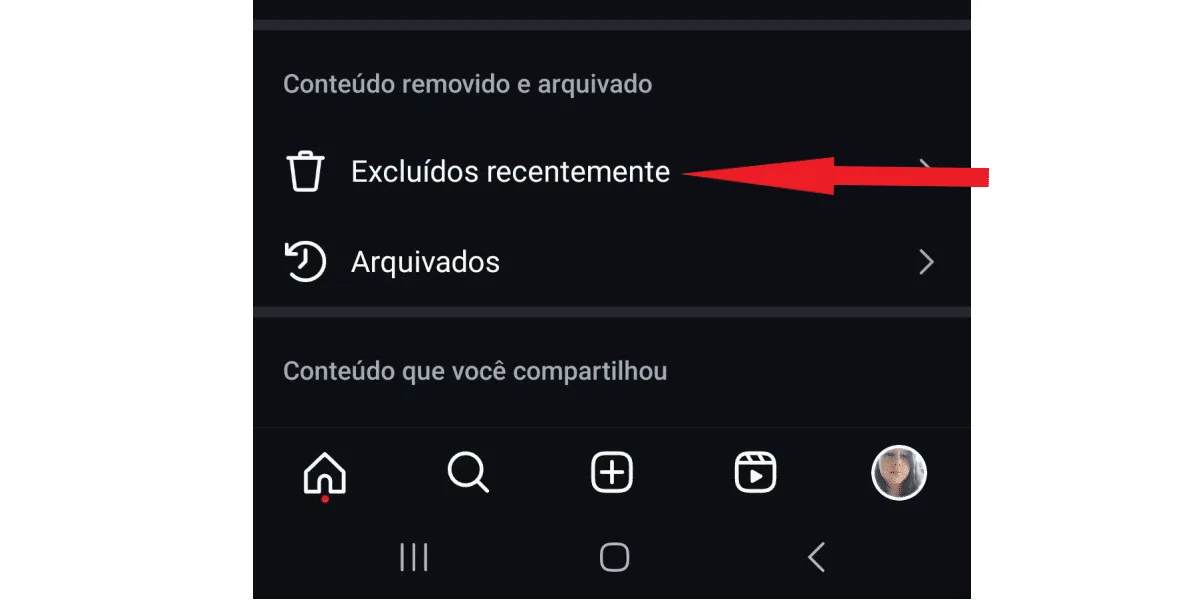
 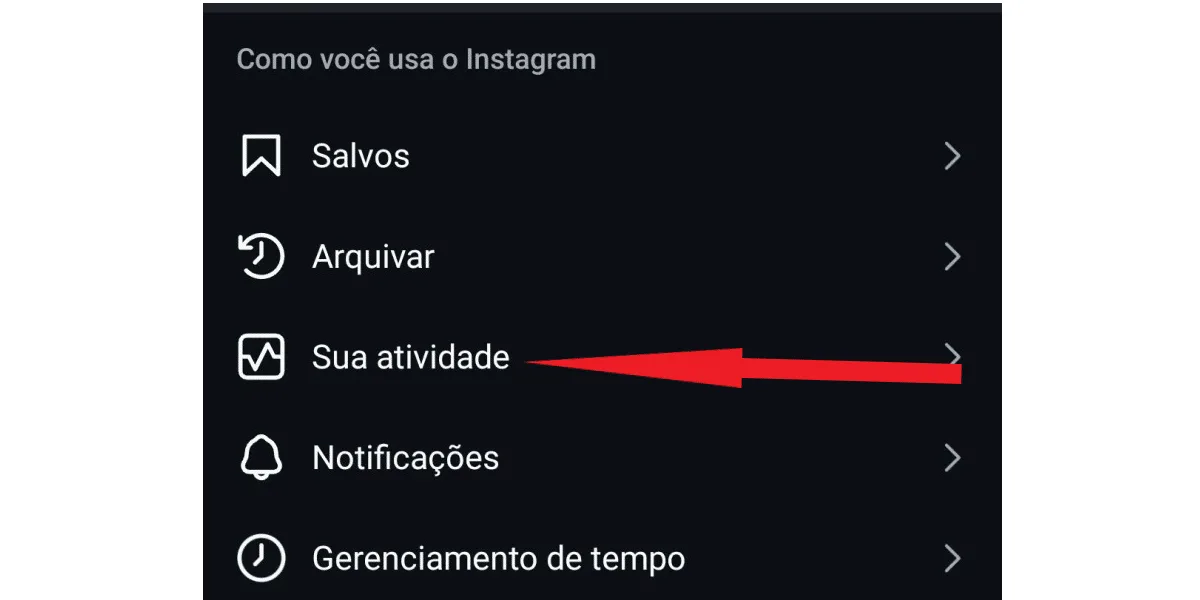 Now, tap on recently deleted.
  Want to save your Instagram audio files but don't know how? Try ourInstagram audio download tool. That way, you won't lose your audio files, even if they are deleted in the future!
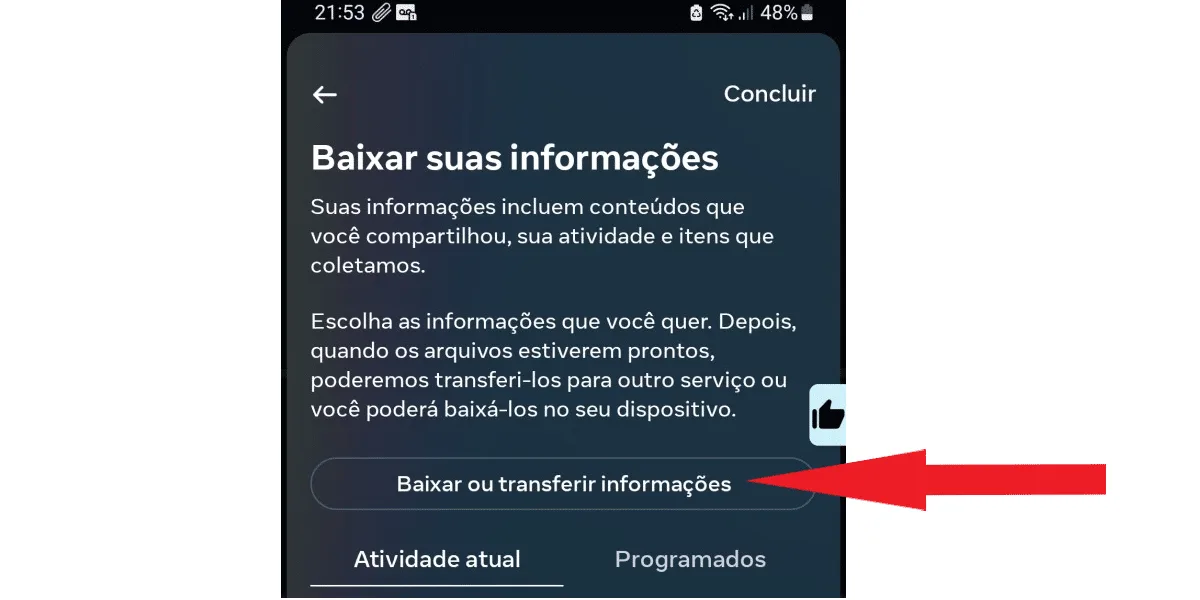
 Next, click on download or transfer information , as shown in the next image.
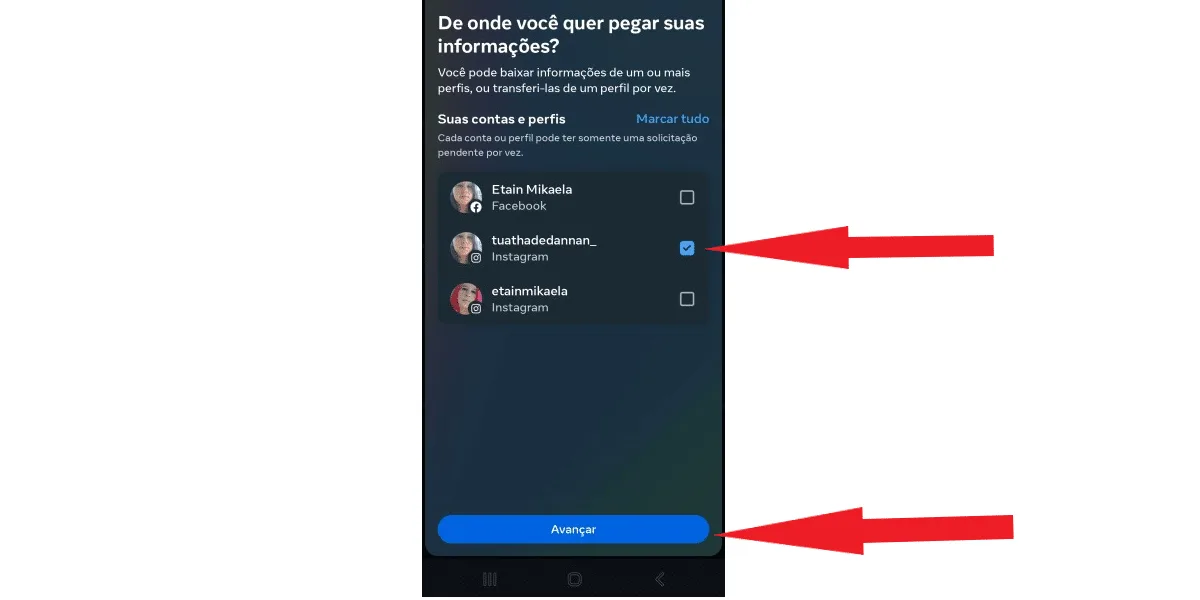
  Next, if you have more than one profile, select where you want your information about deleted Instagram messages to be transferred from. Remember that Meta owns both Facebook and Instagram. Therefore, if your accounts are linked across platforms, you need to choose the profile you use on Instagram. Then, check the box with the correct profile and click next . See the next image:
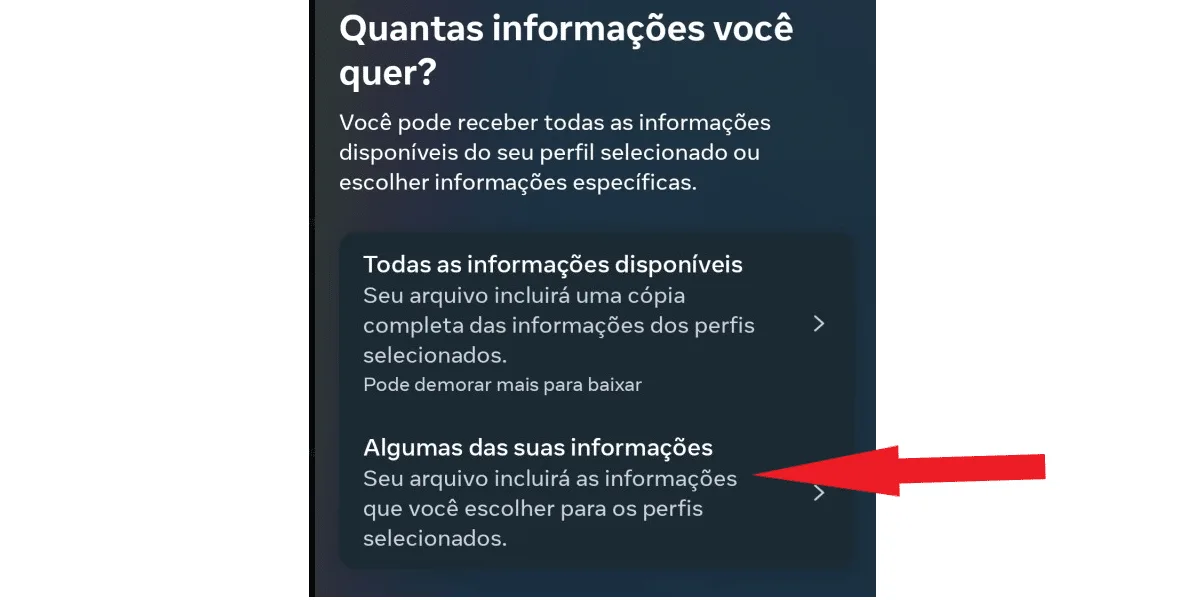
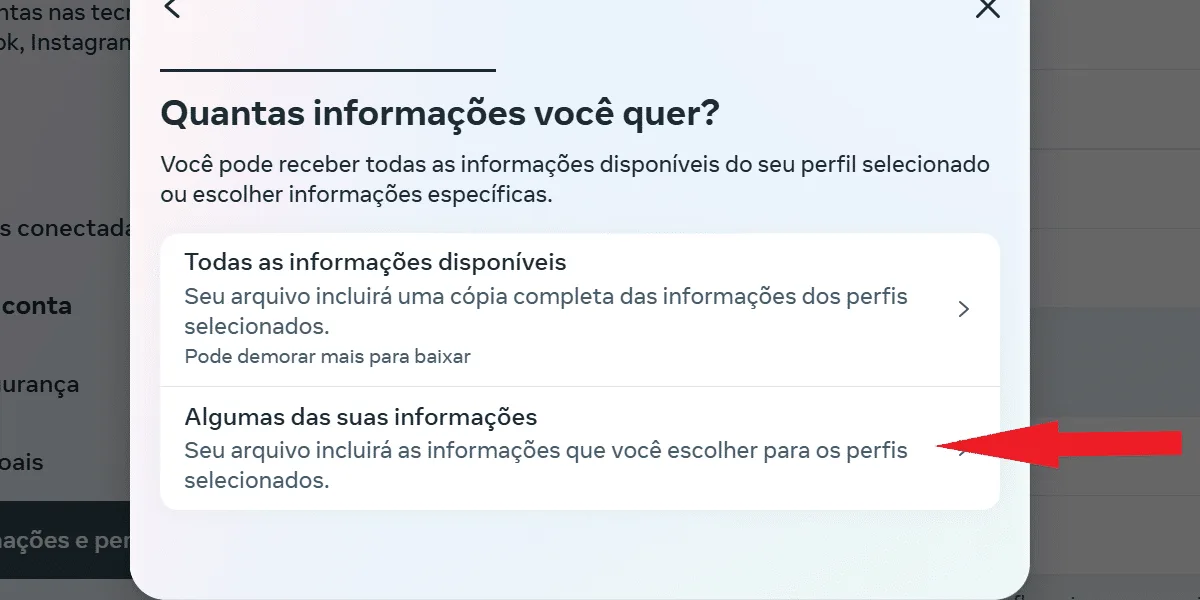
  In the next tab, you can choose between all your information and some of your information . To download only the messages, tap the second option.
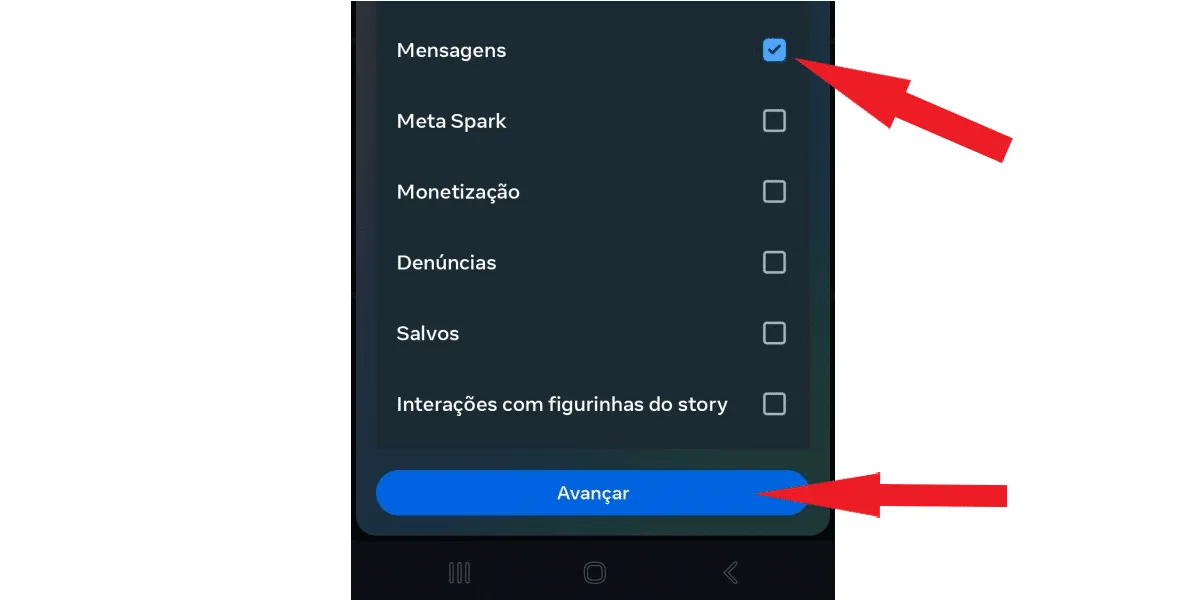
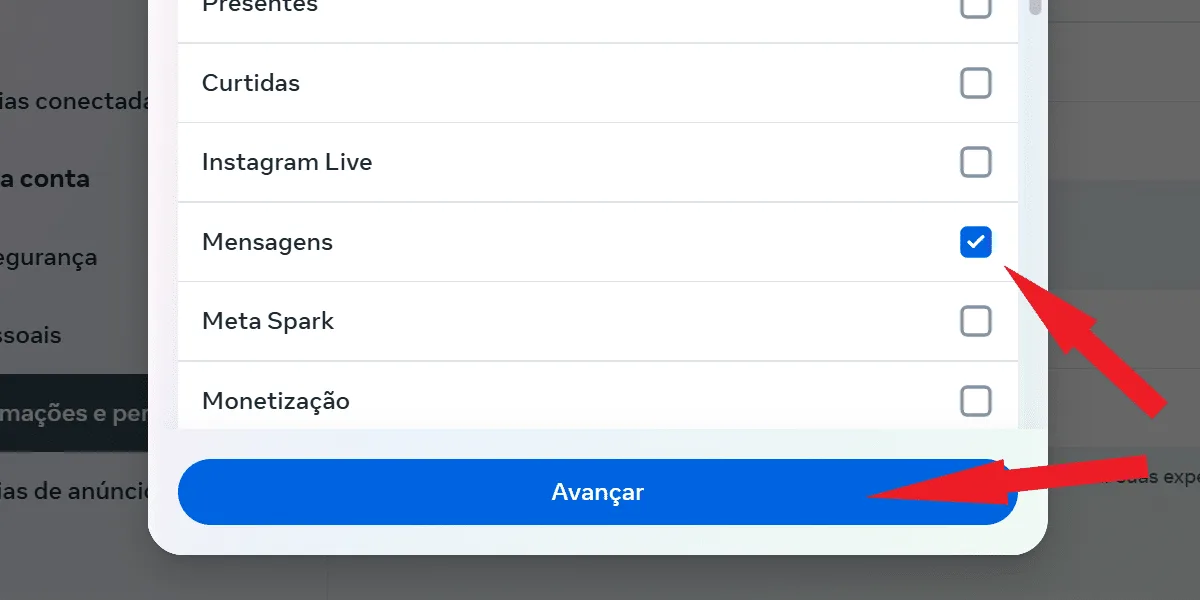
  Scroll down until you find the messages box. If you want to download other information as well, check the boxes with the content you want. When you're finished, tap next .
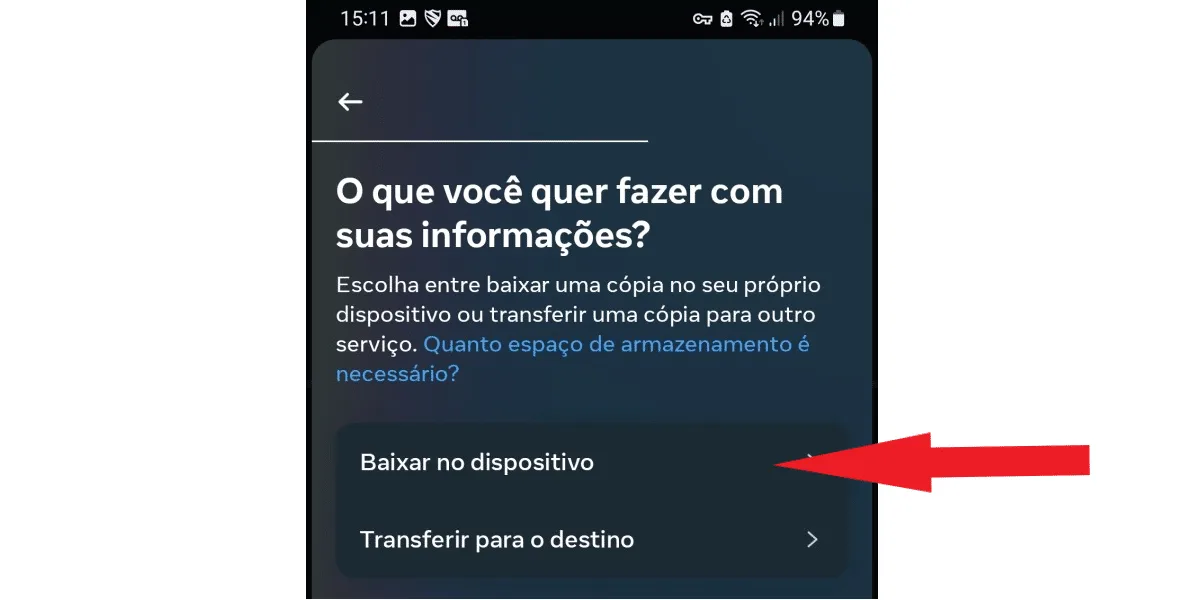
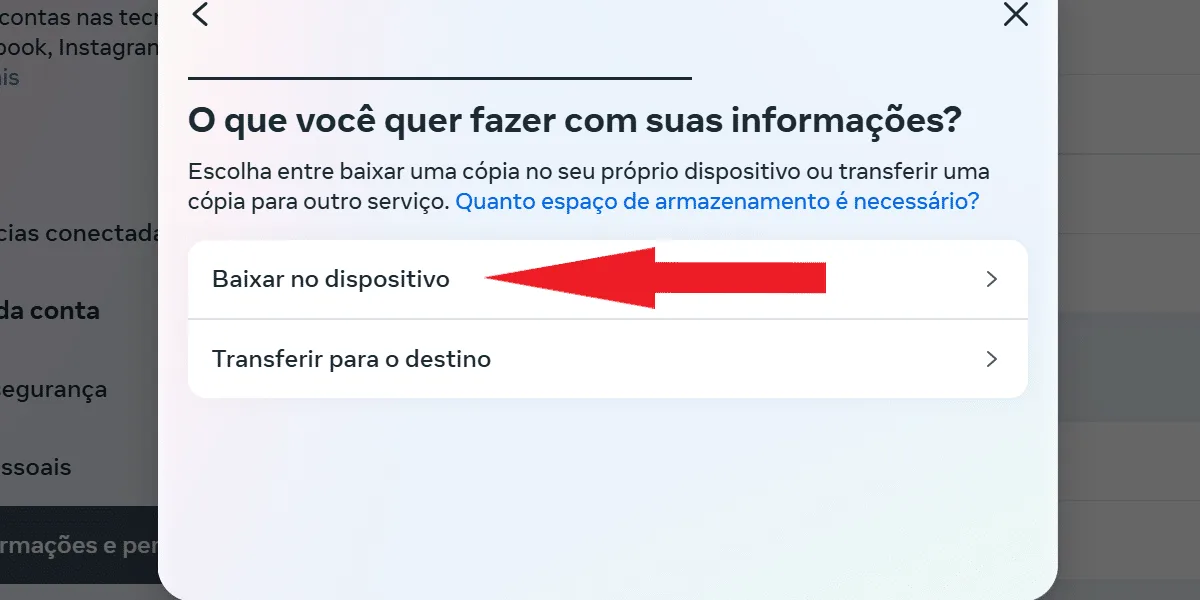
  On the next tab, tap download to device (you can also choose transfer to destination , in which case Instagram will ask you to choose between saving to Dropbox or Google Drive):
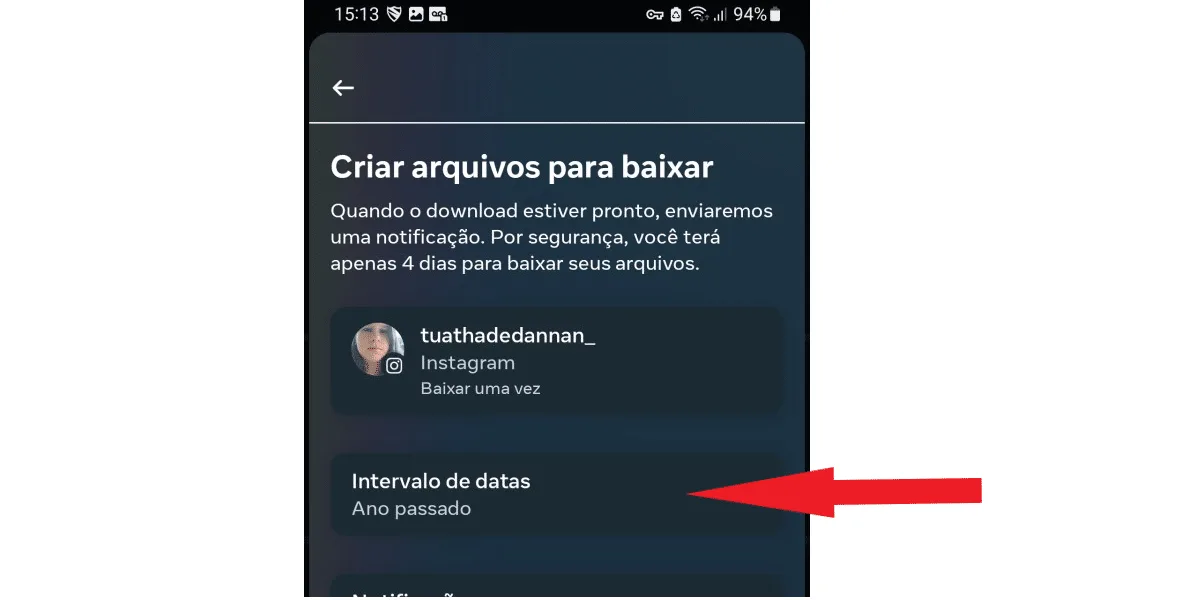
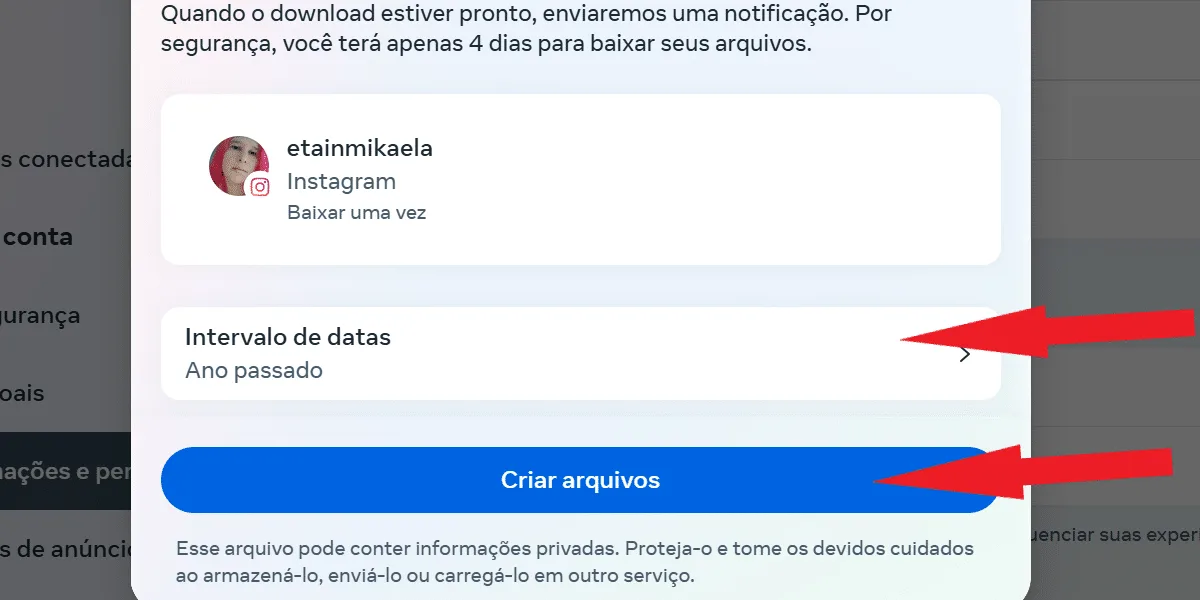
  Next, click on the date range:
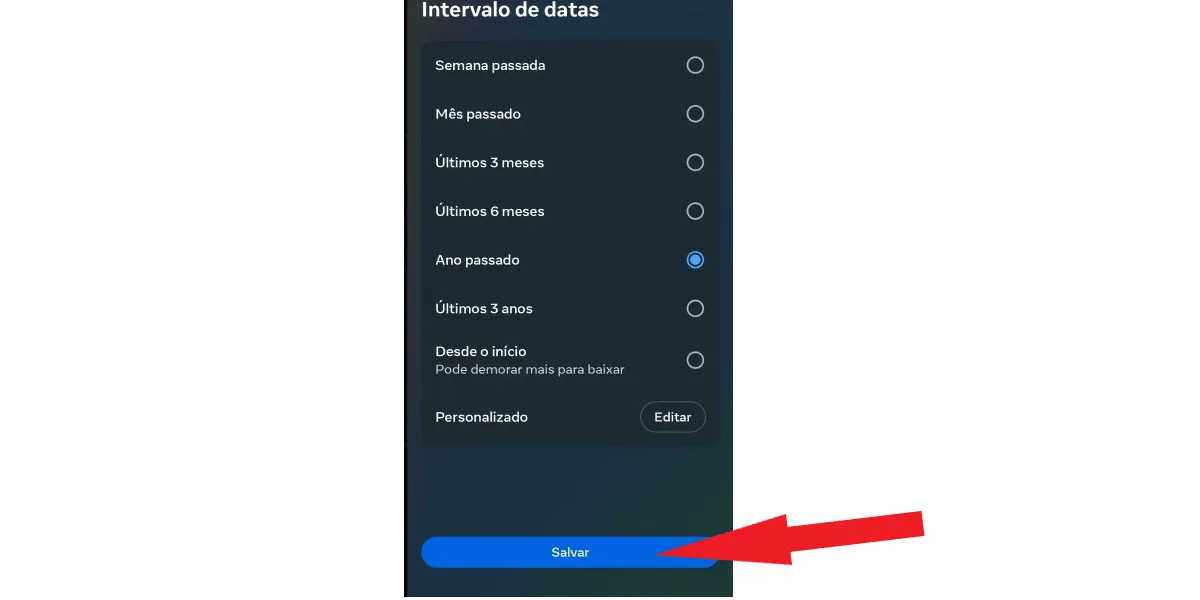
  Now, select the time period of the information you want to download and click save. You can download all your data from the beginning, or select shorter intervals, which reduces the final file size if you don't need all the messages from your account.
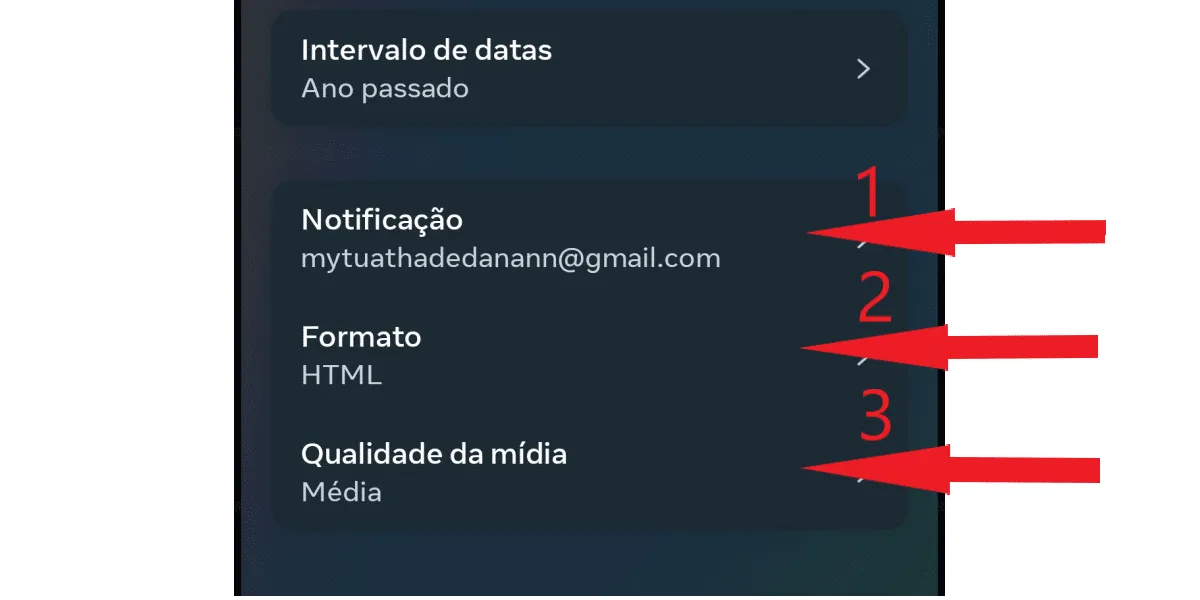
  Review the remaining details. You decide which email address to receive the notification at (1) (valid only for emails registered in the account), the format (2) (HTML or Jason), and the media quality (3) (low, medium, and high). We recommend leaving it on medium quality, as the file will have good resolution and will not take as long to download as "high quality". Note:
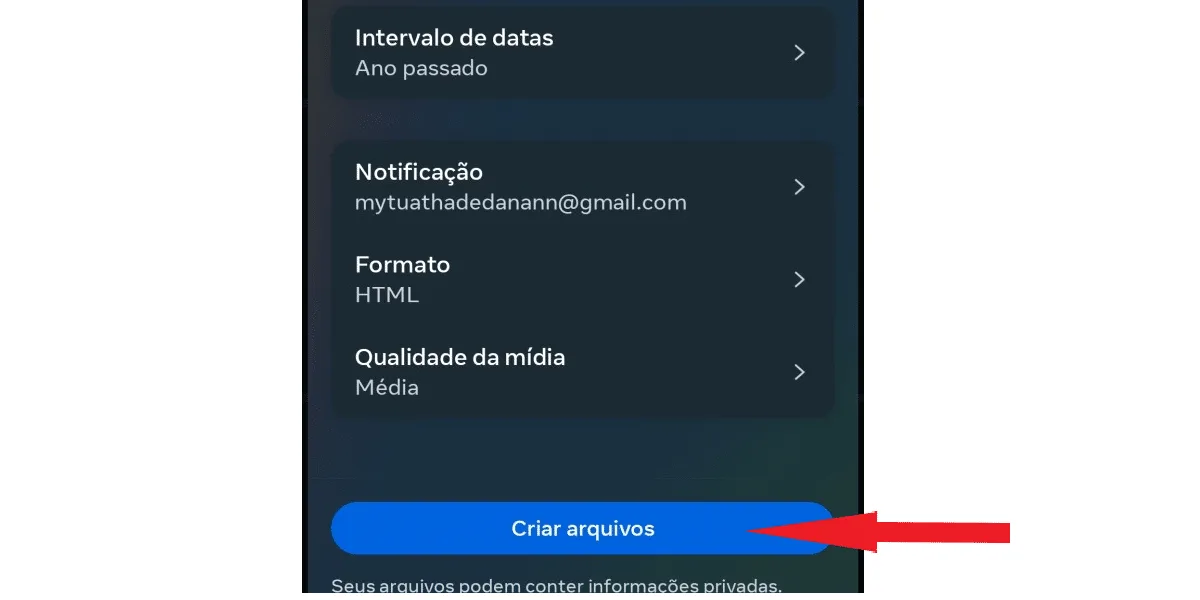
  When finished, click create file.
  Your download in progress will now be visible in the current activity tab.
 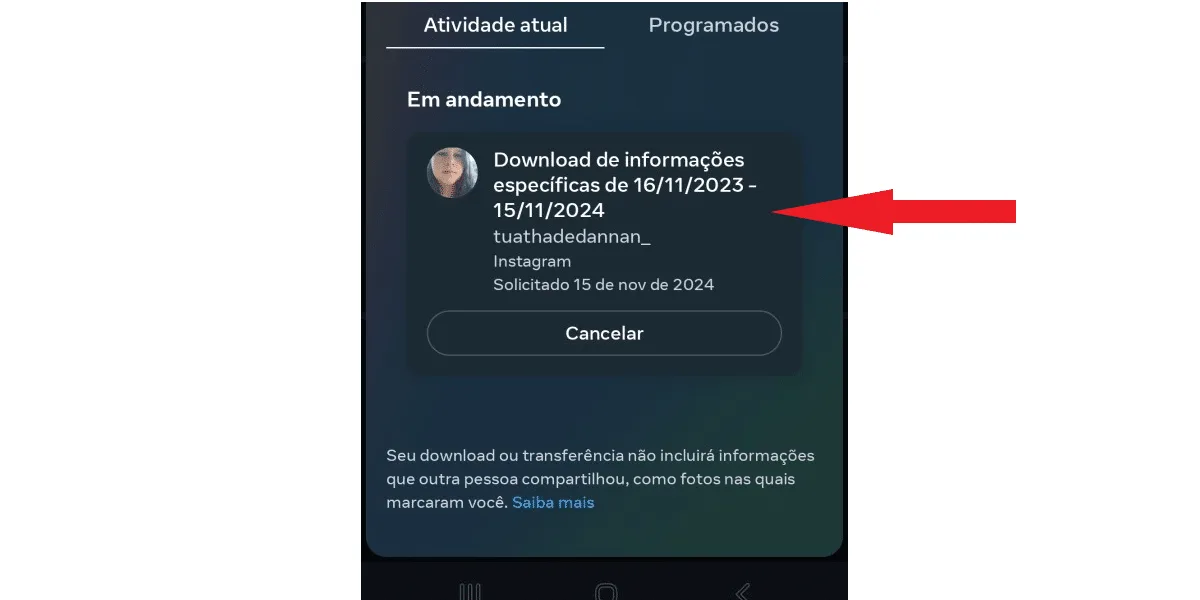 You have the option to cancel the process. However, if you do so, no files will be downloaded, and you will need to request the download again to see your deleted Instagram messages.
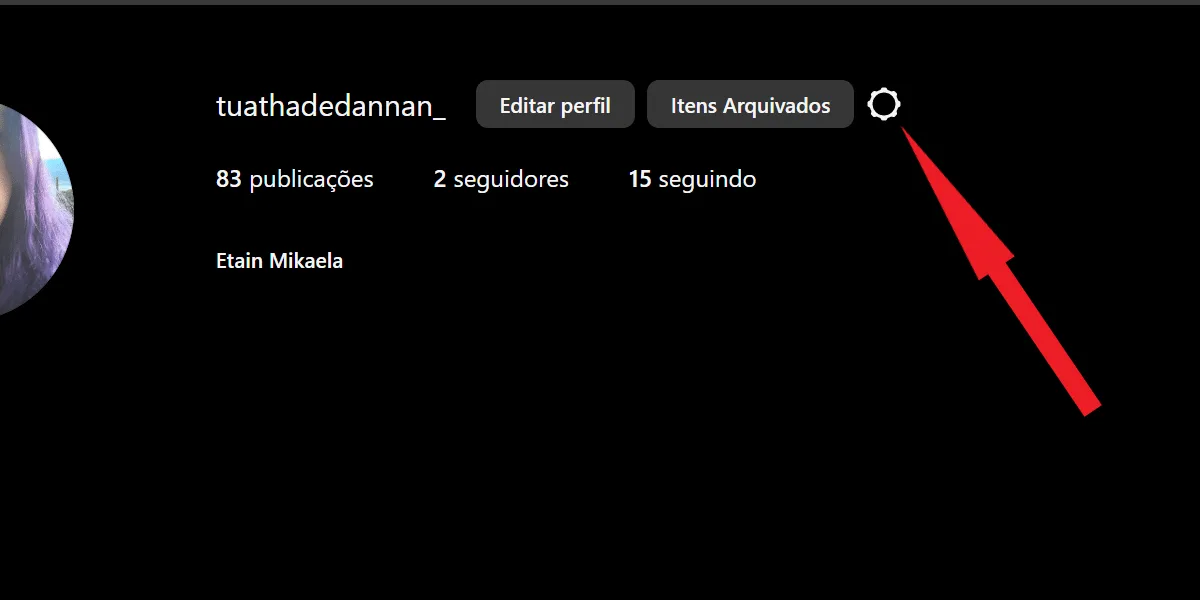
 Next, tap the gear icon to open your account settings:
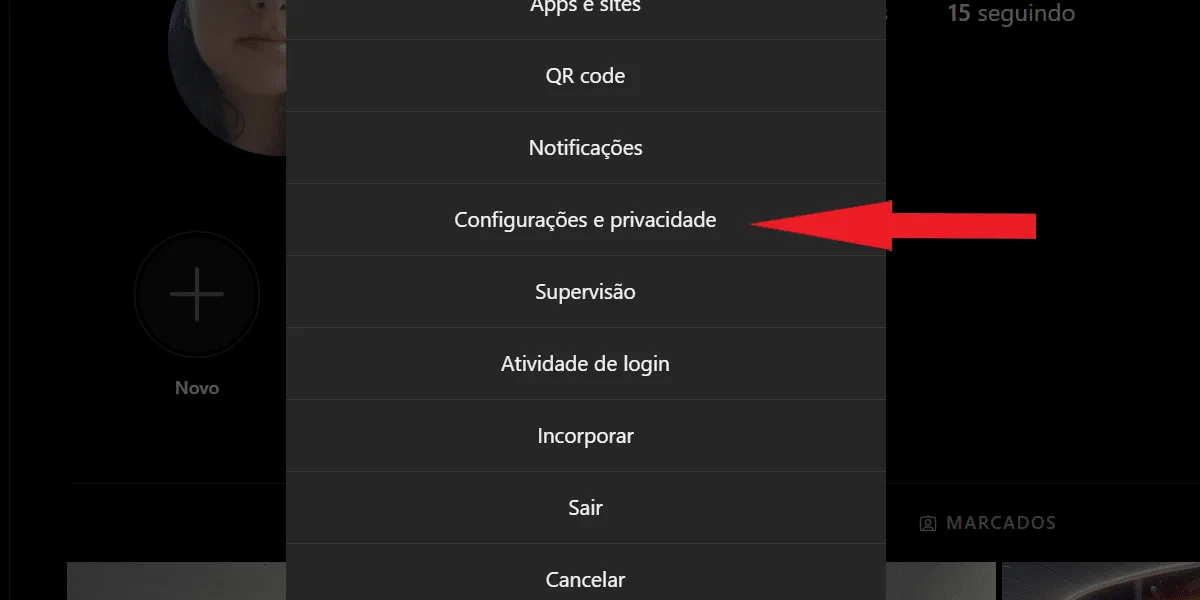
  Now, select settings and privacy.
  Click on account center.
 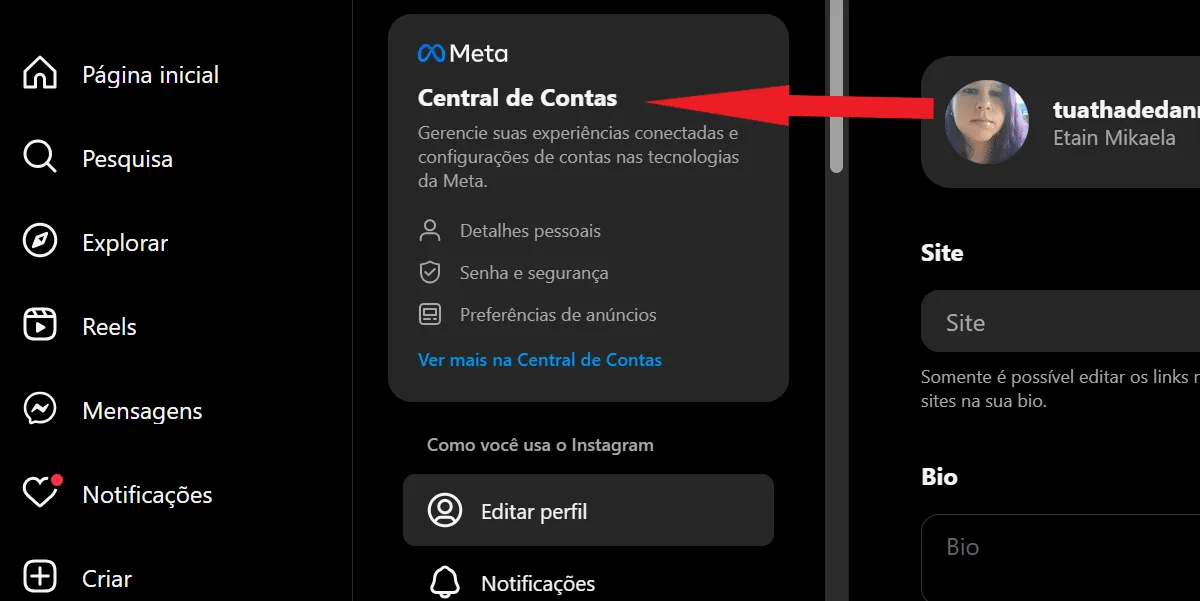 Tap on your information and permissions.
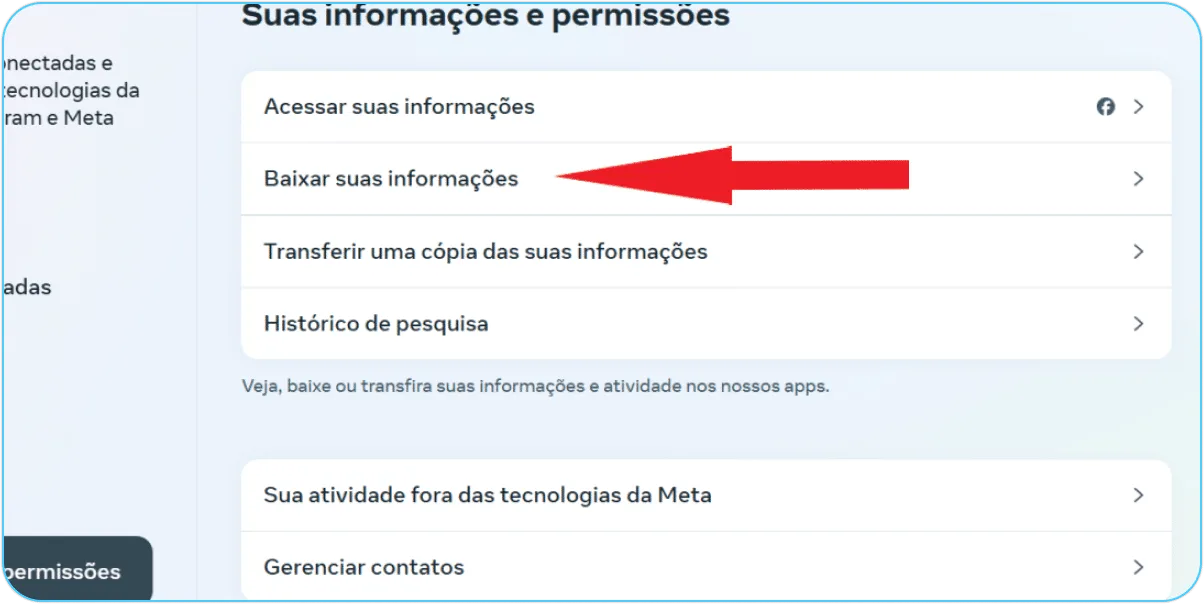
 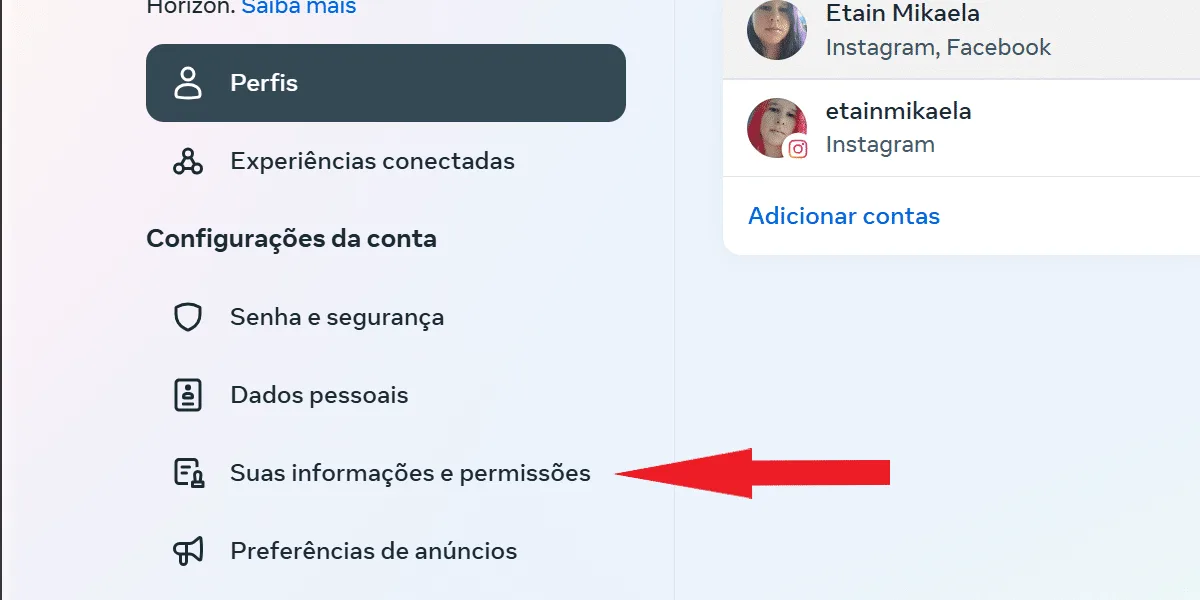 Then, click to download your information.
  Choose the profile from which you want to download the data and tap the blue next button.
 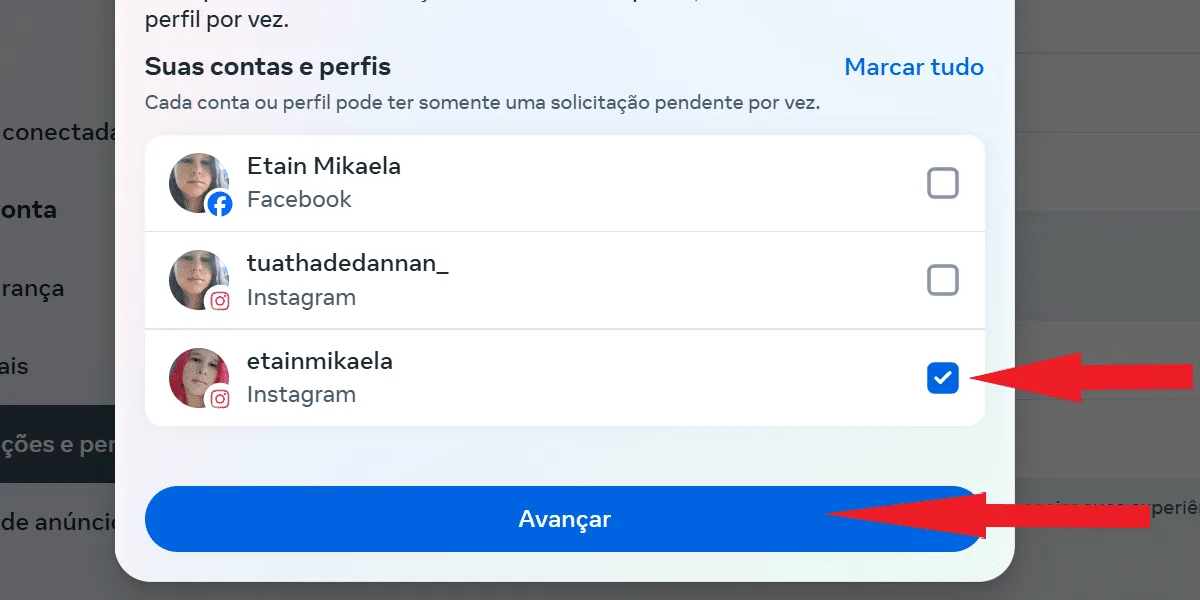 Tap on some of your information .
  Select messages from the list and click next.
  Tap to download on your device .
  Click on date ranges to select the period you want, similar to the application, and then click on create files .
  Your request will begin to be processed by Instagram, and you can check its progress in the current activity section, right after clicking to download or transfer your information, either via the app or on Insta Web.
 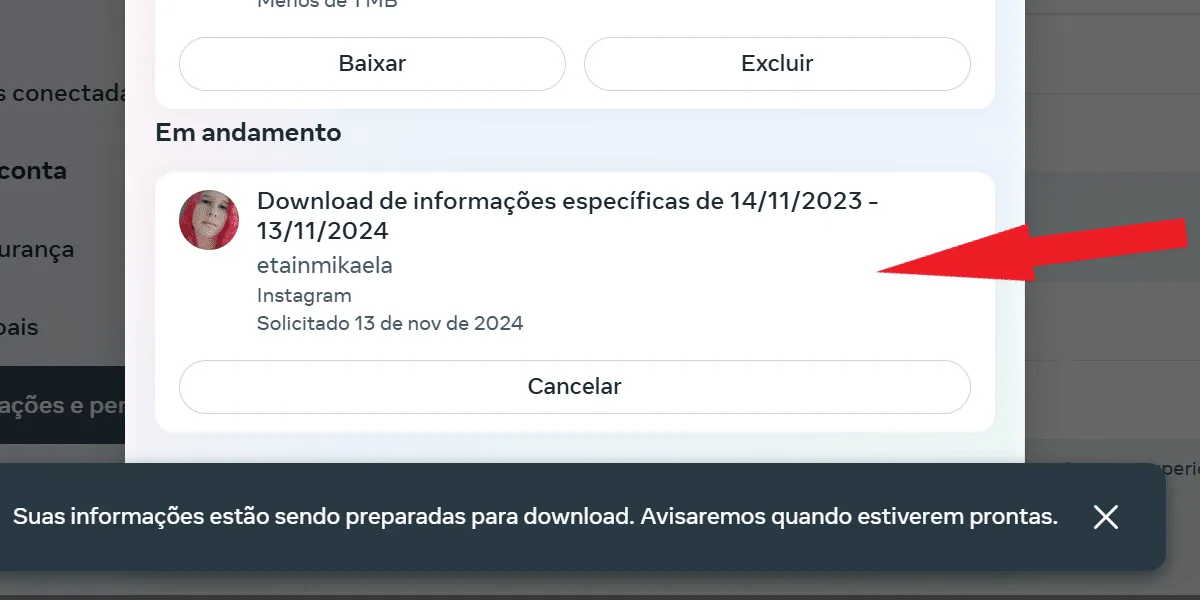 Done! Now just wait for the file to be ready, and come back to download it when it's finished. And don't worry, Instagram will notify you via email in the same way as in the app request process.
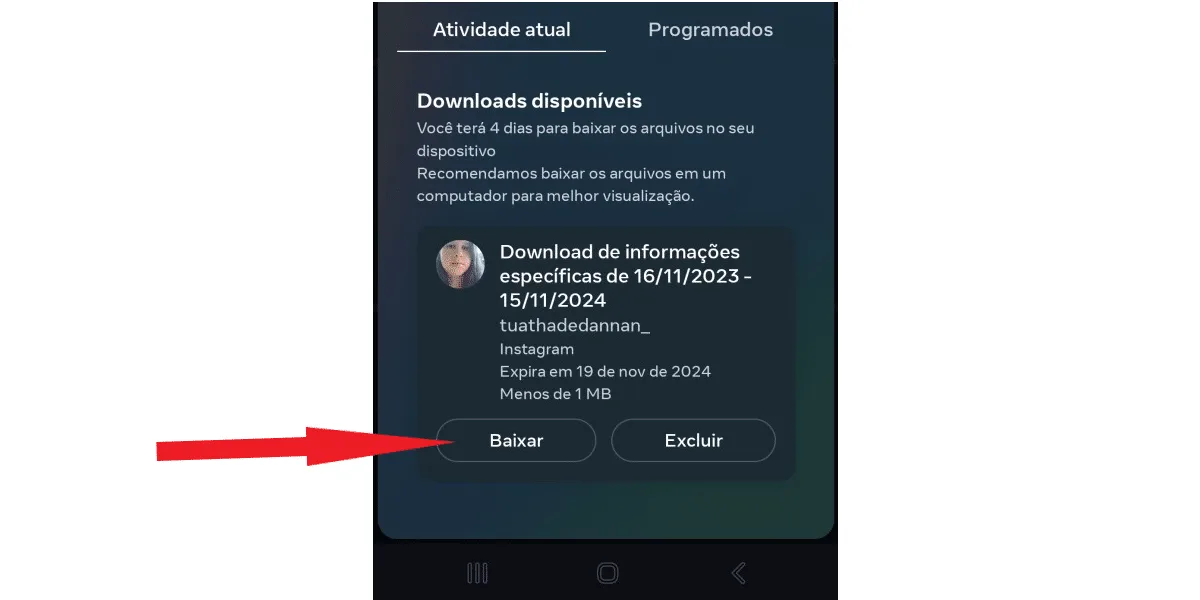 Please note that the file has a scheduled expiration date. According to Instagram's notification email, the deadline is 4 days, for data security reasons. So, if you forget and don't download it within that time, you will need to request a new file, going through the entire request process to download your information again. While you wait, take the opportunity to check outwhat's on Instagram today!
 Next, scroll down and go to notifications.
 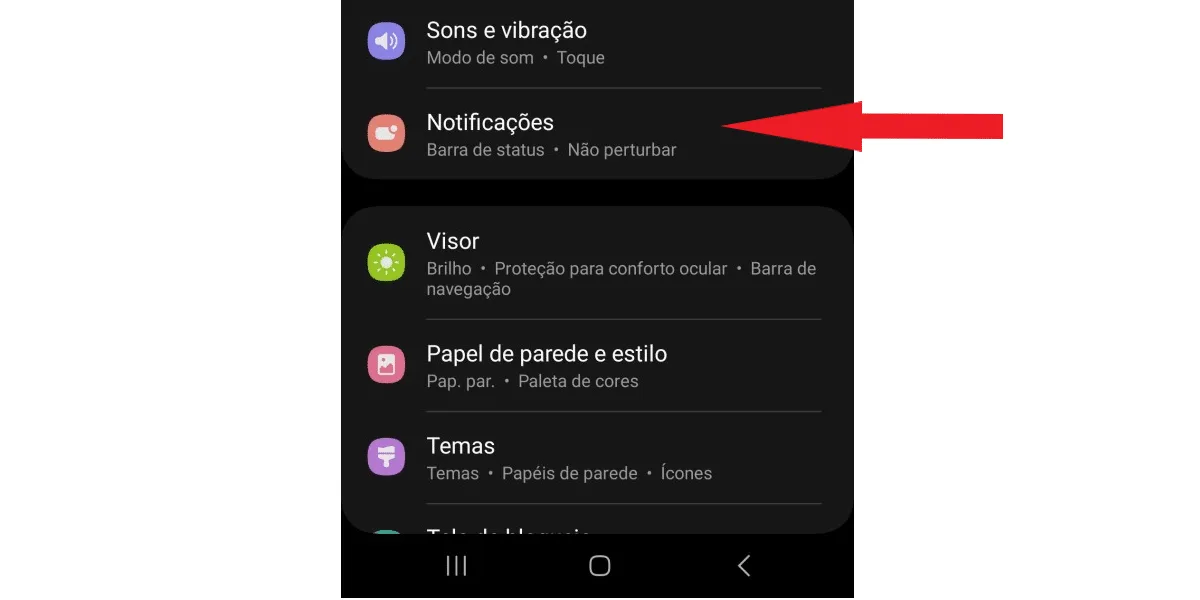 Select advanced settings.
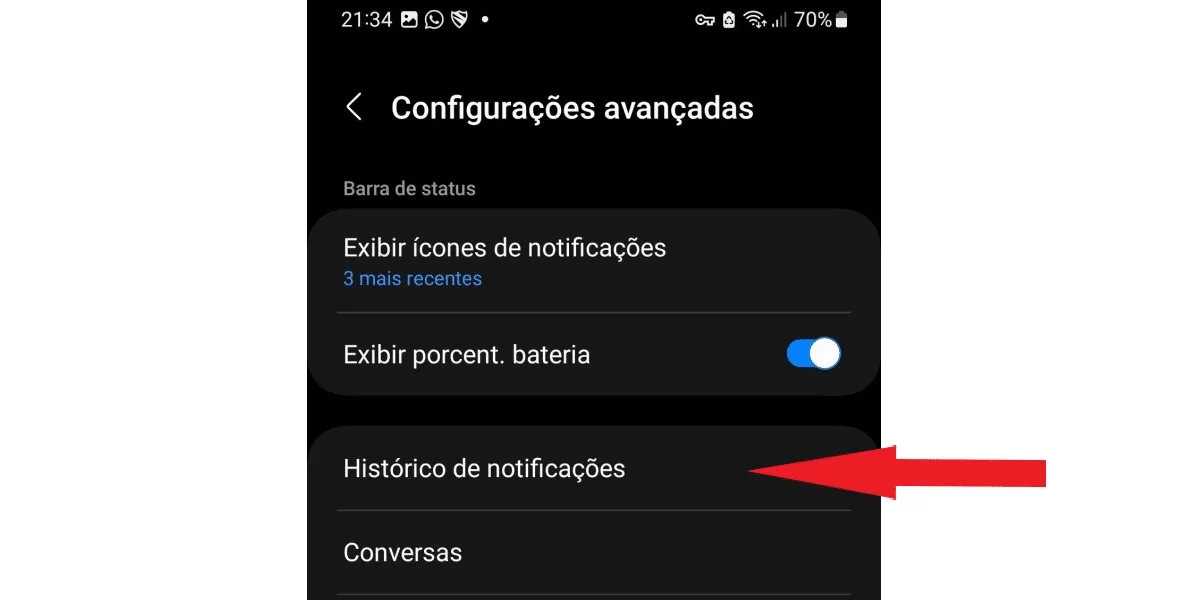
 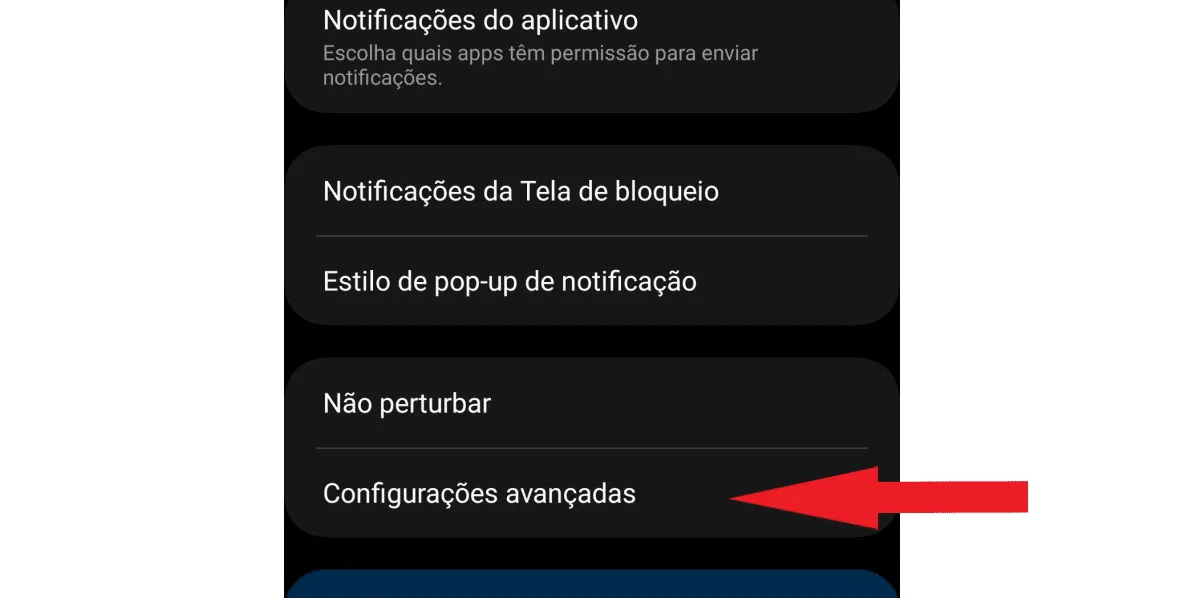 Scroll down until you find the notification history function:
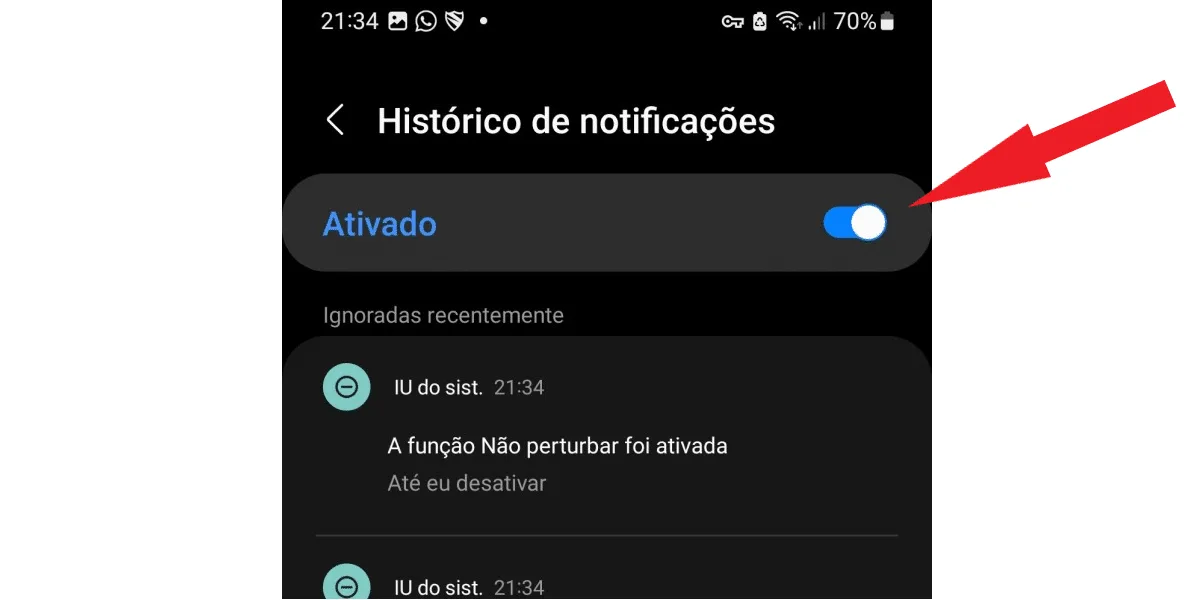
  Activate the function using the button , as shown in the image below.
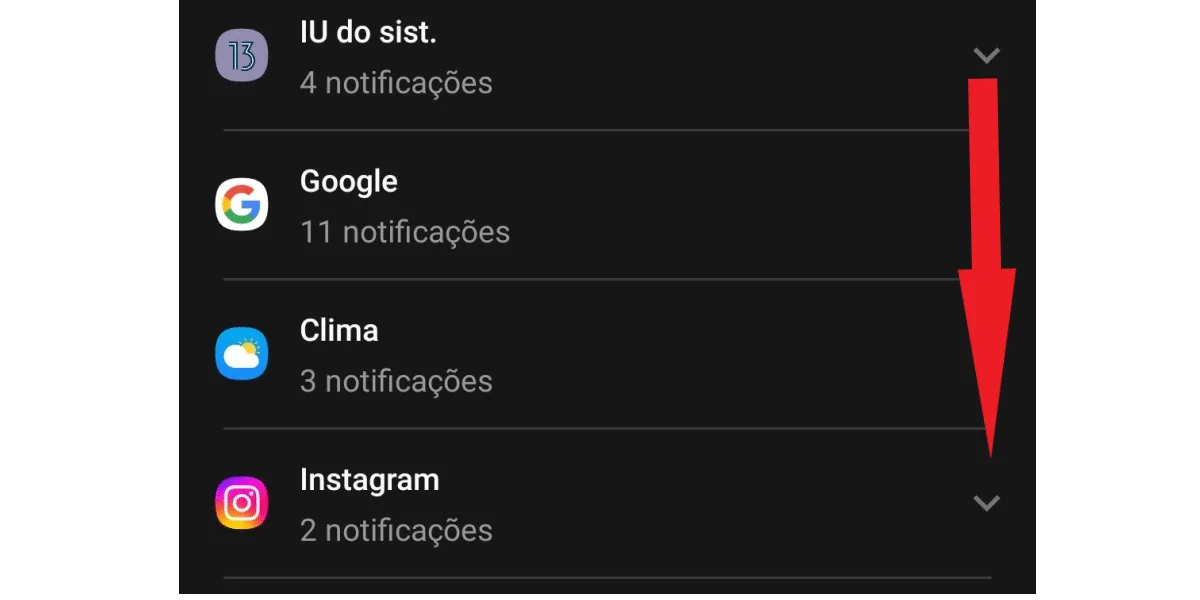
  When you want to check your deleted Instagram message history and any other Instagram messages, go back to your notification history and scroll down until you find the Instagram option . Just click on the arrow next to it, as in the next image, to display all your daily Instagram notifications, including messages.
  Okay, now you can see your Instagram message history; they will appear to you as in the following image:
So, where are deleted Instagram messages actually stored?
Anyone wondering where deleted Instagram messages are stored will be surprised. That's because the social network doesn't store deleted Direct messages anywhere accessible to the user! This applies to both the "undo send" function and the "delete only for you" function. It's worth remembering that the "undo send" function permanently deletes any Direct message for all participants in that conversation. The "delete only for you" function, as the name suggests, will only delete the messages from your account. However, they will remain visible to other users in the conversation. In other words, if you deleted a message, or your contact deleted their messages, there's nowhere on Instagram that stores this deleted content. Despite this, messages can still be included in reports if the chat they belong to is reported, according to Instagram's own warning.Do deleted Instagram messages end up in the recently deleted folder?
There are several tutorials online claiming you can find deleted Instagram messages in the "Recently Deleted" folder. However, this isn't possible because this section of Instagram doesn't store deleted messages; it only stores posts, stories, IGTV videos, and Reels videos. Now, if you want to check if your messages are there yourself, or check other content that was deleted less than 30 days ago, follow these steps to access the "Recently Deleted" folder. Tap on your profile picture in the bottom right corner as shown in the image below: Next, tap the 3-line button . On the next screen, log in to your activity . Now, tap on recently deleted. Want to save your Instagram audio files but don't know how? Try ourInstagram audio download tool. That way, you won't lose your audio files, even if they are deleted in the future!How to recover deleted Instagram messages?
Many people invest time and money in their Instagram; for example, they buy Instagram followers and spend a good amount of time planning quality content for them. So, when their Direct inboxes start to fill up with all sorts of messages from their followers, it's very rewarding. But when a message is accidentally deleted from Direct, it's frustrating to discover that there's nowhere on Instagram to store these messages. However, this problem can still be solved! Because you can recover all the messages from your account using Instagram's data download function!Step-by-step guide to recovering your Instagram messages.
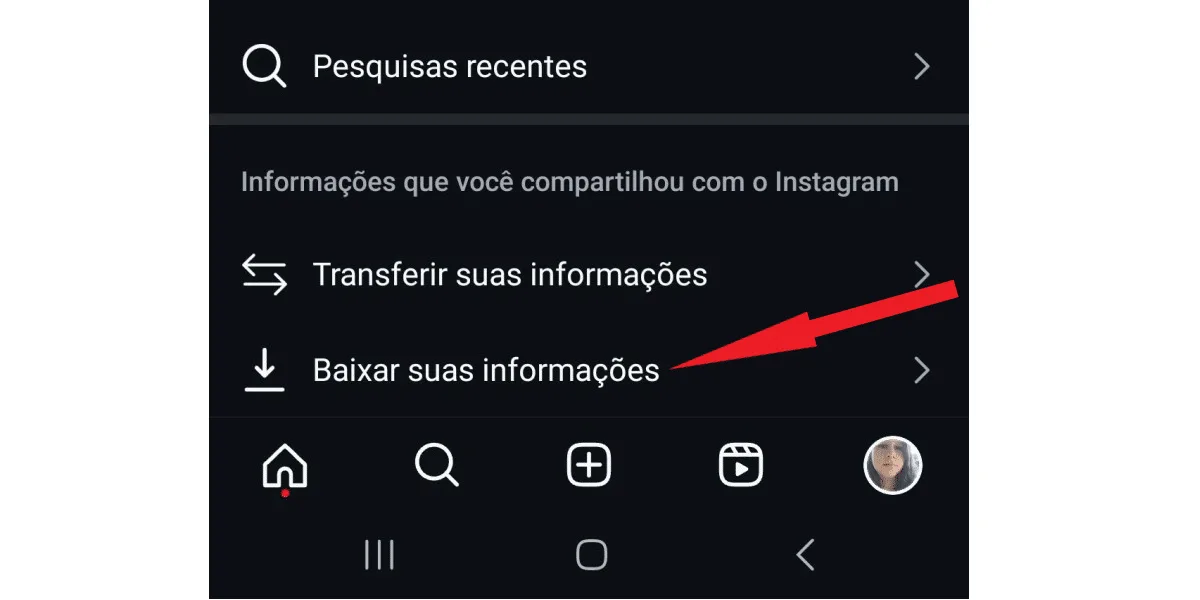
To download your history and view your deleted Instagram messages, follow these steps. Log in to your profile using the Instagram app on your Android or iOS device, and go to your activity , the same section where you can access the recently deleted folder. Then, scroll to the bottom and click on download your information , as shown in the image below: Next, click on download or transfer information , as shown in the next image. Next, if you have more than one profile, select where you want your information about deleted Instagram messages to be transferred from. Remember that Meta owns both Facebook and Instagram. Therefore, if your accounts are linked across platforms, you need to choose the profile you use on Instagram. Then, check the box with the correct profile and click next . See the next image: In the next tab, you can choose between all your information and some of your information . To download only the messages, tap the second option. Scroll down until you find the messages box. If you want to download other information as well, check the boxes with the content you want. When you're finished, tap next . On the next tab, tap download to device (you can also choose transfer to destination , in which case Instagram will ask you to choose between saving to Dropbox or Google Drive): Next, click on the date range: Now, select the time period of the information you want to download and click save. You can download all your data from the beginning, or select shorter intervals, which reduces the final file size if you don't need all the messages from your account. Review the remaining details. You decide which email address to receive the notification at (1) (valid only for emails registered in the account), the format (2) (HTML or Jason), and the media quality (3) (low, medium, and high). We recommend leaving it on medium quality, as the file will have good resolution and will not take as long to download as "high quality". Note: When finished, click create file. Your download in progress will now be visible in the current activity tab. You have the option to cancel the process. However, if you do so, no files will be downloaded, and you will need to request the download again to see your deleted Instagram messages.Is it possible to download Instagram browsing history through a web browser?
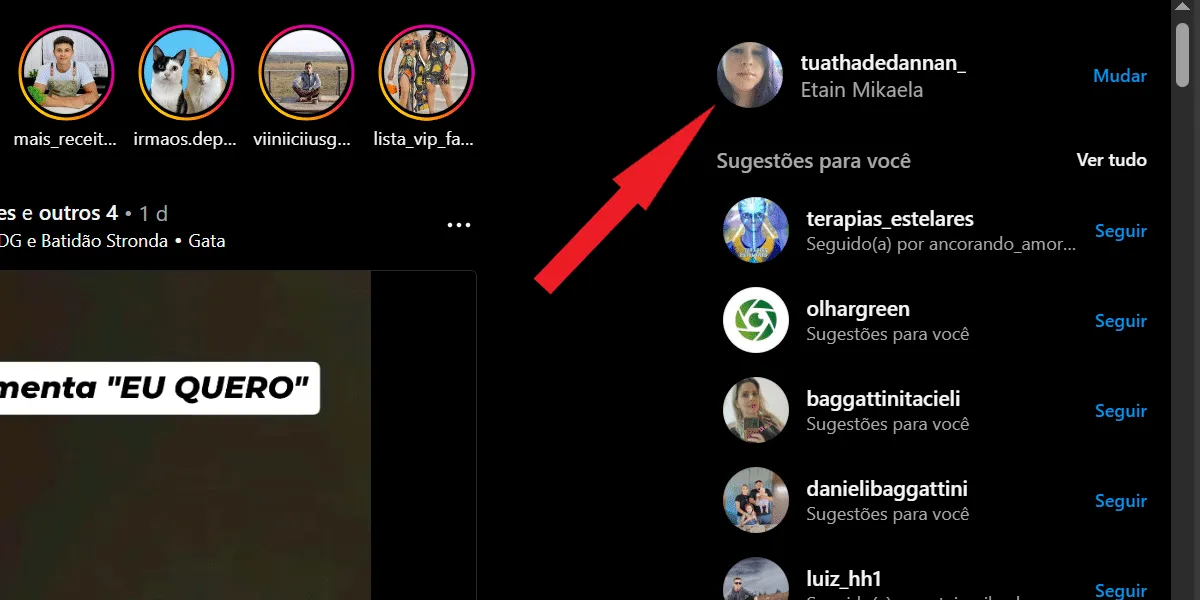
Yes, it's possible to request a download of your information via Instagram Web. To do this: Access Instagram Web and log in to your account, then tap on your profile picture in the upper right corner of the screen: Next, tap the gear icon to open your account settings: Now, select settings and privacy. Click on account center. Tap on your information and permissions. Then, click to download your information. Choose the profile from which you want to download the data and tap the blue next button. Tap on some of your information . Select messages from the list and click next. Tap to download on your device . Click on date ranges to select the period you want, similar to the application, and then click on create files . Your request will begin to be processed by Instagram, and you can check its progress in the current activity section, right after clicking to download or transfer your information, either via the app or on Insta Web. Done! Now just wait for the file to be ready, and come back to download it when it's finished. And don't worry, Instagram will notify you via email in the same way as in the app request process.How long does it take to download my Instagram information?
After requesting the download of your information, you will need to wait some time to access your deleted Instagram messages. It can take up to 48 hours for the file to be ready. This depends on the amount of information Instagram needs to collect to prepare the file. In other words, the larger the volume of data, the longer it will take. At the end of the process, you will be notified by email that your file is complete, then just go back to the current activity section and click download, as shown in the image: Please note that the file has a scheduled expiration date. According to Instagram's notification email, the deadline is 4 days, for data security reasons. So, if you forget and don't download it within that time, you will need to request a new file, going through the entire request process to download your information again. While you wait, take the opportunity to check outwhat's on Instagram today!How to recover deleted Instagram messages using Android's notification history?
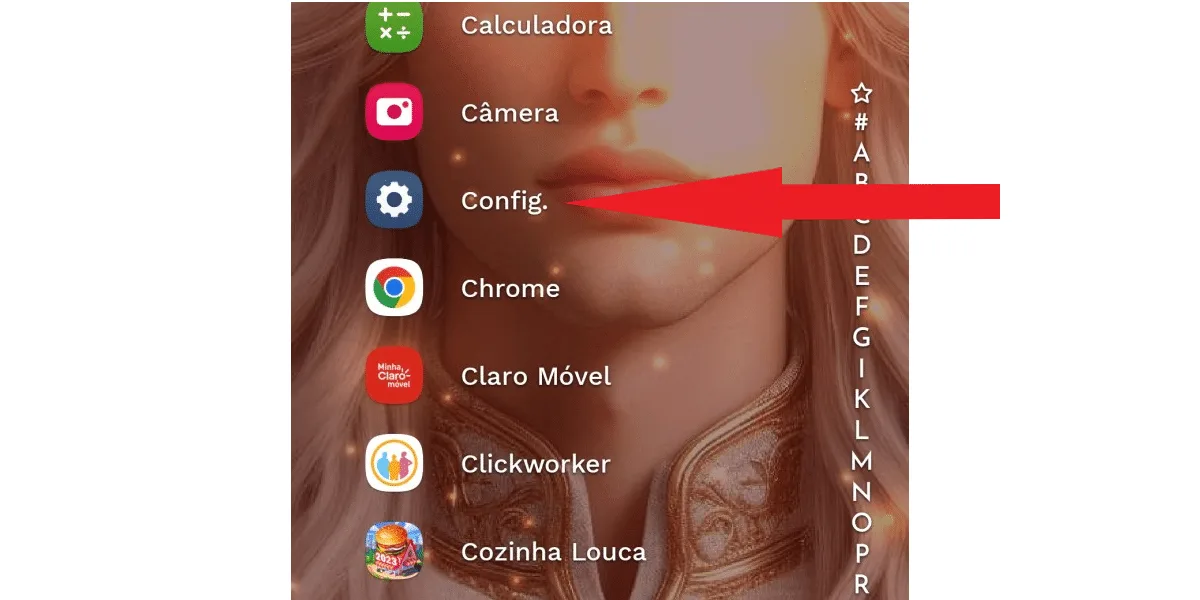
Instagram doesn't have an official tool to recover deleted messages, only the option to download account data, but your Android phone does! Simply activate the notification history option, and you can track all the notifications your phone receives, recovering each one without needing any specific app. To activate notification history, look for the gear icon (settings) on your phone, as in the image below: Next, scroll down and go to notifications. Select advanced settings. Scroll down until you find the notification history function: Activate the function using the button , as shown in the image below. When you want to check your deleted Instagram message history and any other Instagram messages, go back to your notification history and scroll down until you find the Instagram option . Just click on the arrow next to it, as in the next image, to display all your daily Instagram notifications, including messages. Okay, now you can see your Instagram message history; they will appear to you as in the following image:iPhone users can use the iOS Notification Center.
The iOS Notification Center is a feature on iOS devices that stores notifications received in the last 24 hours. So, if the deleted message you want to recover is recent, it may be saved on your iPhone. To check:- Slide your finger from top to bottom, starting from the center of the device screen;
- Check your notifications and tap on deleted Instagram messages if they are listed to open the app's history.
Can I recover deleted messages from a blocked contact on Instagram?
There's no way to recover deleted Instagram messages from a blocked contact . This is because when you block someone, or someone blocks you on Instagram, the social network deletes all messages between both profiles. This means you can no longer interact with that profile, regardless of who initiated the blocking. You will no longer be able to find the blocked profile or the one that blocked you, see that profile on Instagram , or any of their activity on the social network, such as likes and comments. For this and other reasons, restricting an account on Instagram is a more recommended option than blocking. Because when you only restrict an account that bothers you, you can still talk to them if you want, and recover deleted messages using your Instagram history or your Android notification history.Is it safe to use InstaMessage to view deleted Instagram messages?
It is not safe, and we do not recommend that you use InstaMessage, which is a third-party application, to view deleted Instagram messages, for several reasons:- Using third-party apps violates Instagram's terms of service, and your account may be penalized.
- These apps may contain viruses and malware that can infect your device and put your security at risk.
- With a third-party app, other people may be able to access your login details and access your Instagram profile if your data is not securely stored or encrypted confidentially.
- If you use a third-party app to view messages deleted by another person in a conversation, you are violating that person's right to privacy.