Instagram
  by
by 
 11 min read

Don't know how to tag someone on Instagram? Then you've come to the right place! Social media is much more fun when you interact with your friends through tags, isn't it? This way, you can share moments you've experienced with other people who participated in them, or even tag people in posts that are of interest to them, for different reasons. And when it comes to Instagram, there are different ways to tag other people! Therefore, it's normal that you don't know how to tag someone on Instagram, as the social network really has many different settings for this, which can confuse some users. So, check out how to update Instagram to see if your app is up-to-date with the latest features of the social network, and take advantage of the tips we've prepared in this post to learn how to tag someone on Instagram in a variety of ways, and make the most of this feature whenever you want!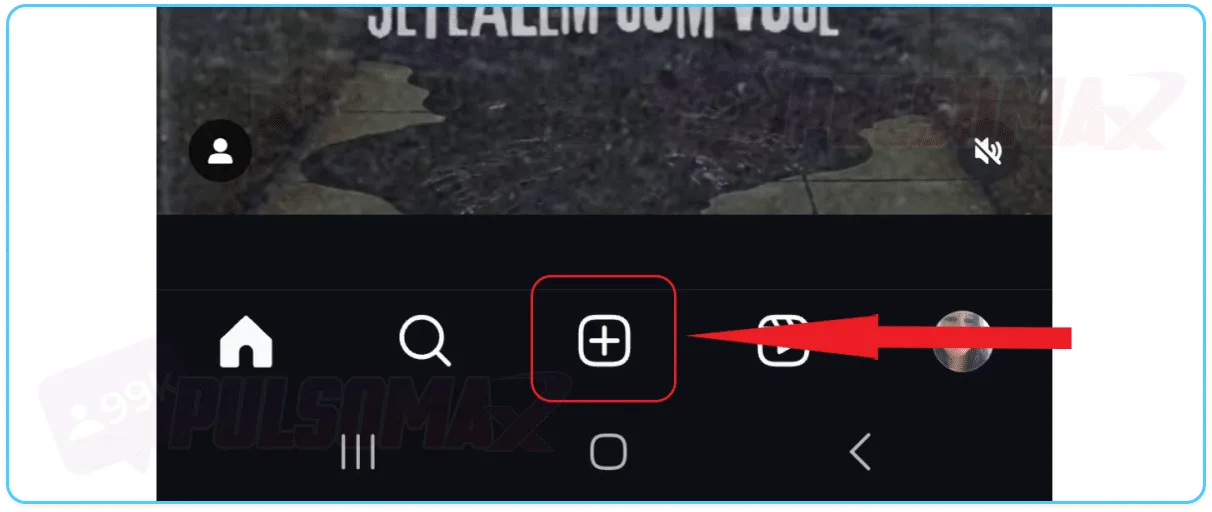
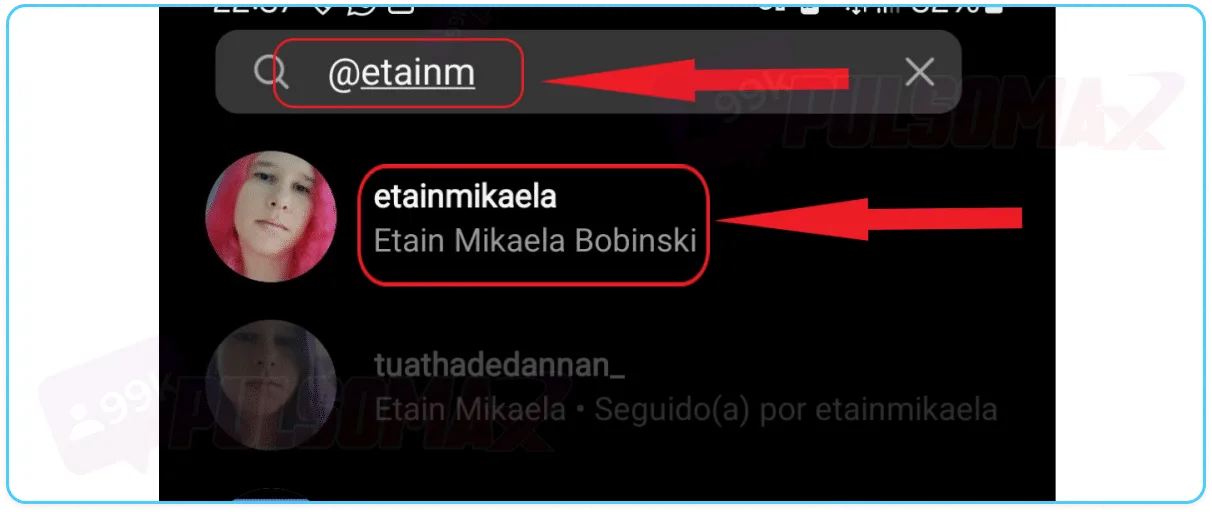

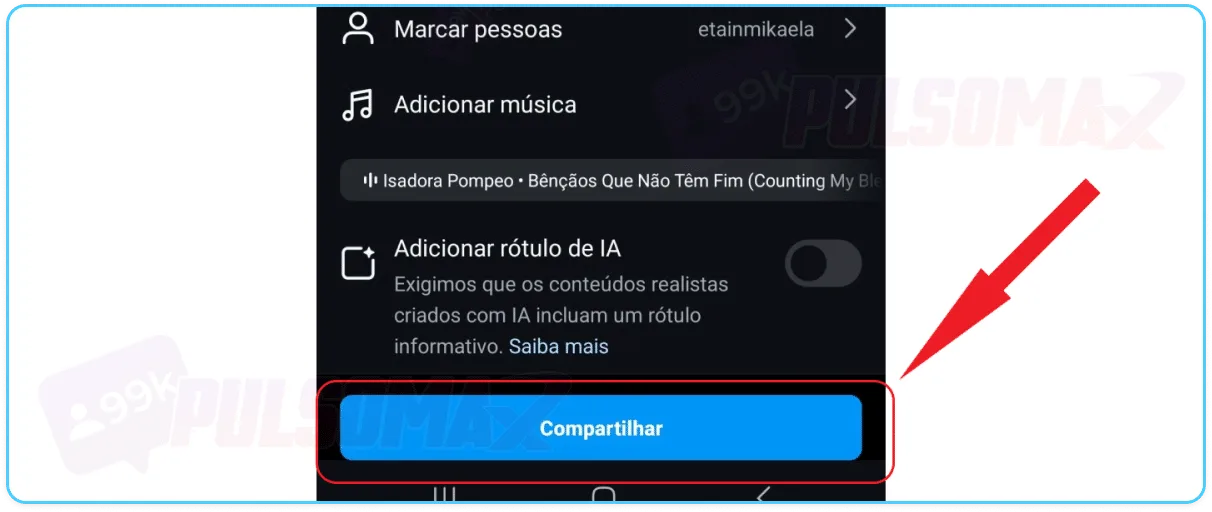 But remember: the person needs to accept the collaboration for the mention to work. Then, the content will also be published on the collaborator's profile, and you and all collaborators will appear as authors of that post. Don't want to be bothered while using Instagram? Then learn how to turn off your online status on Instagram !
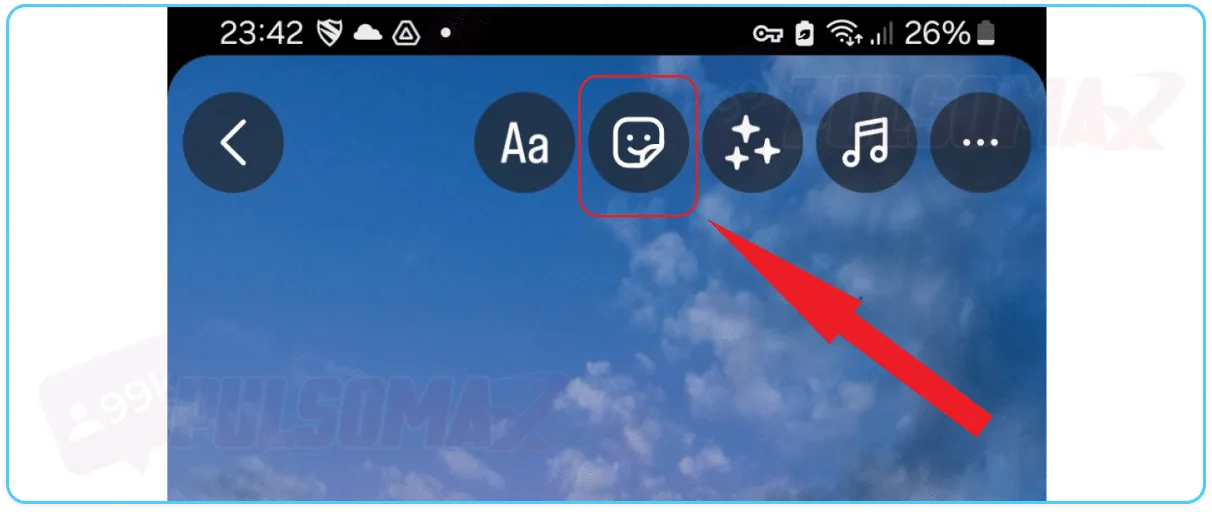
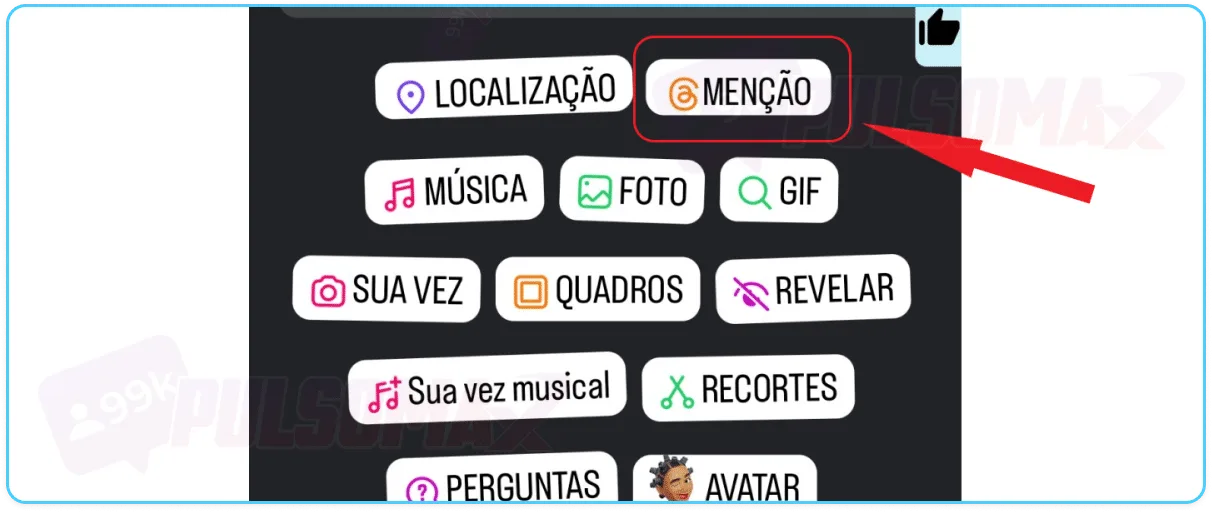
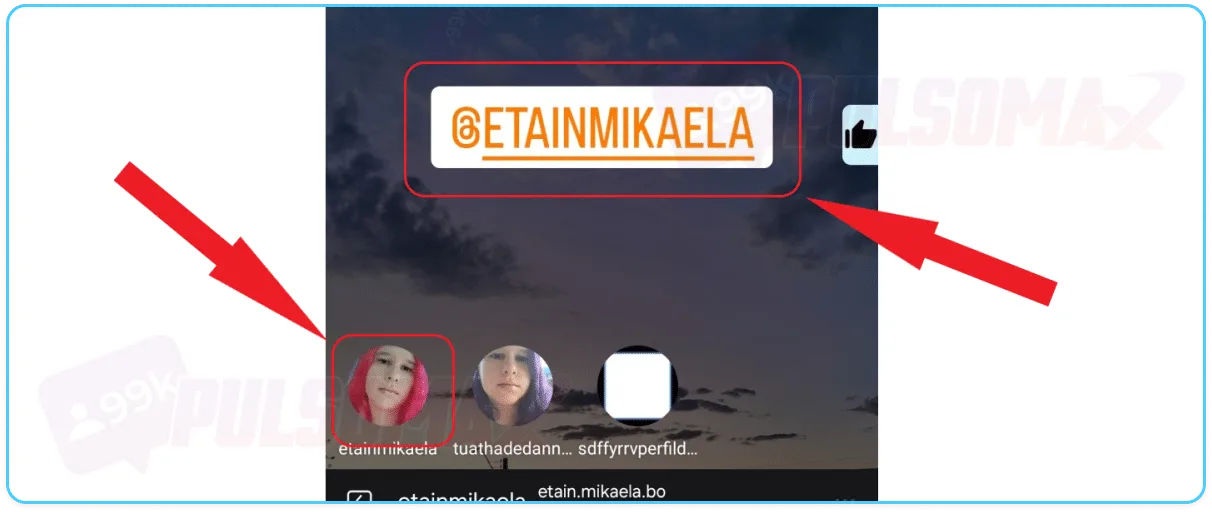
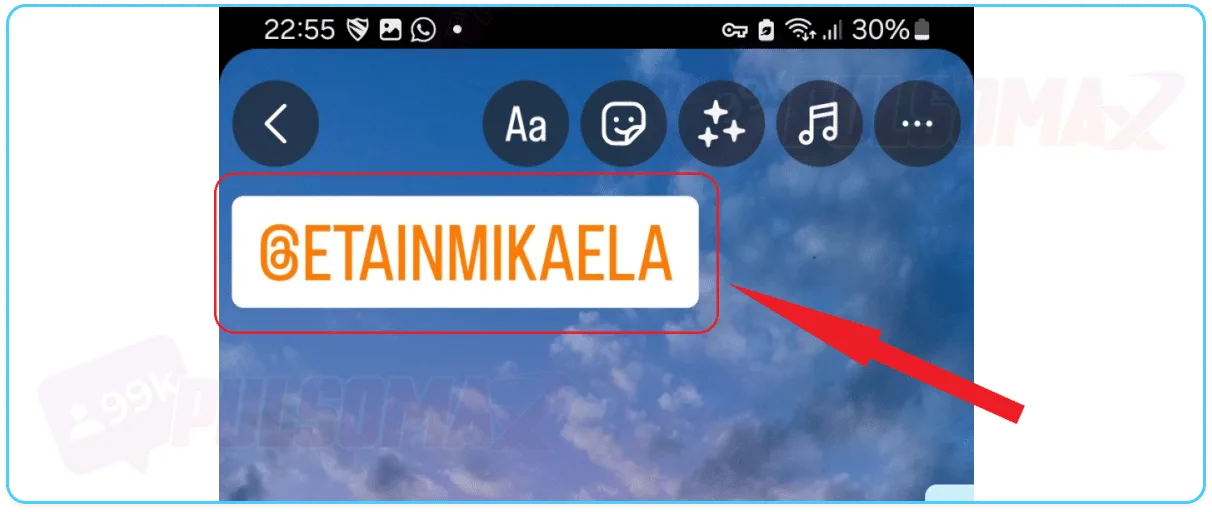 Tip: You can change the color of the sticker and place it anywhere on the screen, as you prefer.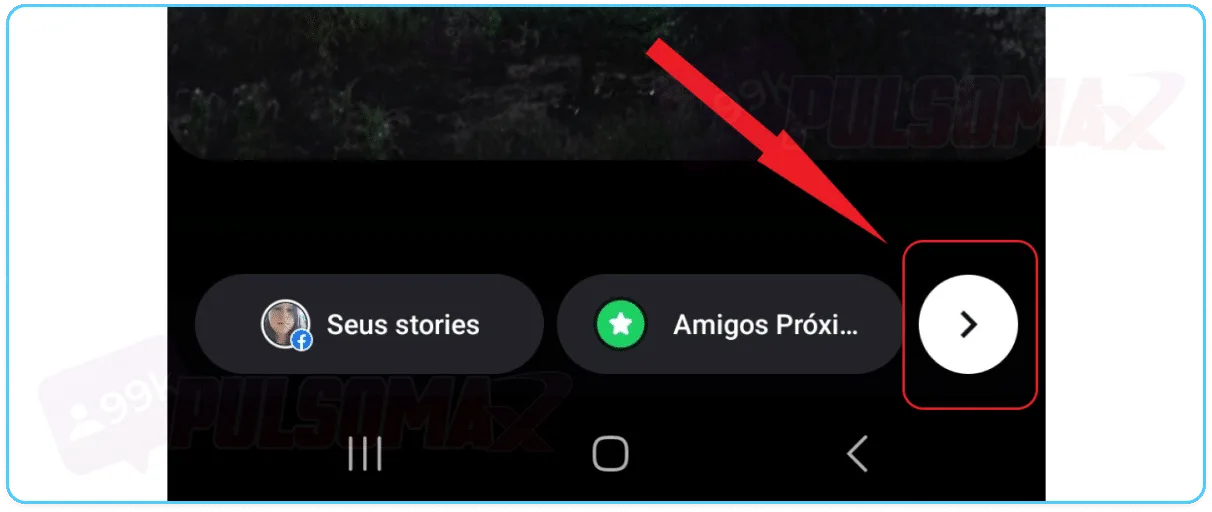
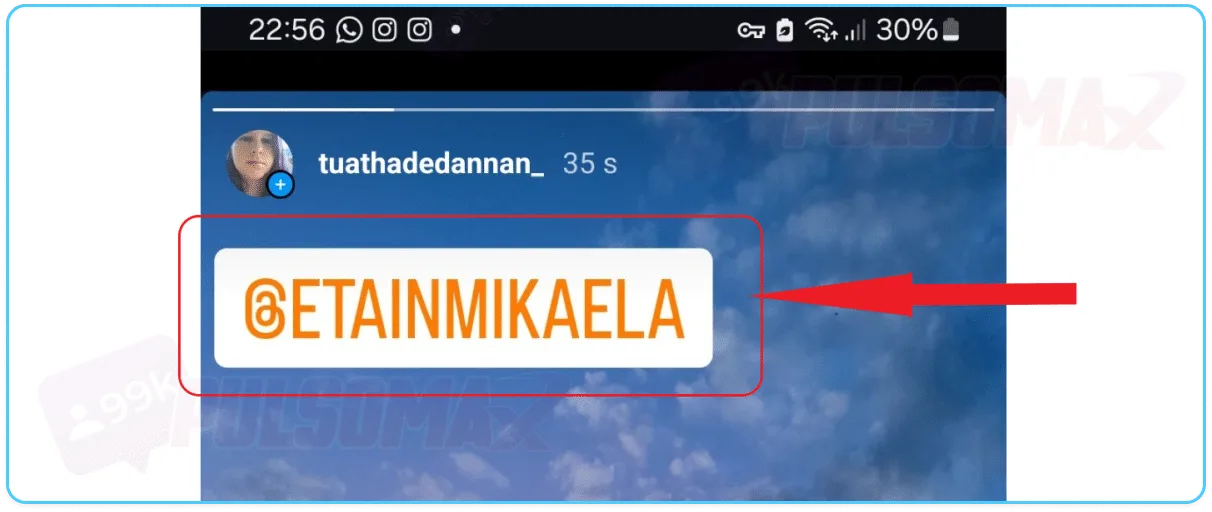 To achieve the result above, or a similar one, continue editing your story and click share when you're finished making changes to publish your story normally. That's all you need to do! Oh, if you want to tag more than one person, just select the @ mention sticker again and repeat this process. Want more tips on Instagram Stories? Read also: learn how to add temperature to Instagram!
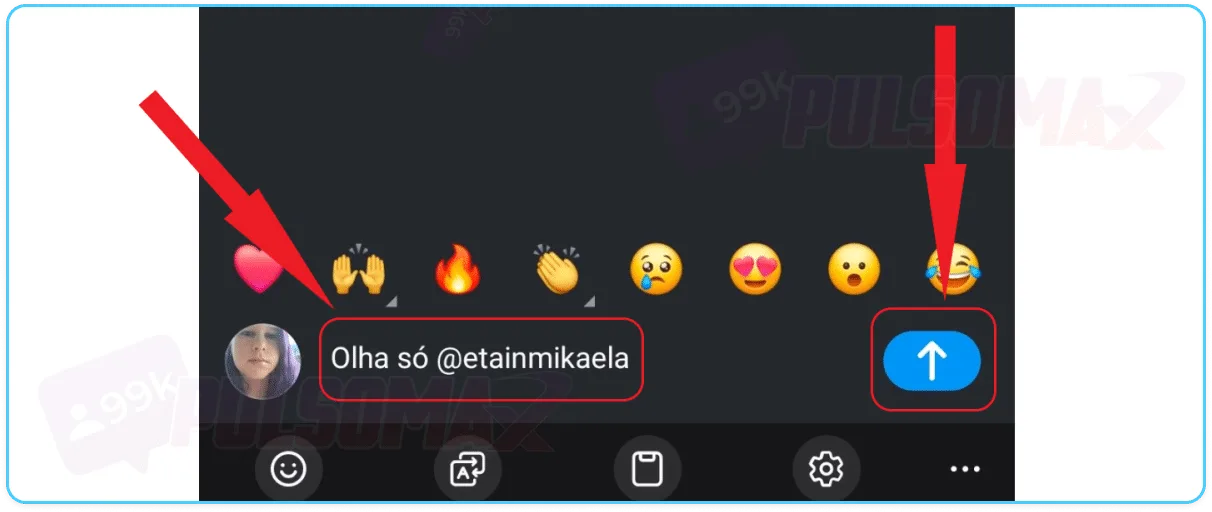
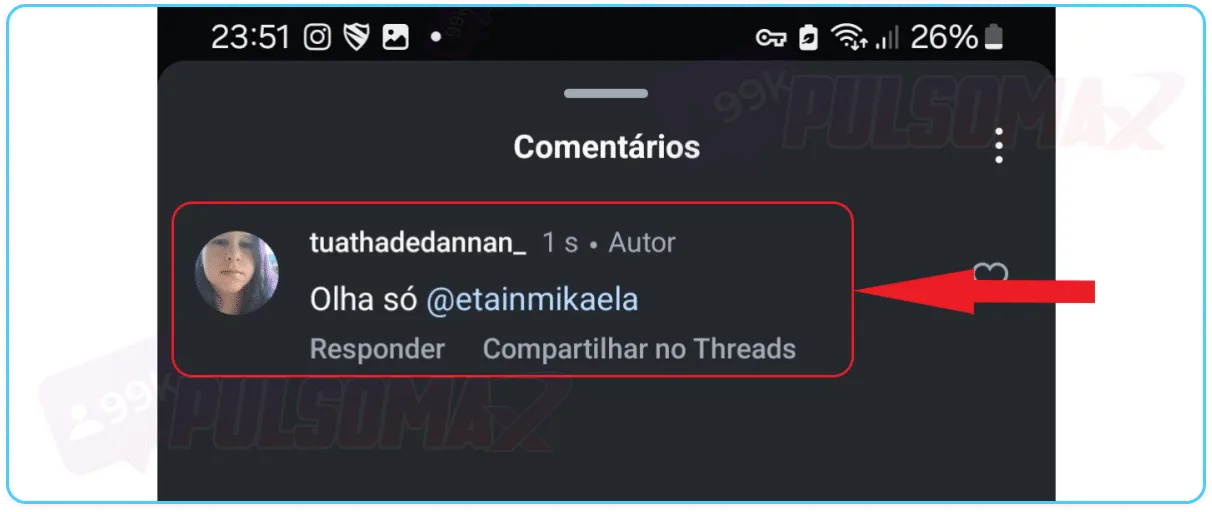 Learning how to tag someone in Instagram comments is really simple and quick! And, if you want it even faster, you'll see that when you type the @ of the person you want , Instagram already displays some suggestions. If the person you want to tag is among them, just click on the thumbnail with the person's name and photo! That way, you don't even need to finish typing.
 Tip: If you want to invite a collaborator, similar to posting on your feed, click on "invite collaborator" .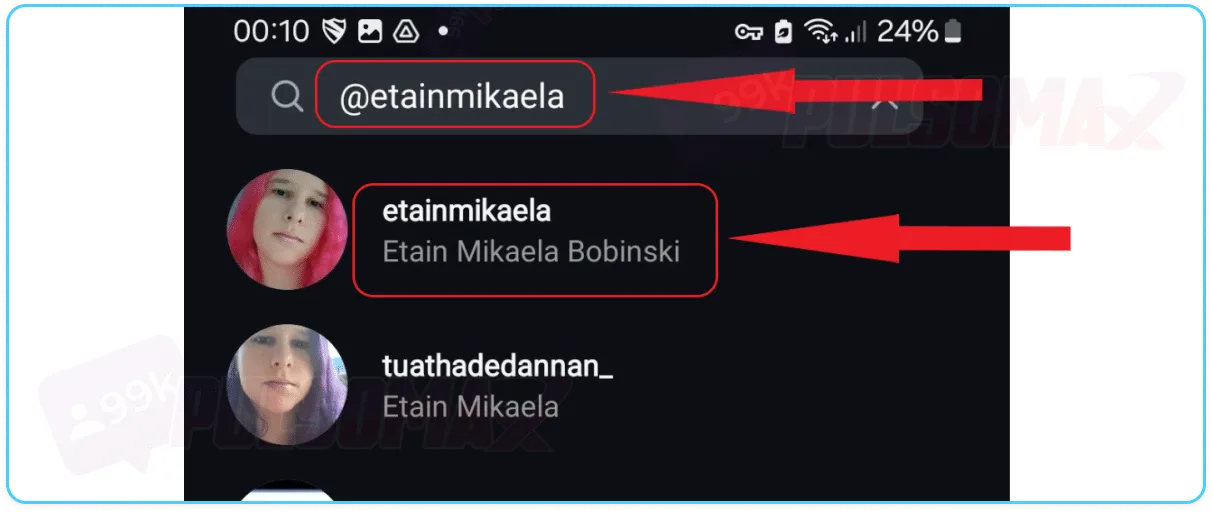
 Done! Proceed to publish your reel video as usual, clicking next and then share to finish. The people you tag in your reel will be notified of the tag by the social network. If you invited collaborators, they need to accept the collaboration, just like when tagging someone in your Instagram feed.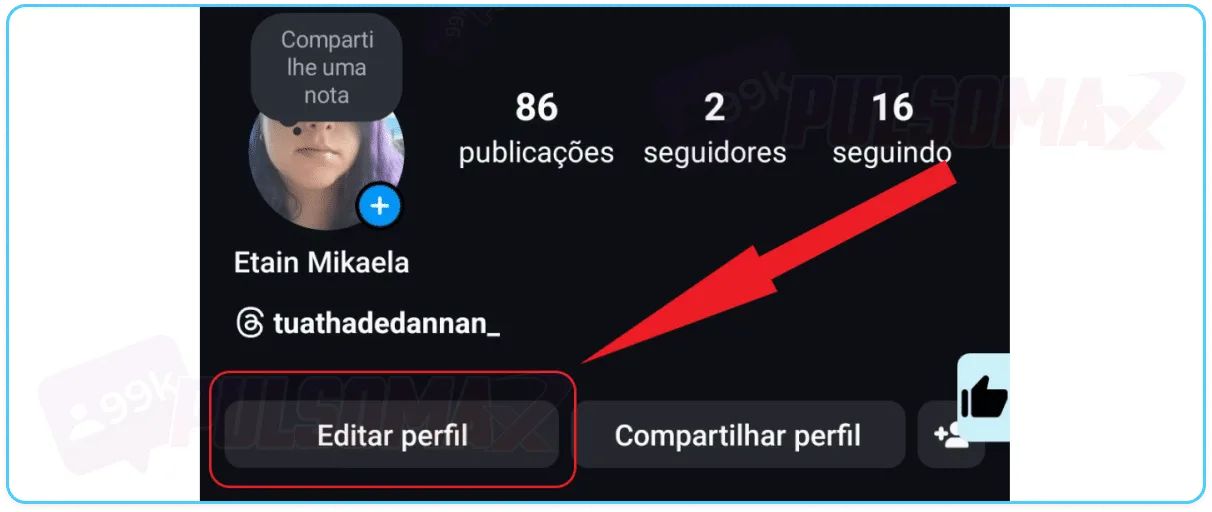
 You can change this at any time by deleting the username or putting in someone else's name. Just edit your bio again!
How do I tag someone in a new Instagram post?
TheInstagram feed is where your posts are displayed, as well as posts from other users on the social network, in addition to suggestions from the Instagram algorithm and even sponsored ads. This is where a large portion of users spend their time, scrolling through the feed, liking posts of interest, and having fun. Therefore, since this is the most common place on the social network, let's start there! First, open your Instagram app (Android or iOS) to choose new content for your post, take a new photo, or make a new video. To begin:Tap the + button in the bottom bar and create your content.
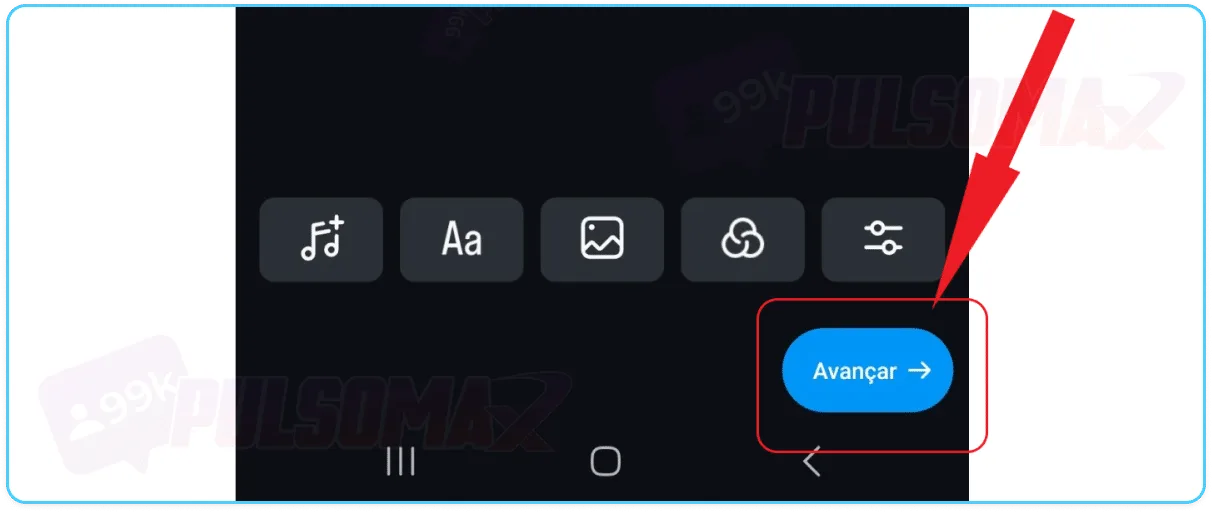
After deciding what you want to publish, tap next .
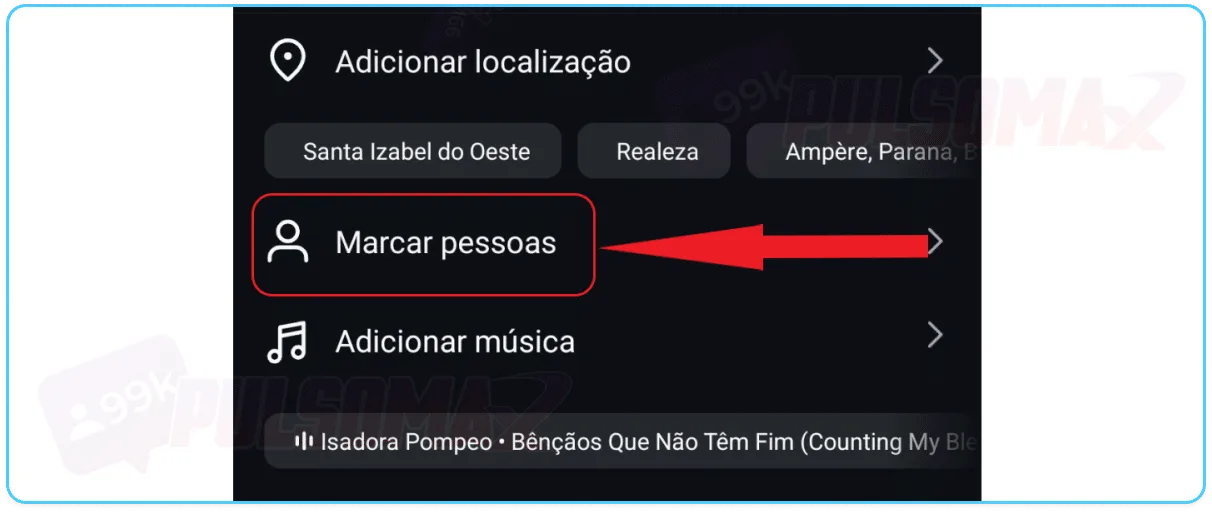
Next, click on tag people .
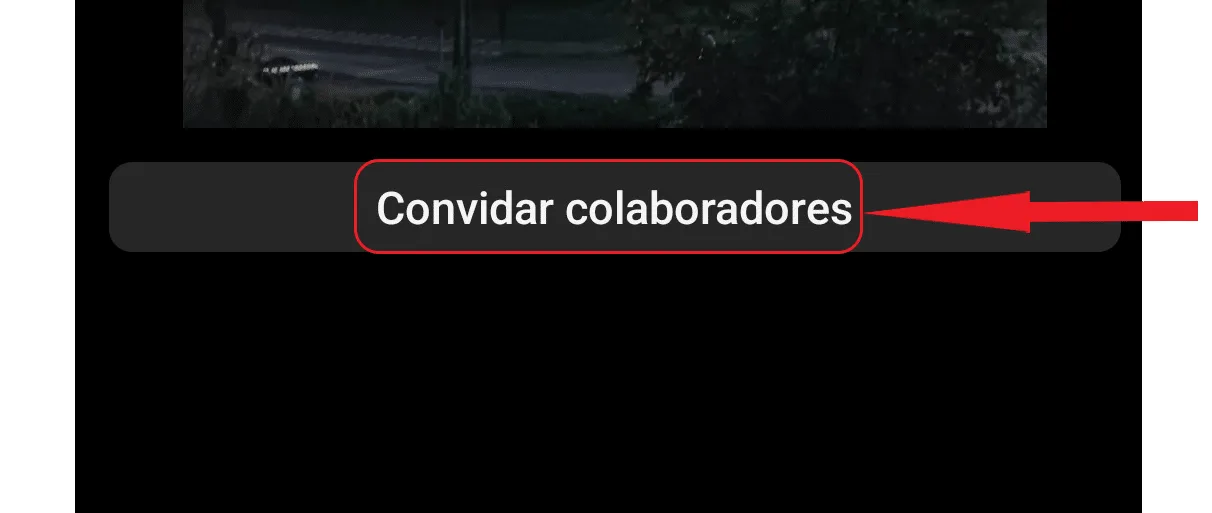
Now, click on invite collaborators .
Type the username (@) and click on their name.
Tap the V-shaped button in the upper corner of the screen.
Finally, click share and you're done!
But remember: the person needs to accept the collaboration for the mention to work. Then, the content will also be published on the collaborator's profile, and you and all collaborators will appear as authors of that post. Don't want to be bothered while using Instagram? Then learn how to turn off your online status on Instagram !How do I tag someone on Instagram Stories?
To learn how to tag someone on Instagram Stories, first go to your profile using your Android or iOS app, and:Tap on Your Story in the upper left corner of the screen.
Choose the story content, and tap the sticker button.
Select the sticker @ mention .
Enter the username and select the correct profile.
Personalize and drag your sticker.
Tip: You can change the color of the sticker and place it anywhere on the screen, as you prefer.Tap the arrow button in the bottom right corner of the screen.
See how your story will look in the end.
To achieve the result above, or a similar one, continue editing your story and click share when you're finished making changes to publish your story normally. That's all you need to do! Oh, if you want to tag more than one person, just select the @ mention sticker again and repeat this process. Want more tips on Instagram Stories? Read also: learn how to add temperature to Instagram!How do I tag someone in Instagram comments?
One of the favorite features of Instagram users is tagging other accounts in the comments. This is very useful, especially for profiles that seek to stand out on the platform. These are people who invest their time creating content, buy Instagram followers , and want as many people as possible to see their posts. But users who use Instagram only for personal purposes also like this feature, as it is very useful for tagging friends, family, and colleagues in any post. To begin, first find the post in your Instagram feed where you want to tag someone and:Tap the balloon-shaped button.
Write your comment, type the @ symbol, and tap the blue arrow.
The comment will appear like this in the post.
Learning how to tag someone in Instagram comments is really simple and quick! And, if you want it even faster, you'll see that when you type the @ of the person you want , Instagram already displays some suggestions. If the person you want to tag is among them, just click on the thumbnail with the person's name and photo! That way, you don't even need to finish typing.How do I tag someone on Instagram Reels?
Learning how to tag someone on Instagram Reels is also very simple! To begin, choose a video or image to create your reel. To do this, tap the plus button in the bottom corner of the screen, as you learned in the first topic of this article, and:Click on reels and select what you want to publish.
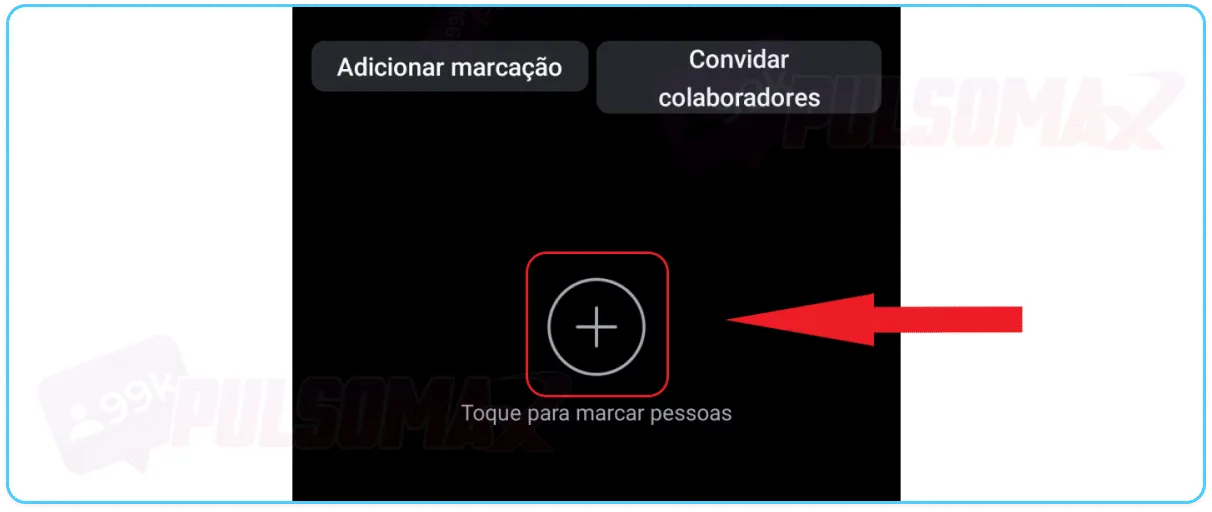
Click next and then on + to tag people.
Tip: If you want to invite a collaborator, similar to posting on your feed, click on "invite collaborator" .Type the user's @ in the search bar, and click on their profile.
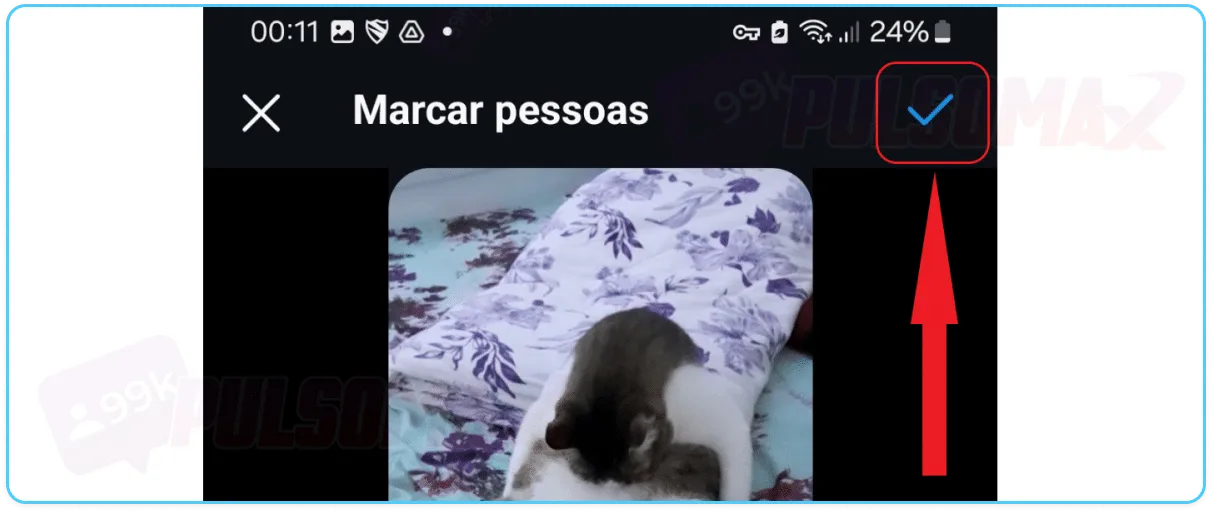
Tap the V-shaped button in the upper right corner of the screen.
Done! Proceed to publish your reel video as usual, clicking next and then share to finish. The people you tag in your reel will be notified of the tag by the social network. If you invited collaborators, they need to accept the collaboration, just like when tagging someone in your Instagram feed.How do I tag someone in my Instagram bio?
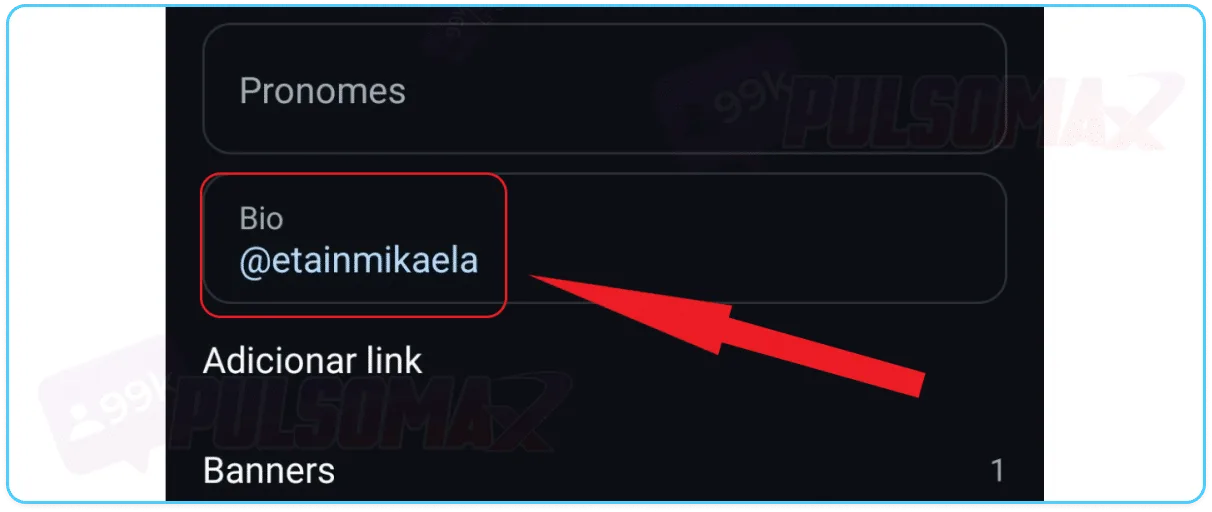
Another place where you can learn how to tag someone on Instagram is in their bio. While many users prefer to put other content there, such as Instagram bio captions that match their identity or the type of content they publish, some people may want to tag someone in these places. If this is your case, first tap the button with your profile picture thumbnail in the bottom right corner of the screen to open your profile tab, and:Tap on edit profile.
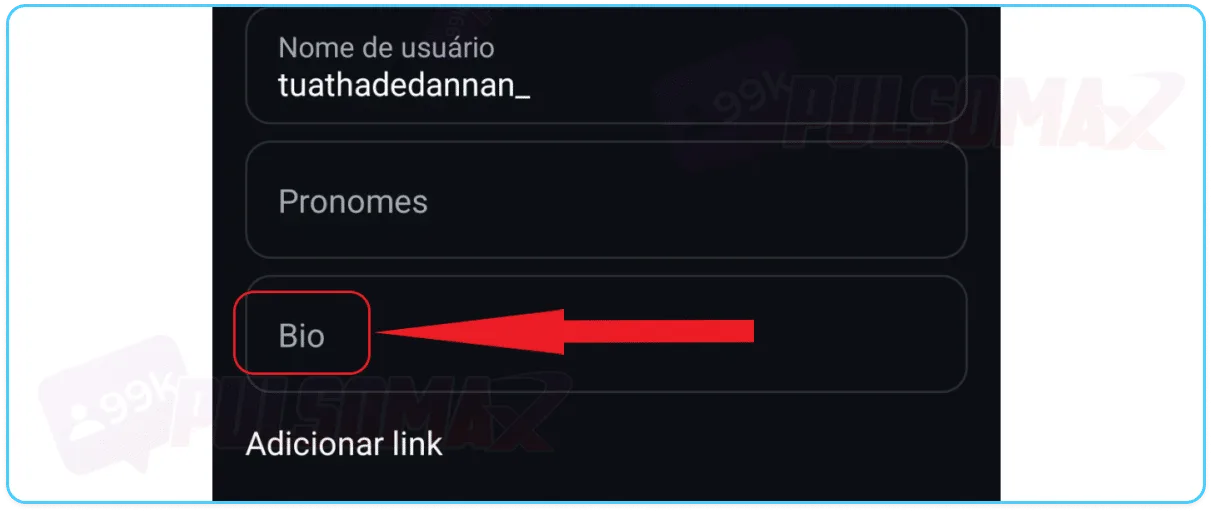
Next, click on bio , as shown in the next image.
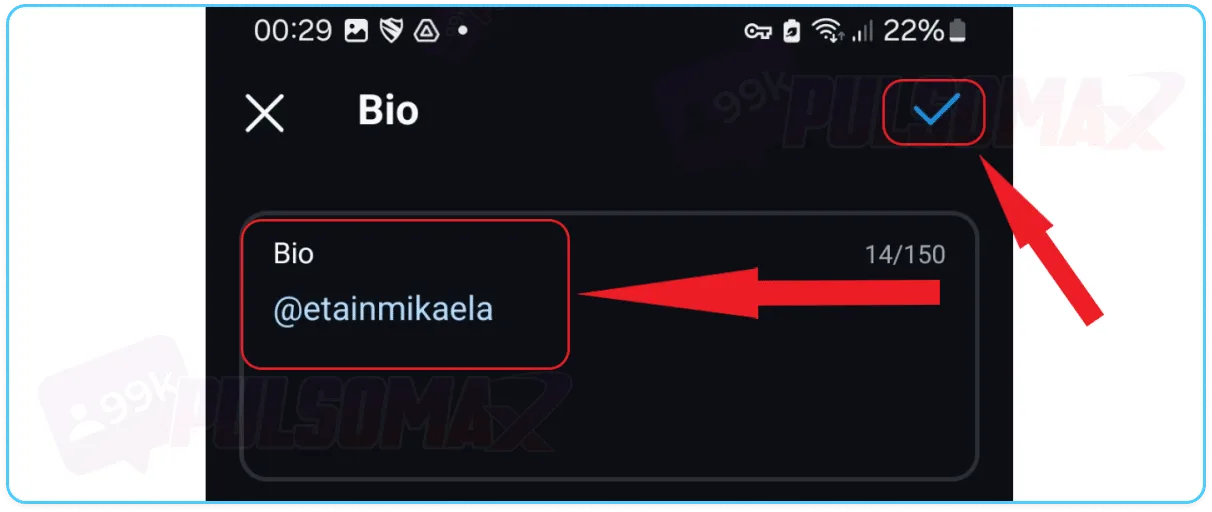
Type @ followed by your username, then tap the blue V-shaped button.
See how the biography displays the user tag.
You can change this at any time by deleting the username or putting in someone else's name. Just edit your bio again!Can I tag someone on Instagram after posting?
Yes, it's possible! To do this, you just need to find the post where you want to tag someone, and use what you've learned so far in this guide on how to tag someone on Instagram, clicking on "tag people" and using our step-by-step instructions to find the user and tag them. This way, if you happen to forget to include someone in the post, or even want to add collaborators to your content, you can do so without worry and as many times as needed! Tip: notify your friends via Instagram Direct about the collaboration, so they'll be aware of the post and can accept your collaborator invitation more quickly!If I tag someone on Instagram, will they know?
Yes, the people you mention on Instagram, after learning how to tag someone on Instagram, will know about the tag! This is because the social network notifies users who are mentioned in other people's posts. Therefore, the only way someone wouldn't know is if they are distracted or very busy and don't check their Instagram notifications frequently. Now, if you don't want just anyone to tag you in their posts, you can access the app's settings and define who is authorized to tag you on Instagram.Does the post appear in the feed of the person I tagged?
Not necessarily! What appears in each Instagram user's feed is determined by the platform's algorithm based on the interactions and personalized use that person makes of the social network, and even outside of it. In other words, if the algorithm identifies that the post with your tag is not relevant to the tagged user, that post will not appear in their feed! This will only happen in cases where the person is added as a collaborator on the post and accepts this collaboration ! Because, by accepting, that content is also published by their profile, as if they were the author of the post, and in this way, it appears in their user feed automatically. Do you spend a lot of time on Instagram, find incredible content, but don't know how to download it? Then, check out our essential Instagram download tools and enjoy! It's free!How many people can I tag in an Instagram post?
It's true that Instagram has many features, both through the Android or iOS app, and on the Instagram Web app that we access via PC. However, the social network also has its limitations, and the number of people you can tag is one of them. So, be aware that you can tag a maximum of 20 people per post on Instagram ! Think about this now that you've learned how to tag someone on Instagram; this way, you can better plan your posts and decide which people really need to be mentioned in each of your publications.I can't tag someone on Instagram.
If you've figured out how to tag someone on Instagram but can't do it in practice, then know that there are a few possible causes for the problem. This means you need to analyze your case to find out what's causing this error. The first and most likely problem is forgetting to tag the @ before the person's username in the post. So, try again, use the @ correctly and see if you can tag the user normally. Also check if the username is correct. If everything is correct and the problem persists, then other possible causes include:- Account privacy: The user utilizes a privacy setting that prevents other people from tagging them on Instagram.
- Account blocked, banned, or deactivated: Accounts that have blocked you on the platform, have been banned by Instagram, or have been deactivated cannot be tagged in posts.
- Your account is new to the platform: new accounts on the platform may be temporarily prevented from tagging anyone to avoid spam or actions that violate Instagram's guidelines.
- You've made too many sequential tags: Instagram limits the number of actions users can perform per hour, minute, and day. If you've made many sequential posts tagging people, this could be the problem.
- Tagging limit: You have reached the maximum number of people you can tag (20 users).
- Temporary instability: Instagram may be experiencing temporary instability, which is the reason for the problem. In this case, you need to wait for the problem to resolve itself.