 Instagram
  by
by 
 9 min read

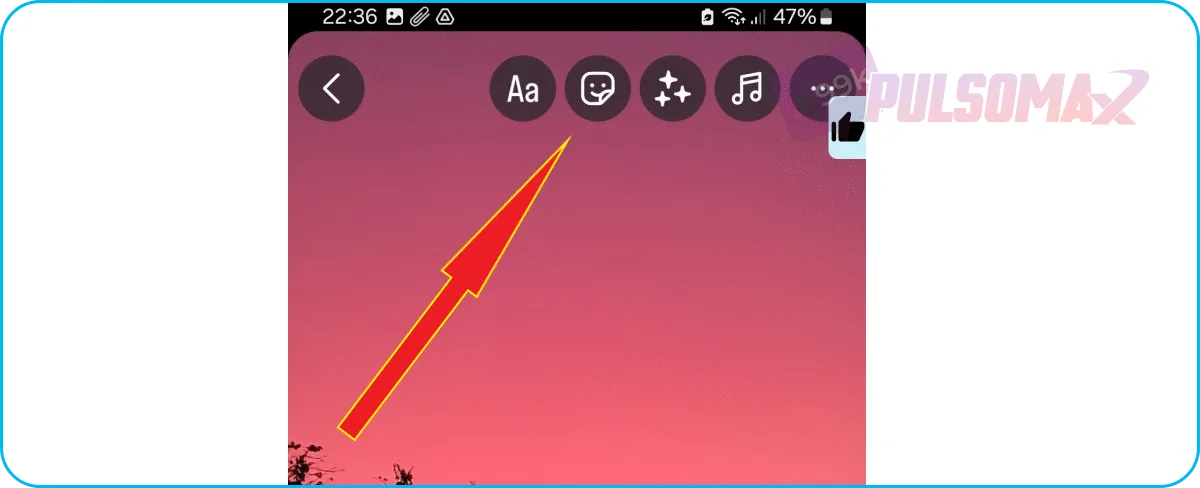
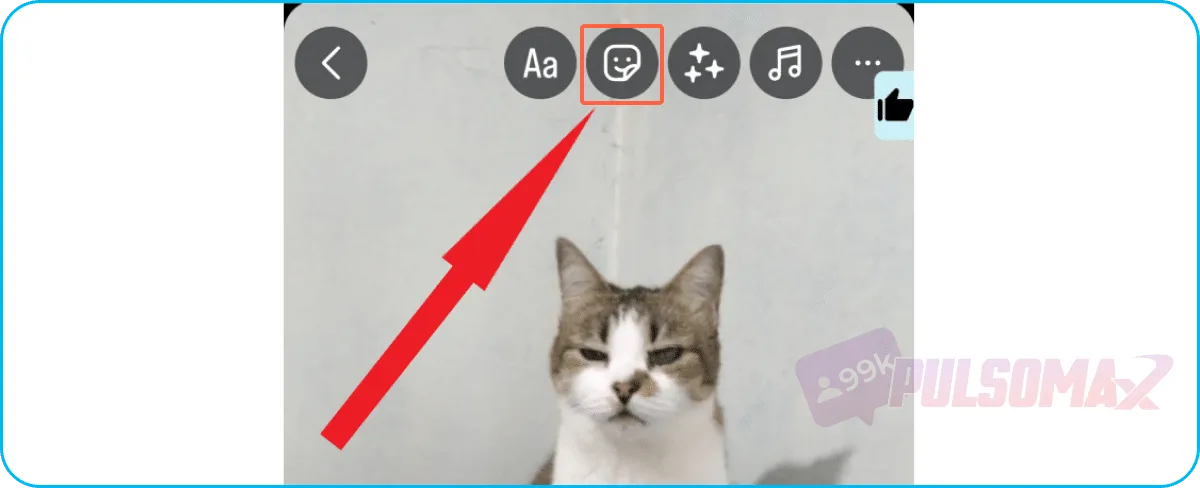
Want to learn how to add temperature to your Instagram feed? Then you've come to the right place! Instagram is a social network full of features and tools. When you start learning about Instagram, you understandwhat the Instagram feed is , how Direct works, and other features, and you quickly realize the endless settings that Instagram allows. Knowing how to add temperature to your Instagram feed can be a lot of fun. It's another way to personalize your posts. But it can also be a trigger to generate engagement with your audience, since weather is an important and widely discussed topic on the internet today. Well, if you're here today, you've probably already seen a story with temperature on Instagram. Or maybe someone mentioned to you that it's possible, but didn't say how to do it, right? Regardless of the case, keep reading! We'll explain everything about how to add temperature to your Instagram feed, with step-by-step images! Select the image or video from your gallery that you want to use to create your story, and then click on the sticker icon , as shown in the image below.
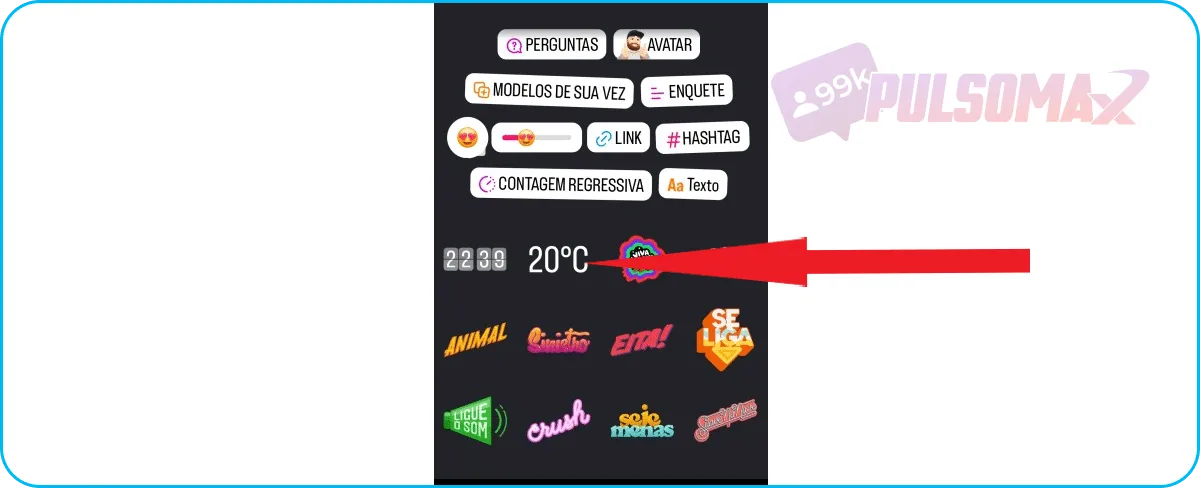
  Find the sticker that shows the current temperature and click on it . Note that there is only one sticker for this function; it will show the same temperature reported by weather services in your region at the time of posting.
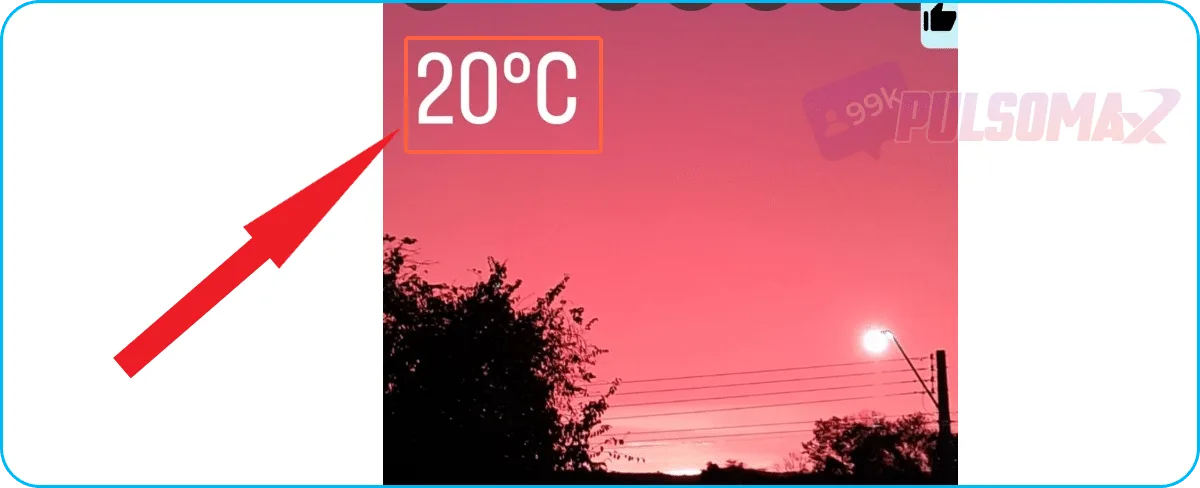
  Now, the temperature will be displayed in the center of the story , but you can drag it to your preferred location, adjusting the sticker's placement on your image or video. If you wish, you can also change the size and angle of the sticker. See below.
  After adjusting:
  Now, just finish your post by clicking on "your stories," and the new story will display the dynamic temperature, which changes in real time, with the temperature sticker!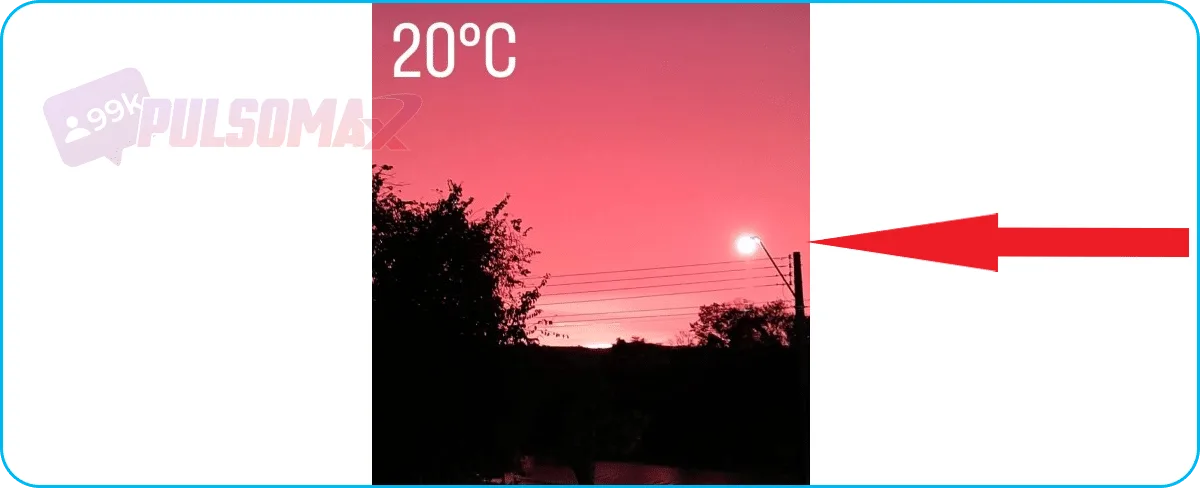
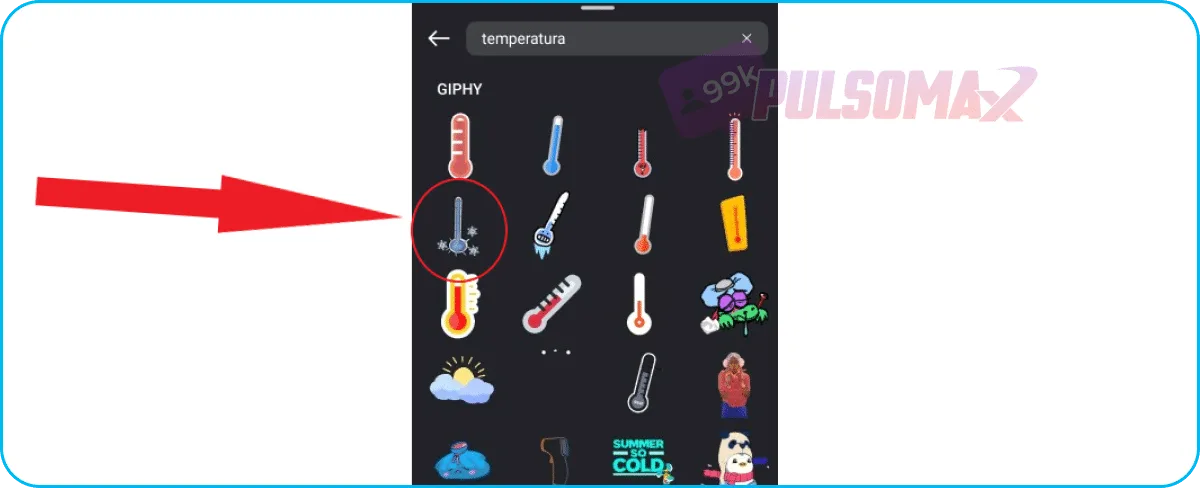
 Now, in the search bar , type "temperature ," or another related term, such as "cold," "hot," "rain," etc., depending on the weather you want to highlight in your post. And select the GIF you want to use by clicking on it.
  The GIF will be displayed in the center of the screen , in the standard Instagram size. See for yourself.
  Next, adjust the size and location of your GIF as you prefer.
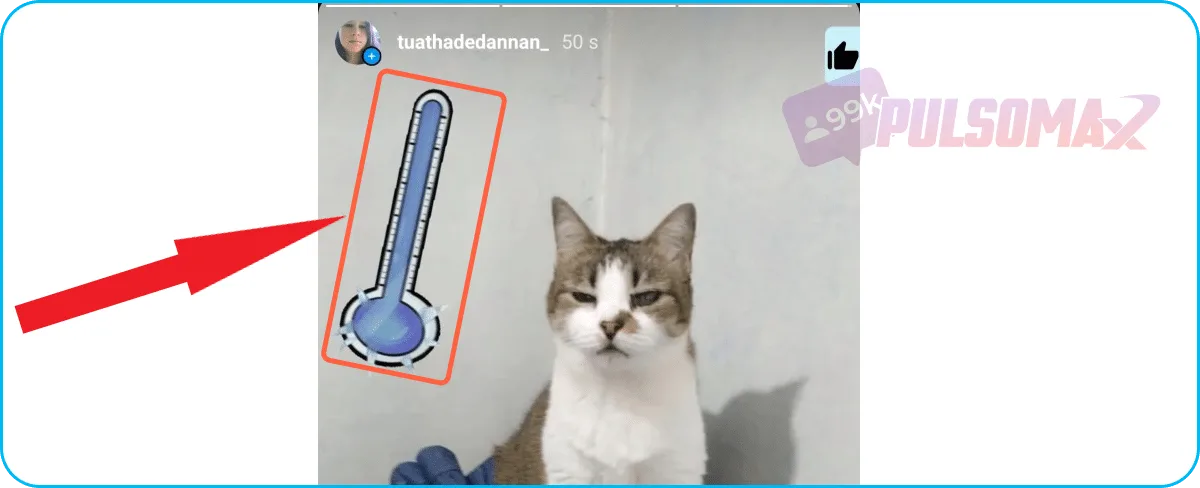
 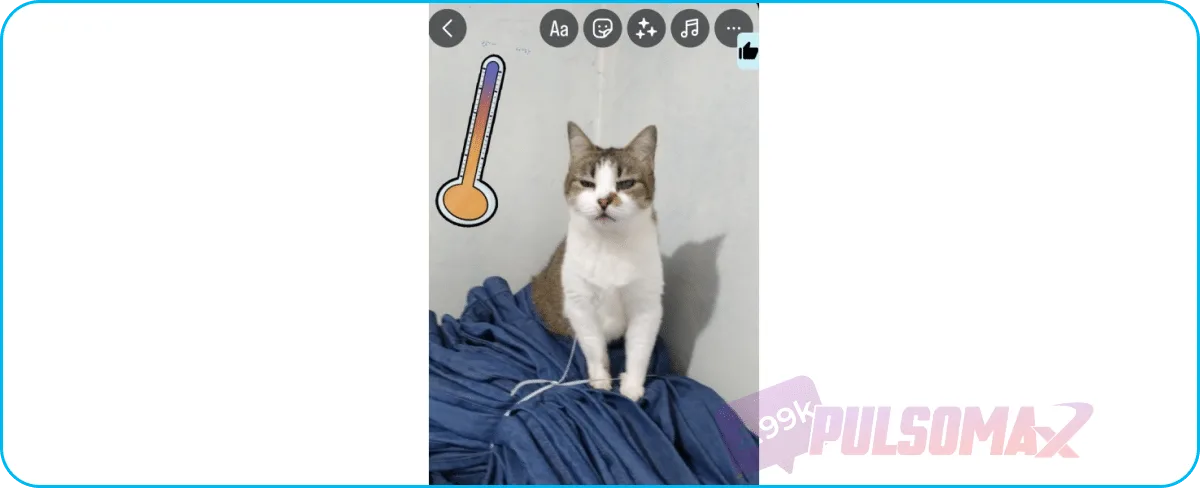 Done! If you want, you can add new GIFs and/or even the temperature sticker, all at once. When you're finished selecting and editing, just click on Your Stories to publish. And the temperature will look like this:
  Want to upgrade your Instagram profile and grow faster on social media? See how to buy Instagram follower packages ! It's safe and fast. But don't forget: you need to publish quality content for these new followers!
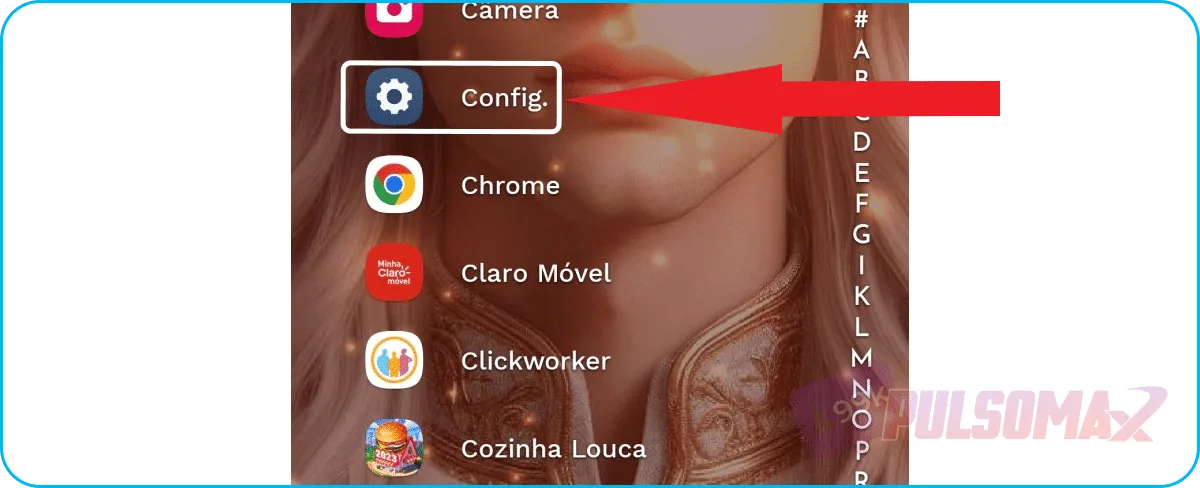 Now, look for the "applications" option, as shown in the image below.
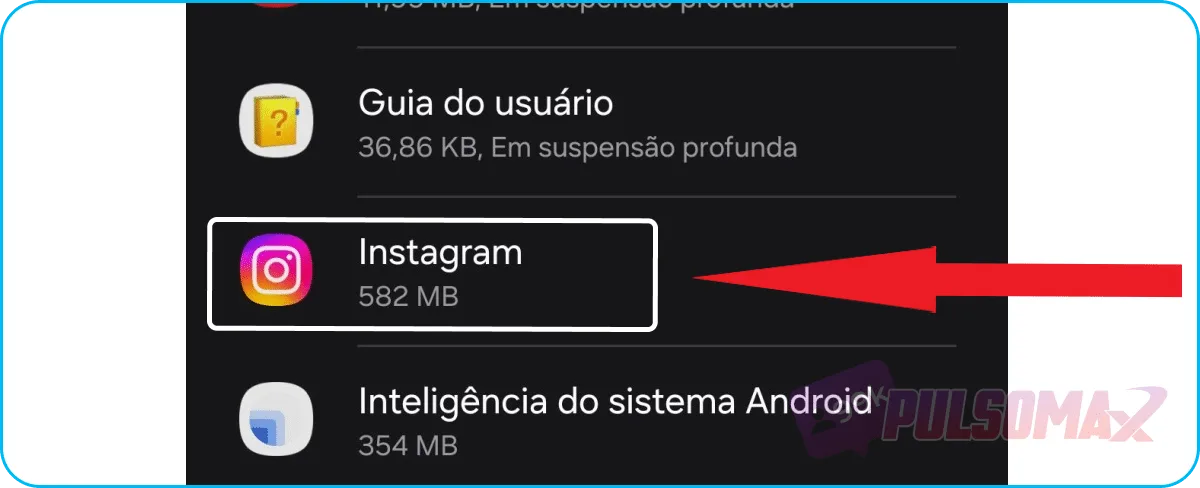
 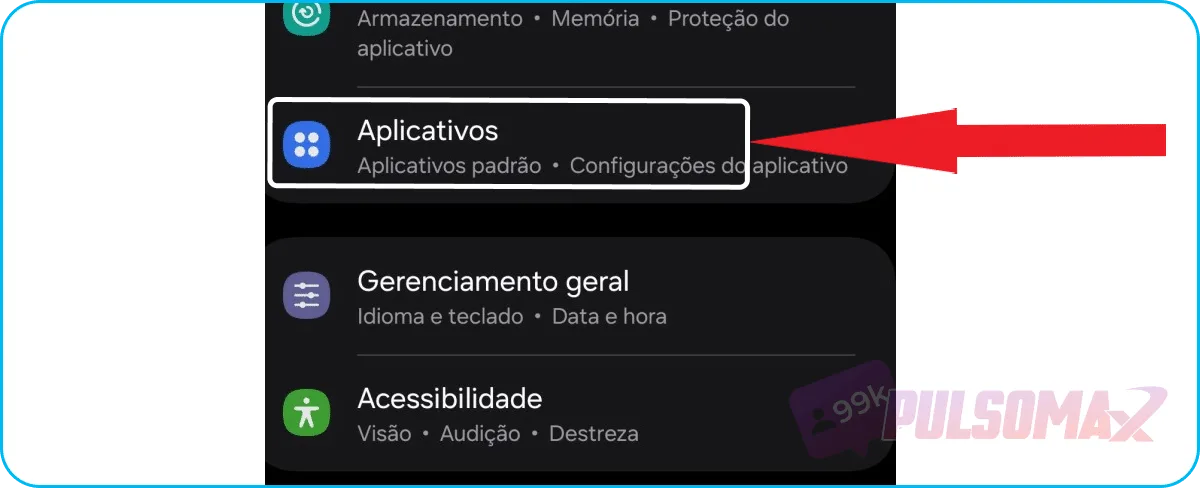 Next, scroll down until you find the Instagram icon , and tap on it.
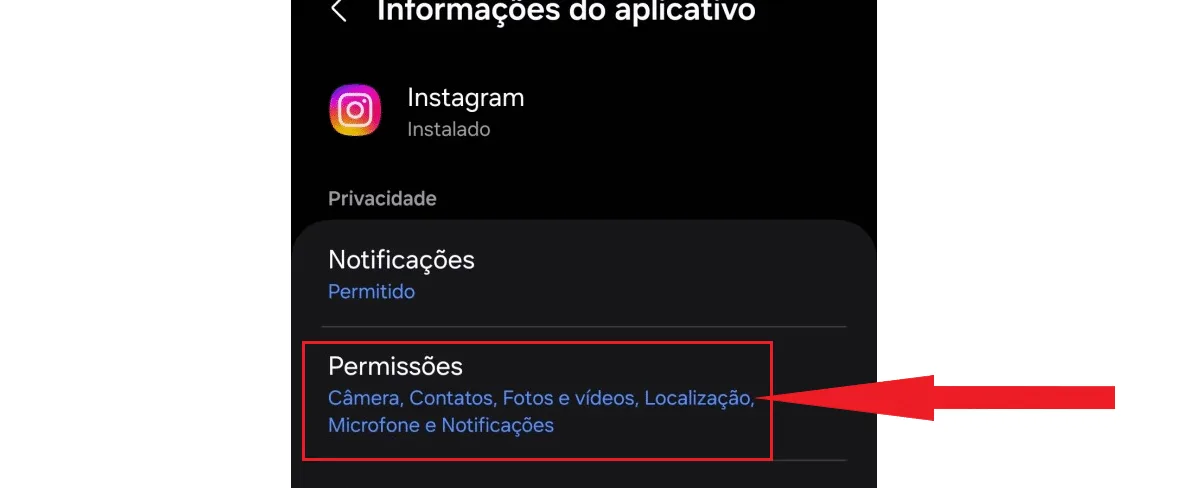
  On the app's settings page, go to the permissions tab.
  Find the location option, which may appear simply as "local" in some models. And click on it.
 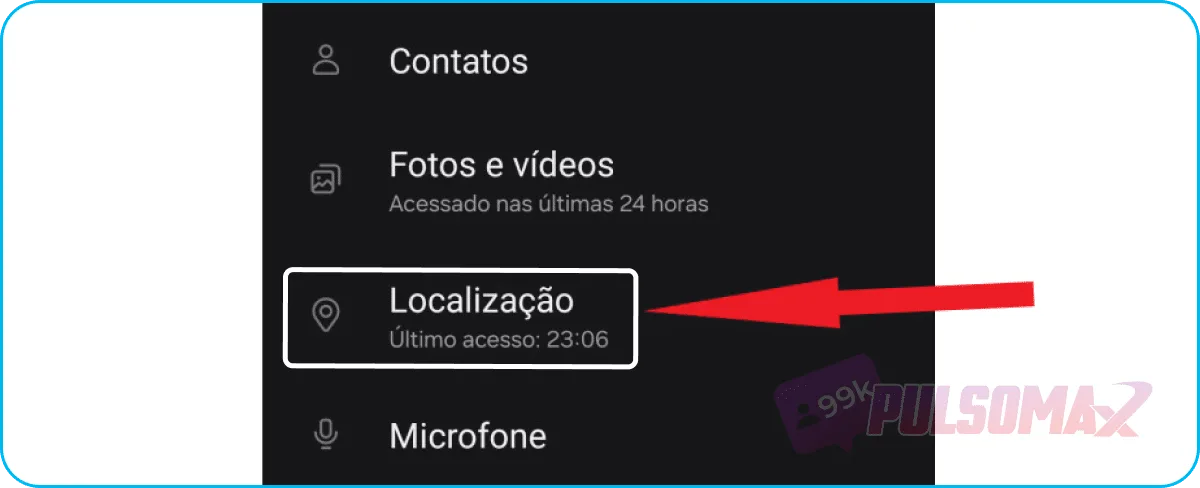 Check the box to allow while using the app , and below, activate the "use exact location" button.
 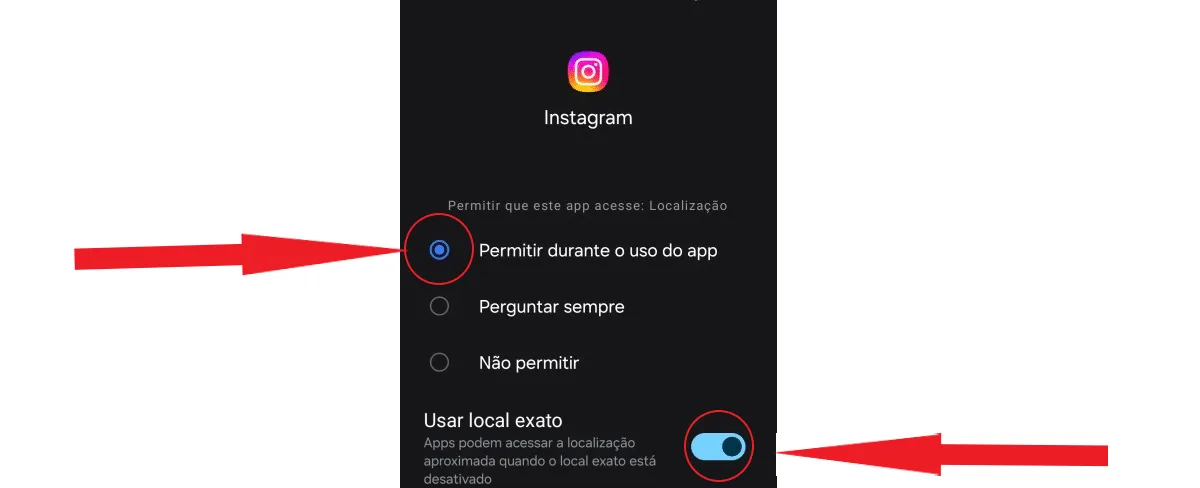 Done! With these permissions, your Instagram app will be able to display the updated temperatures in your Story, so enjoy! To confirm it worked, close the Instagram app, reopen it, and check if the Stories are displaying the temperature sticker correctly.
Where is the temperature displayed on Instagram?
To learn how to add temperature to Instagram posts, it's important to know where it's located. Many users search for this function but can't find it. The temperature is located in the Instagram stickers tab, which appears as a post customization option when you publish a story. Therefore, it's not possible to add the temperature to feed posts on Instagram.Learn how to set the temperature on Instagram.
To further customize your Instagram photo and video posts, you can learn how to add temperature to your Instagram stories. This is possible within the app's stories, and can be done through the Instagram app on your Android or iOS device. To begin, first log in to the Instagram app, then click on your story photo in the upper left corner of the stories bar, as shown in the image below: Select the image or video from your gallery that you want to use to create your story, and then click on the sticker icon , as shown in the image below. Find the sticker that shows the current temperature and click on it . Note that there is only one sticker for this function; it will show the same temperature reported by weather services in your region at the time of posting. Now, the temperature will be displayed in the center of the story , but you can drag it to your preferred location, adjusting the sticker's placement on your image or video. If you wish, you can also change the size and angle of the sticker. See below. After adjusting: Now, just finish your post by clicking on "your stories," and the new story will display the dynamic temperature, which changes in real time, with the temperature sticker! How to set the temperature on Instagram with a GIF.
Instagram is a really interactive social network, and you can really count on several interesting features, for example, learning what restricting people means on Instagram, how to view stories anonymously on Instagram , and many other topics, many of which we cover here on our blog. And when it comes to interactivity, Instagram also has the GIF feature, which are animated stickers to contextualize a wide variety of situations. You can even learn how to add temperature to your Instagram with a GIF! It's very simple. First, click on your photo again in the stories bar, as in the previous image. Then, select a new image or video for your stories, and click the sticker button again. Observe. Now, in the search bar , type "temperature ," or another related term, such as "cold," "hot," "rain," etc., depending on the weather you want to highlight in your post. And select the GIF you want to use by clicking on it. The GIF will be displayed in the center of the screen , in the standard Instagram size. See for yourself. Next, adjust the size and location of your GIF as you prefer. Done! If you want, you can add new GIFs and/or even the temperature sticker, all at once. When you're finished selecting and editing, just click on Your Stories to publish. And the temperature will look like this: Want to upgrade your Instagram profile and grow faster on social media? See how to buy Instagram follower packages ! It's safe and fast. But don't forget: you need to publish quality content for these new followers!How do I add temperature to my Instagram feed when it doesn't show up?
Some people who want to know how to add temperature to their Instagram profile encounter another problem: the temperature simply doesn't appear, even after following all the steps! But, just like other Instagram problems, such as Instagram closing unexpectedly , the problem of the temperature not appearing has a solution! In most cases, the cause of this problem is the settings on your Android or iOS device. It's necessary to grant Instagram permission to access your location; otherwise, it won't be able to display the updated temperature on your Instagram. Check out the step-by-step instructions below and learn how to add temperature to your Instagram profile when it doesn't appear!How do I add temperature to my Instagram profile on an Android device?
If you're having trouble with the temperature not appearing on Instagram for Android, it's possible to resolve this with a few simple steps that involve changing the app's settings on your system. First, go to settings by clicking on the gear icon on your Android device. Now, look for the "applications" option, as shown in the image below. Next, scroll down until you find the Instagram icon , and tap on it. On the app's settings page, go to the permissions tab. Find the location option, which may appear simply as "local" in some models. And click on it. Check the box to allow while using the app , and below, activate the "use exact location" button. Done! With these permissions, your Instagram app will be able to display the updated temperatures in your Story, so enjoy! To confirm it worked, close the Instagram app, reopen it, and check if the Stories are displaying the temperature sticker correctly.How do I add temperature to Instagram on iOS?
For iOS apps, resolving the issue of the temperature not appearing on Instagram is also quite simple; check out the steps:- Click on Settings to access your iPhone's settings;
- Now, scroll down until you see the Instagram icon in your list of apps. Click on it;
- In the Instagram app settings, find the location option and click on it;
- Check if the option is enabled in the app's location settings while using the app . If it's not, enable it.
- Users of iOS 14 can also select the precise location option , which ensures that the temperature is even more accurate for their region.
A temperature that doesn't appear may indicate temporary instability.
If the previous step-by-step instructions, on both Android and iOS, don't solve your temperature problem and it still doesn't appear in your stories, then check if the Instagram app is experiencing temporary instability. Social media outages are common, and some functions may stop working during these times. This is precisely the case with the temperature function. To find out, you can try talking to other users to see if they are experiencing the same problem. Or, check if Instagram has made any official statement about the issue. If you still can't solve the problem with the temperature not appearing on Instagram, the best option is to contact the platform's support through the "report a problem" option in the app's help section on your Android or iOS device.Why post the temperature on Instagram?
Okay, you already know how to add temperature to your Instagram, but why do it ? Well, there are several reasons! First, Instagram is a platform for sharing moments from your daily life. Even digital influencers with thousands of followers do this! Temperature is part of your daily life. In fact, with a well-planned strategy that even considers the best times to post on Instagram , the simple act of adding the temperature can generate a lot of engagement. Because people like to talk about the weather. And, if there's a more serious situation happening, like heavy rain or heat waves, sharing data about the temperature and weather forecast is also useful! Check out the following to understand better.It improves follower engagement.
Learning how to add temperature to Instagram and use it in Stories is a way to share relevant information, even with content about everyday moments. This is because adding temperature to Stories adds value to the content , and users tend to interact more with content that has greater value.Setting the temperature is useful and relevant.
Climate data is relevant information . Simply following the news daily reveals how the climate in different parts of the world has generated concern due to numerous anomalous weather events. Therefore, when you share this information, you give your content practical utility for others. At the same time, you demonstrate that you care about climate issues and the lives of your followers, who are affected by them. This contributes to building an active and engaged community on your profile, which is excellent for your organic growth on Instagram.Temperature provides visual context.
Another important point about learning how to add temperature to your Instagram story, and why you should do it, is that temperature provides visual context for your post. This means your followers don't have to make any effort to understand the information; it's automatic. As soon as they see the temperature in your story, they understand the ambient situation where you are. This understanding helps create a deeper connection between you and your followers! Want to download your favorite Instagram content, including posts from other profiles? Then check out our essential Instagram download tools and download videos, audio, and images whenever you want! It's free.Solving common Instagram problems
Now that you know how to add temperature to your Instagram stories, we've also prepared some final tips that can help you solve common problems on the photo and video social network. For example, the problem of the temperature not appearing in your stories, or the bug of Instagram closing on its own. Often, the ways to solve these issues are quite simple, and users get lost not knowing how to fix the problems. So, before trying more complex procedures, or contacting Instagram support, try:- Restart your smartphone;
- Check if your Instagram app is up to date ( click here to check the latest version of Instagram for Android, and click here to check it on your iOS device);
- Uninstall and reinstall the Instagram app;
- Check if there are any unfamiliar apps on your phone that might be interfering with Instagram's functionality.
![Nao consigo seguir ninguém no Instagram [Resolvido]](https://pulsomax.com.br/assets/uploads/blog_ai/wordpress-featured-nao-consigo-seguir-ninguem-no-instagram-resolvido-ffb74d6313.webp)