Instagram
  by
by 
 9 min read
![Como ocultar curtidas no Instagram iPhone [Passo a Passo]](https://pulsomax.com.br/assets/uploads/blog_ai/wordpress-featured-como-ocultar-curtidas-no-instagram-iphone-a6f2c4cfa1.webp)
Want to find out how to hide likes on Instagram on iPhone? With 2 billion active users worldwide, Instagram is one of the most popular social networks, surpassing even other famous networks like the TikTok app. Therefore, many users are interested in discovering how Instagram's features work. And there are really many things to consider when it comes to posting on Instagram, especially if you want to grow on the social network. This includes everything from simple things like understanding the Instagram feed well, to discovering the best times to post on Instagram and maximize engagement. Learning how to hide likes on Instagram on iPhone and Android is another point of interest for many people. After all, not everyone wants to constantly monitor the performance of their posts on their feed. If you are one of them, take advantage of this step-by-step guide!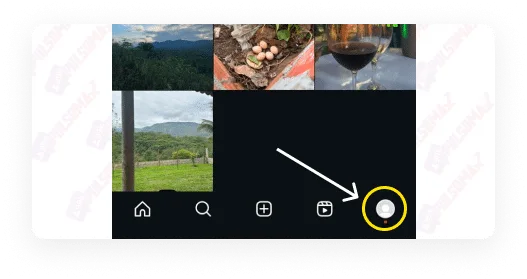
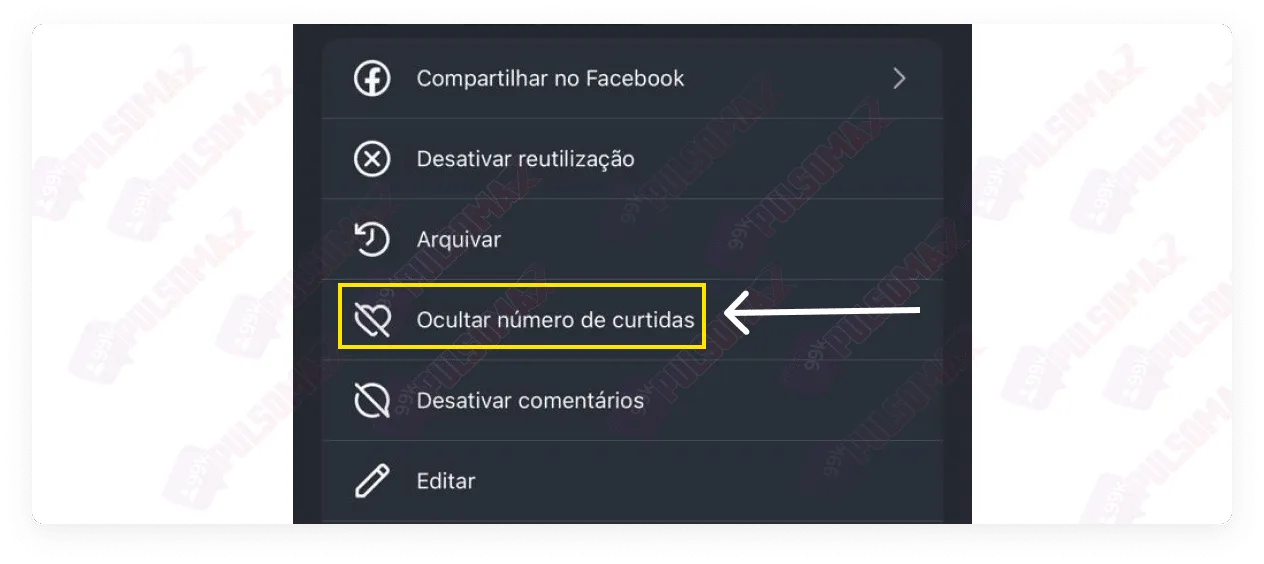 Done! You've learned how to hide likes on Instagram on iPhone! From now on, your Instagram iPhone will no longer display your likes and shares on this post to other people on the social network. So, when you want to change this, just go back to the same section of that post and uncheck the "number of likes" button , and Instagram will again display those numbers to other people who see the post.
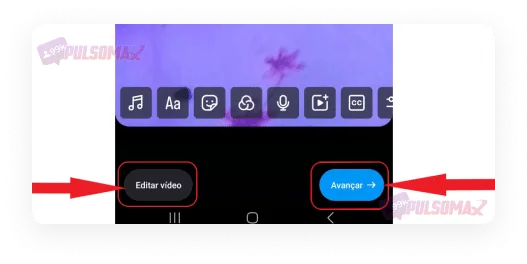 Now, before sharing your post to your feed or video to Reels, scroll down until you find the "More options" button . See the image below.
 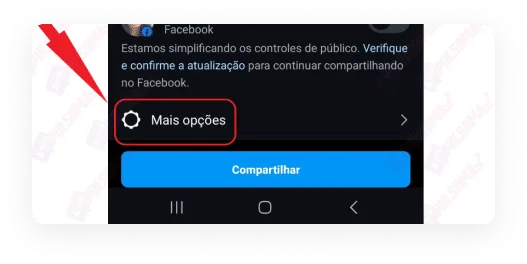 On the next screen, check the box to hide likes for this post. Note that there are other options available, and you can select them if you wish.
 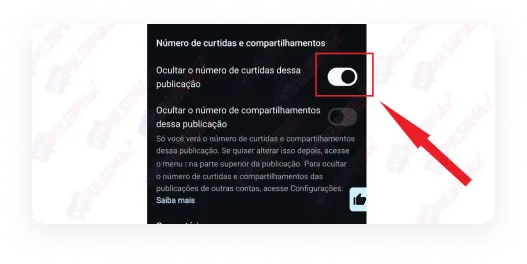 For Instagram Reels, select "hide the number of likes for this reel ." Also, check the other options if you're interested.
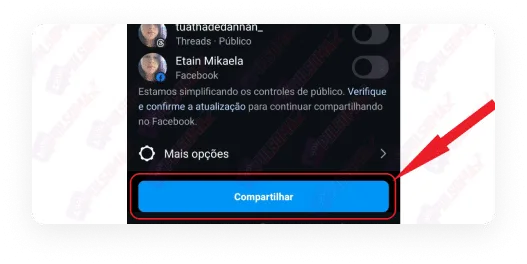
 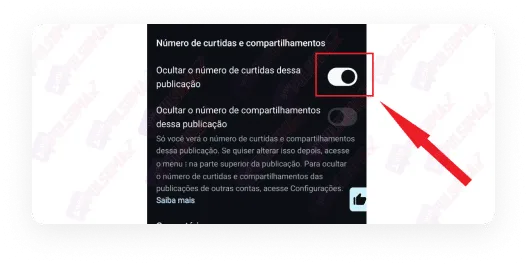 Go back to the previous screen and finish your post by clicking share.
  Done! You've just discovered how to hide likes on Instagram for iPhone and Android. And your post won't show the number of likes to other users on the social network! But be aware: you, as the profile owner, will still be able to see how many people liked, commented, and shared your post.
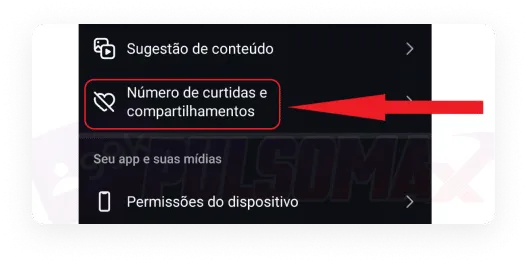 On the next screen, enable the option to hide the number of likes and shares.
 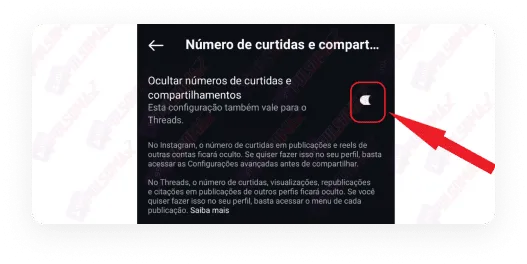 Done! From now on, everyone's likes and shares will be hidden from your Instagram feed. Want to learn more about how Instagram works? Read also: how to view stories anonymously on Instagram [quick].
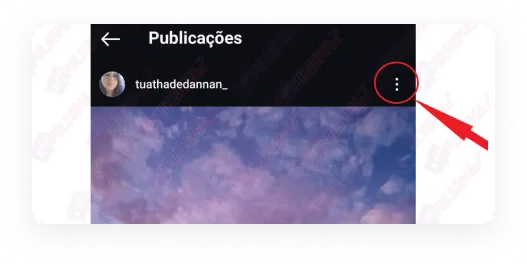 Now, click on "hide the number of likes for this post ," as shown in the next image.
 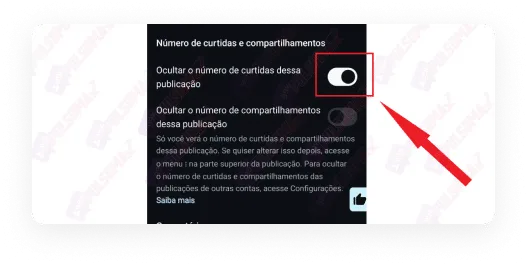 Done! You've learned how to hide likes on older Instagram posts on iPhone and Android. Now, use this feature whenever you want. Note also that there are other options, such as hiding the number of shares and disabling comments, and you can enable them if you want to hide even more information about your post.
How to hide likes on Instagram on iPhone, step by step?
Both iPhone and Android users know that there are significant differences between the two operating systems. Therefore, it's normal for iOS device owners to wonder how to hide likes on Instagram on iPhone, among other questions. For example, how to display the temperature on Instagram on an iPhone. Growing on Instagram requires time and dedication. Of course, you can take advantage of buying Brazilian followers to give your account a faster growth boost. Still, you need to invest in creating quality content to keep these new followers truly engaged with your profile, liking, commenting, and sharing your posts. But sometimes you might feel it's time to take a break and rest. Or you might not want to display your likes for strategic reasons, to avoid showing your numbers to the competition. And that's when the question arises: how to hide likes on Instagram on iPhone? So, if you have this question, we have the solution! Learn how to do it below!Guide on how to hide Instagram likes on iPhone [Images]
To help you, we've created this step-by-step guide showing you how to hide likes on your photos using your iPhone. The process is very simple and practical; check it out below.First, click on your profile picture.
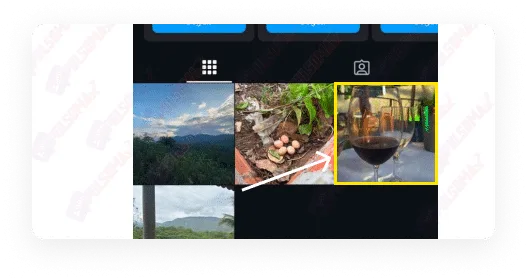
Choose the post you want to hide the likes from.
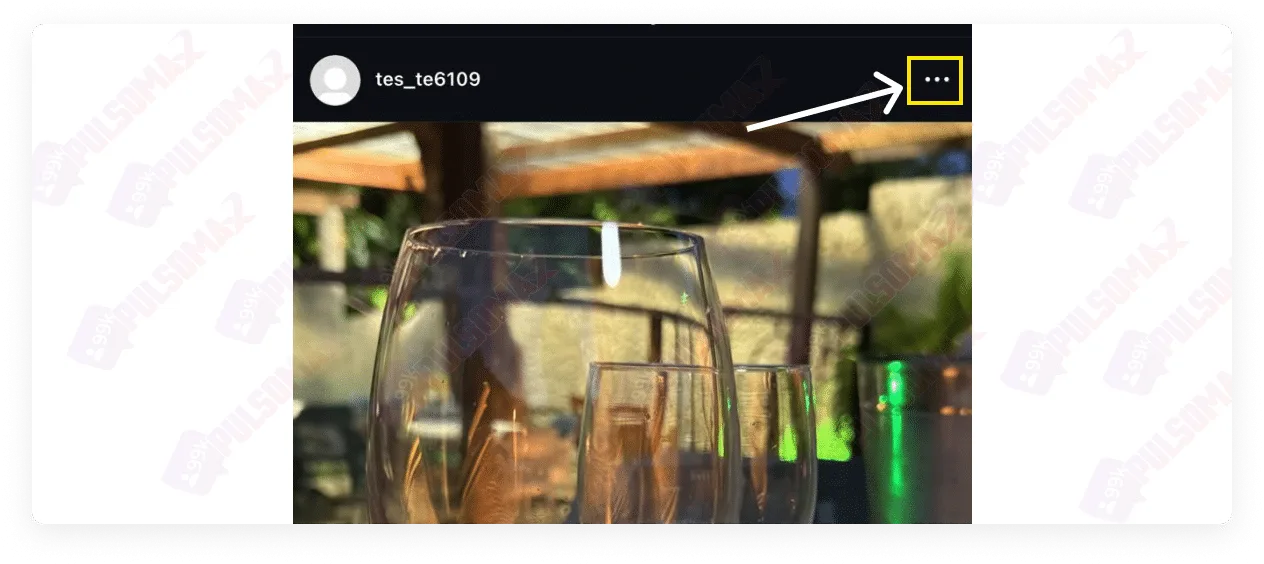
Click on the three dots in the upper right area.
Tap to hide the number of likes.
Done! You've learned how to hide likes on Instagram on iPhone! From now on, your Instagram iPhone will no longer display your likes and shares on this post to other people on the social network. So, when you want to change this, just go back to the same section of that post and uncheck the "number of likes" button , and Instagram will again display those numbers to other people who see the post.How to hide likes on Instagram Android step-by-step
To begin learning how to hide likes on a specific post on your Instagram Android profile, open your Instagram app and tap the + button located in the center of the bottom bar. Now, take a photo, record a video, or select media to post to your feed or Instagram Reels, as this feature is only available in those locations. Then, tap next. On the next screen, edit your image or video if you wish, and tap next again. Now, before sharing your post to your feed or video to Reels, scroll down until you find the "More options" button . See the image below. On the next screen, check the box to hide likes for this post. Note that there are other options available, and you can select them if you wish. For Instagram Reels, select "hide the number of likes for this reel ." Also, check the other options if you're interested. Go back to the previous screen and finish your post by clicking share. Done! You've just discovered how to hide likes on Instagram for iPhone and Android. And your post won't show the number of likes to other users on the social network! But be aware: you, as the profile owner, will still be able to see how many people liked, commented, and shared your post.How to hide likes on Instagram (iPhone and Android) from other people, step by step?
Learning how to hide likes on Instagram on an iPhone is a very simple process, and almost identical to the procedure for hiding likes on Instagram on Android. So, if seeing the number of likes on other posts on Instagram is bothering you in any way, just follow these steps. First, open the Instagram app on your Android phone. Then, click on your profile picture thumbnail in the bottom right corner of the screen. And tap the three-line button in the top right corner of the screen. Now, scroll down until you find the "Number of likes and shares" option and click on it. On the next screen, enable the option to hide the number of likes and shares. Done! From now on, everyone's likes and shares will be hidden from your Instagram feed. Want to learn more about how Instagram works? Read also: how to view stories anonymously on Instagram [quick].Hiding likes on Instagram on iPhone also hides them in Threads.
Learning how to hide likes on Instagram on iPhone is really useful. But there's an important point you should consider before making your decision. If you're also a user of the new social network of the moment, Threads , you'll stop seeing likes on posts there as well, once you complete the process to hide them on your Instagram. The same applies to comments and shares. For those who don't know, Threads is a social network developed by Meta, the company that owns Instagram, Facebook, and WhatsApp. Threads is similar to X (formerly Twitter). It's a microblogging social network where users can comment on short posts, share photos and videos, receiving likes, comments, and shares. The thing is, Threads is linked to Instagram. In fact, you can create an account on the new social network using your current Instagram account. Therefore, when you change some settings on your Instagram, the same settings on your Threads profile are automatically changed.Is it possible to hide likes on old posts on Instagram for iPhone and Android?
Yes, this is possible. Instagram is truly a social network with many useful tools for users. And when it comes to figuring out how to hide likes on Instagram iPhone, and even Android, users are happy to know that they can do this on any post. In fact, the process is the same for both iPhone and Android. So, if you have any post, even an old one, and for any reason you want to hide its likes, just follow these steps. Go to Instagram, tap on your profile picture thumbnail in the bottom right corner of the screen, and find the post you want to hide likes on. Then, click on it, and tap on the three dots in the upper right corner of the post. See the image below. Now, click on "hide the number of likes for this post ," as shown in the next image. Done! You've learned how to hide likes on older Instagram posts on iPhone and Android. Now, use this feature whenever you want. Note also that there are other options, such as hiding the number of shares and disabling comments, and you can enable them if you want to hide even more information about your post.