Instagram
  by
by 
 10 min read
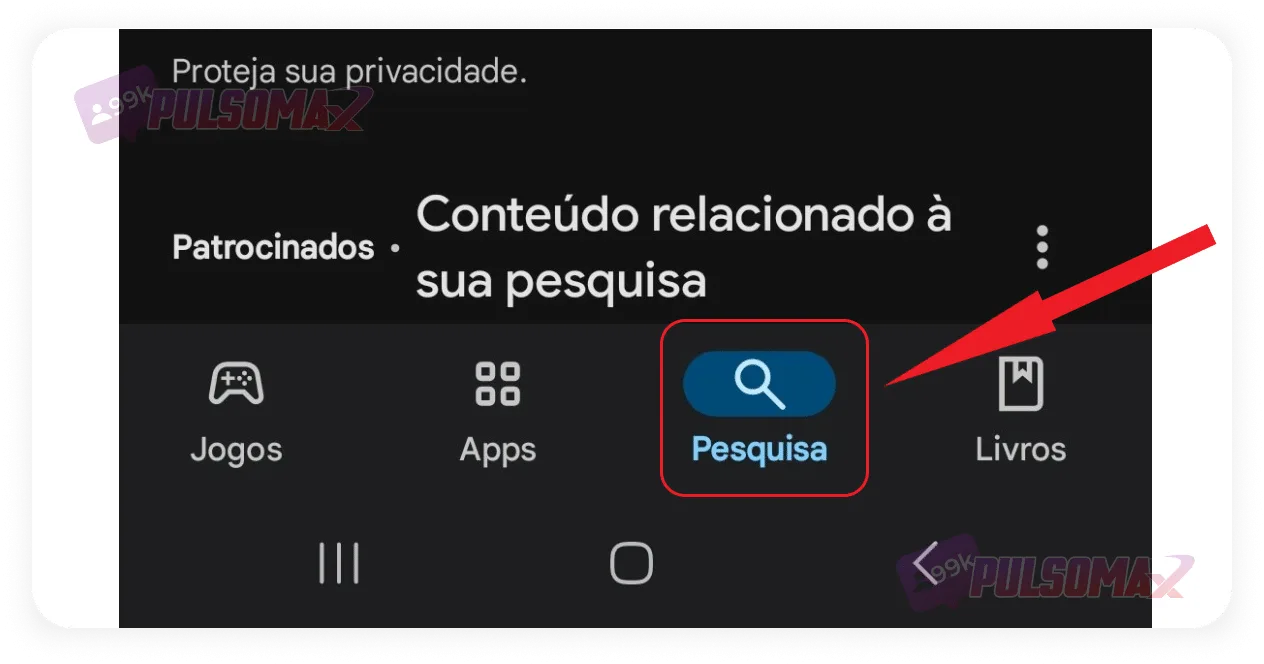
Don't know how to set a password on Instagram? When we create our account on the Instagram app, we all choose a password to access the account. But, when logging in on our cell phone, or even on the computer via Instagram Web, this password is not requested every time we log in. In other words, if someone has access to the device in question, they can enter your Instagram account without needing to enter the password. The same happens when we create an Instagram account from Facebook, an option that is very practical for Facebook users. In this case, the Instagram password remains the same as the Facebook password. Regardless of the reason, protecting your Instagram account is important. Especially for users who are influencers or owners of business accounts, who invest heavily in the social network, even buying real Instagram followers to grow faster. So, if you came here to learn how to set a password on Instagram, this post is for you to protect access to the app! Keep reading and enjoy!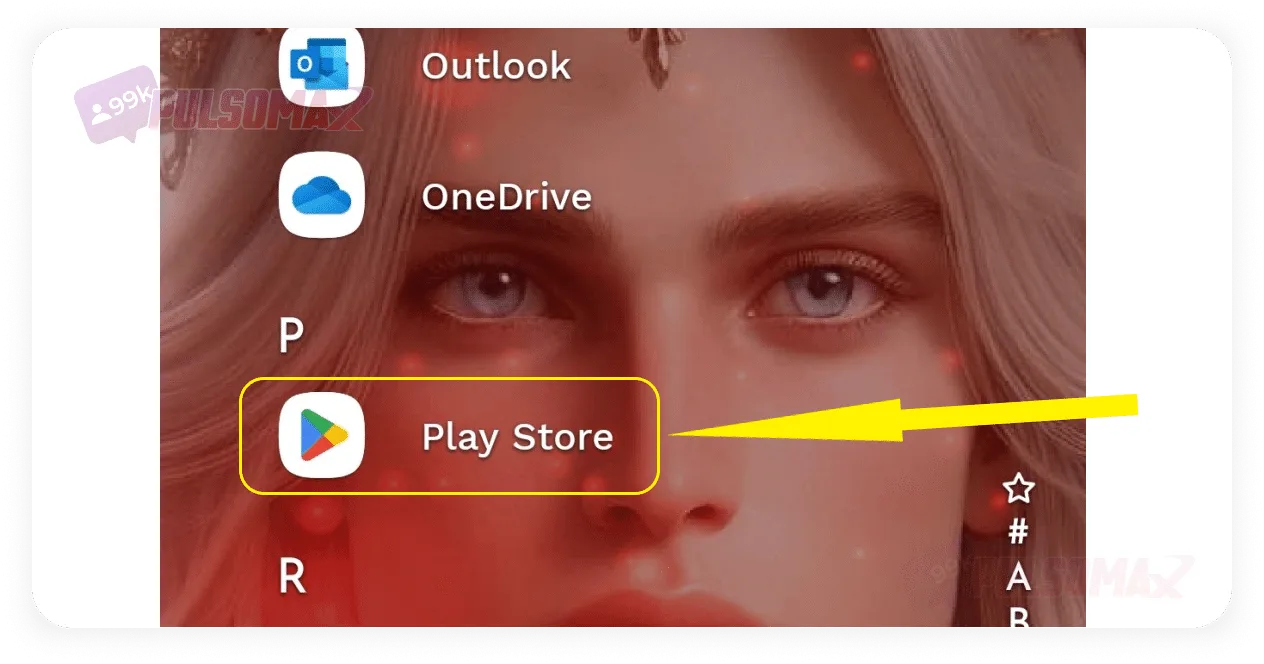 Then, click on the search bar at the bottom of the screen, and type " AppLock ".
  Now, click install . And wait for the download to complete.
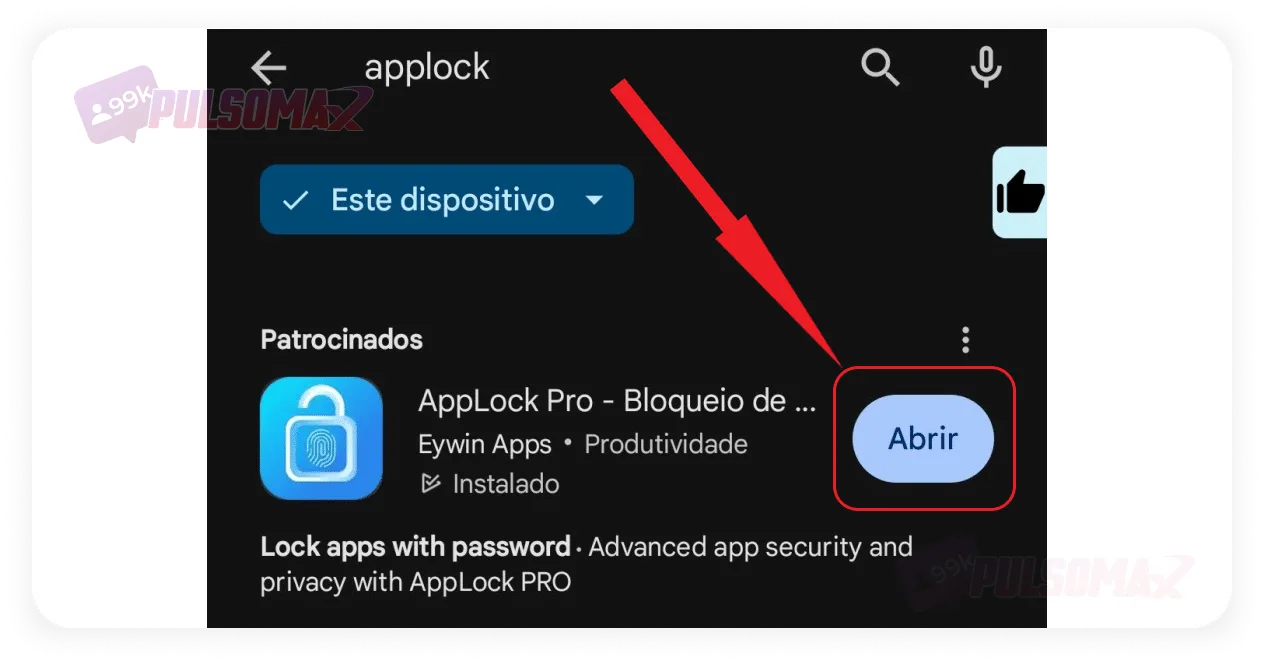
 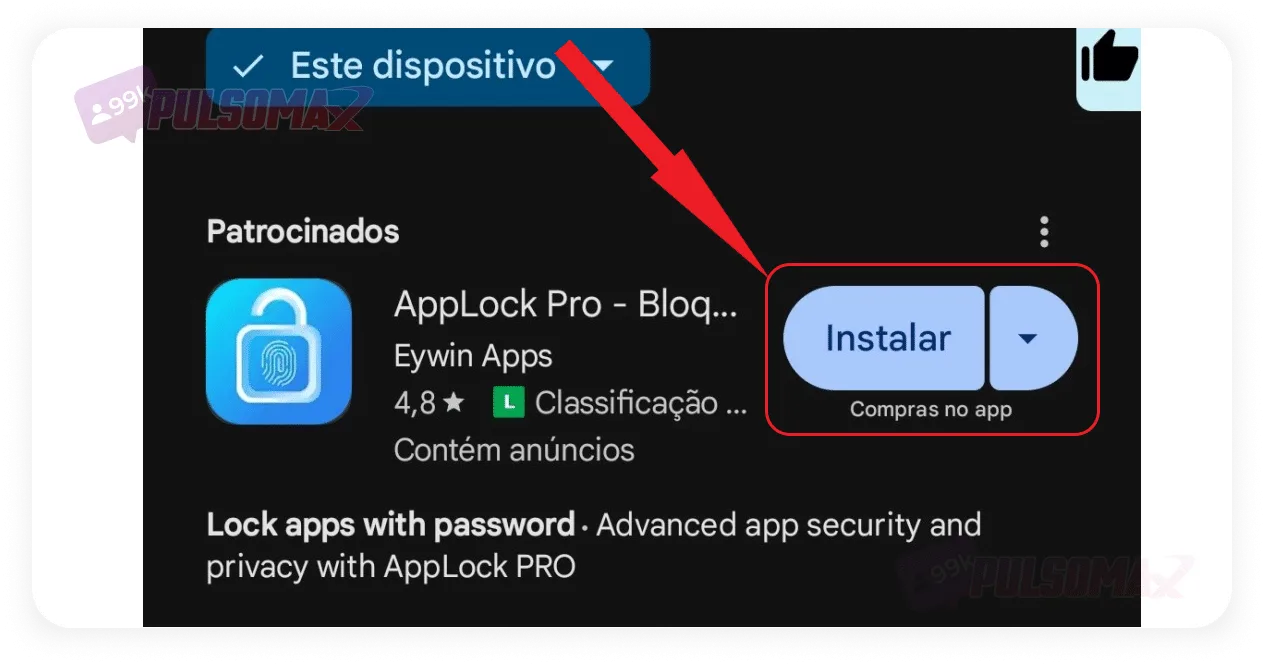 Once the download is complete, tap open .
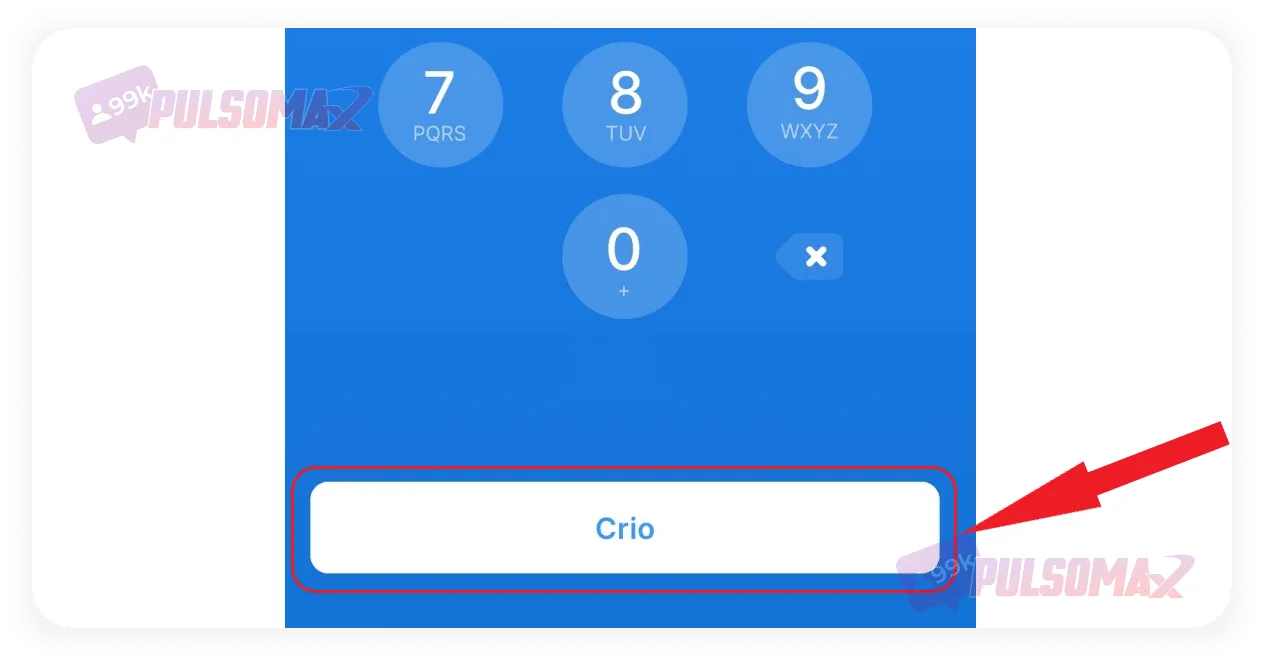
  On the next screen, create a 6-digit PIN code or an unlock pattern , as you prefer. Then tap "Create" on the button below.
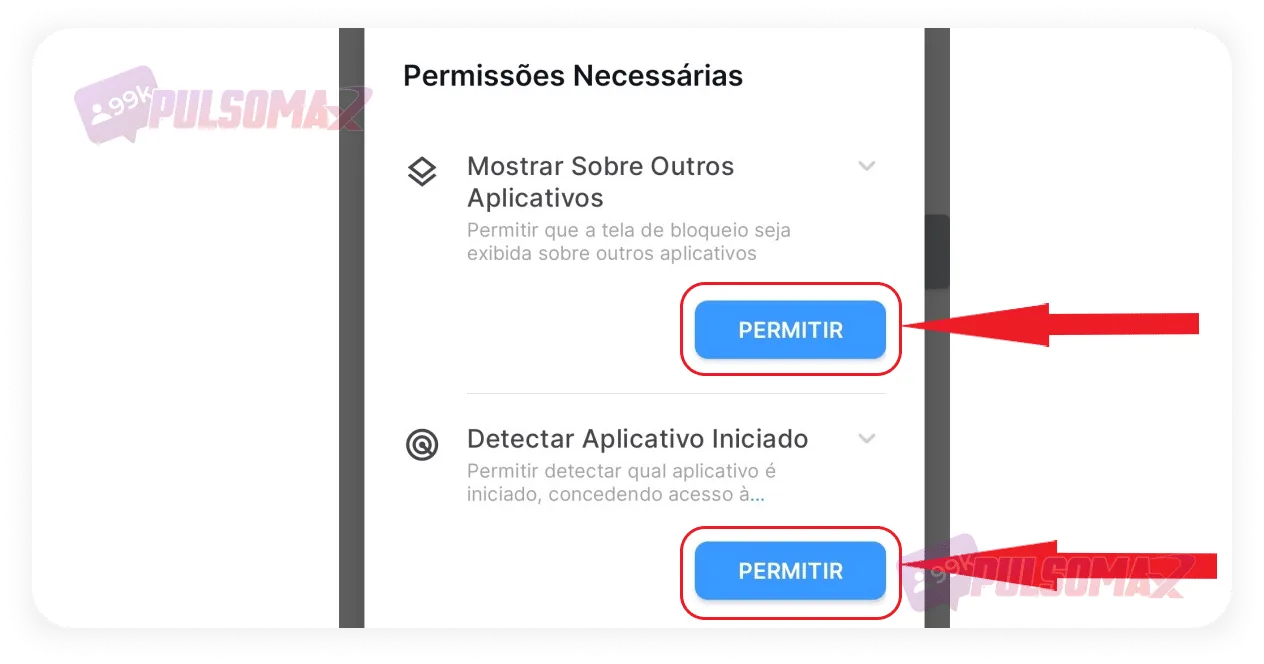
  Verify your password by typing it or drawing the pattern again twice, and when finished, click save . On the next screen, enable the app's permissions . You will be directed to your phone's settings when you click allow, then simply enable the options the app is requesting and proceed.
  You will be redirected to the app once you're finished. Then, scroll down until you find the Instagram app . Just click on the padlock next to the app's name and it will automatically be added to your blocked list. See the image below:
 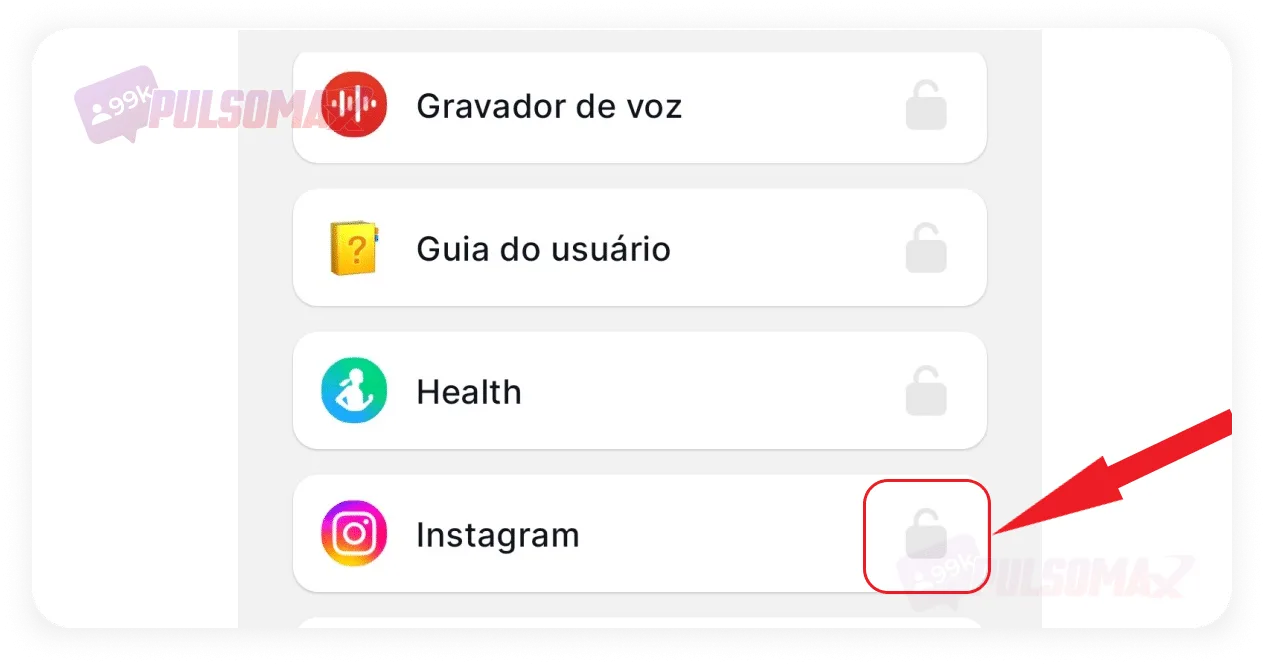 Important: The AppLock app will automatically block some apps when it receives the necessary permissions, so if Instagram doesn't appear in the list above, as in the image, click on "Blocked" and check if it's already on the list. Done! To test, open your Instagram app and check if it asks for the password you set in the app. If everything is correct, you will see a login screen like in the image below.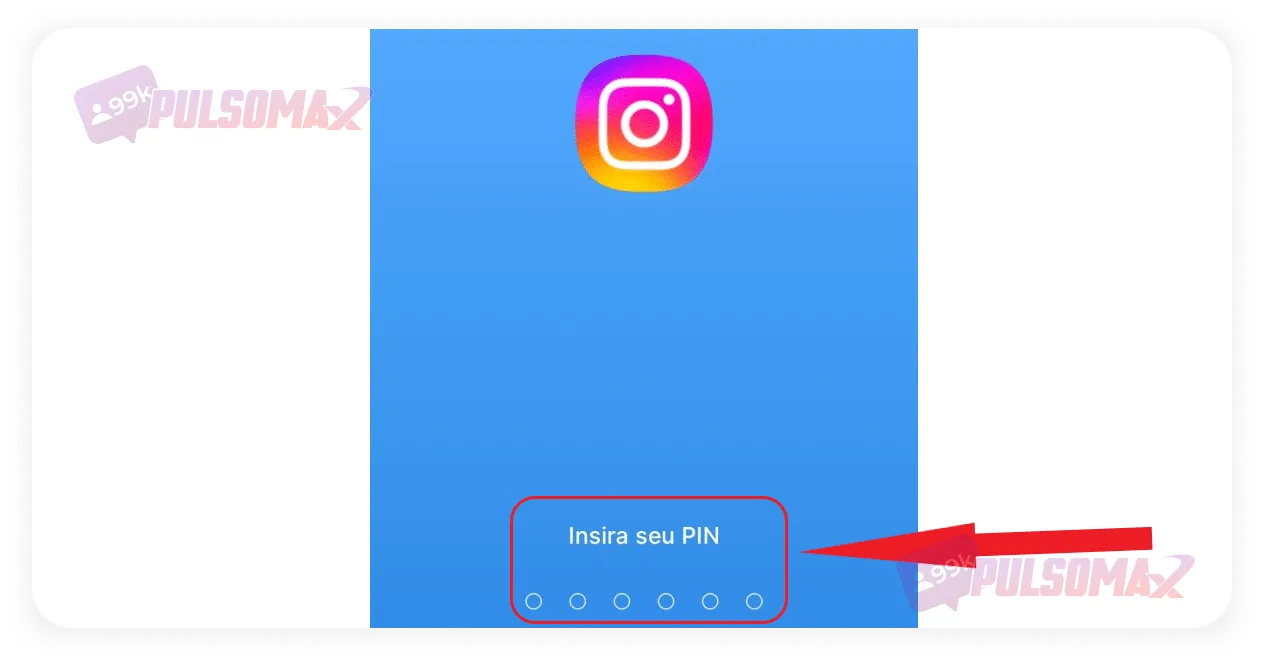
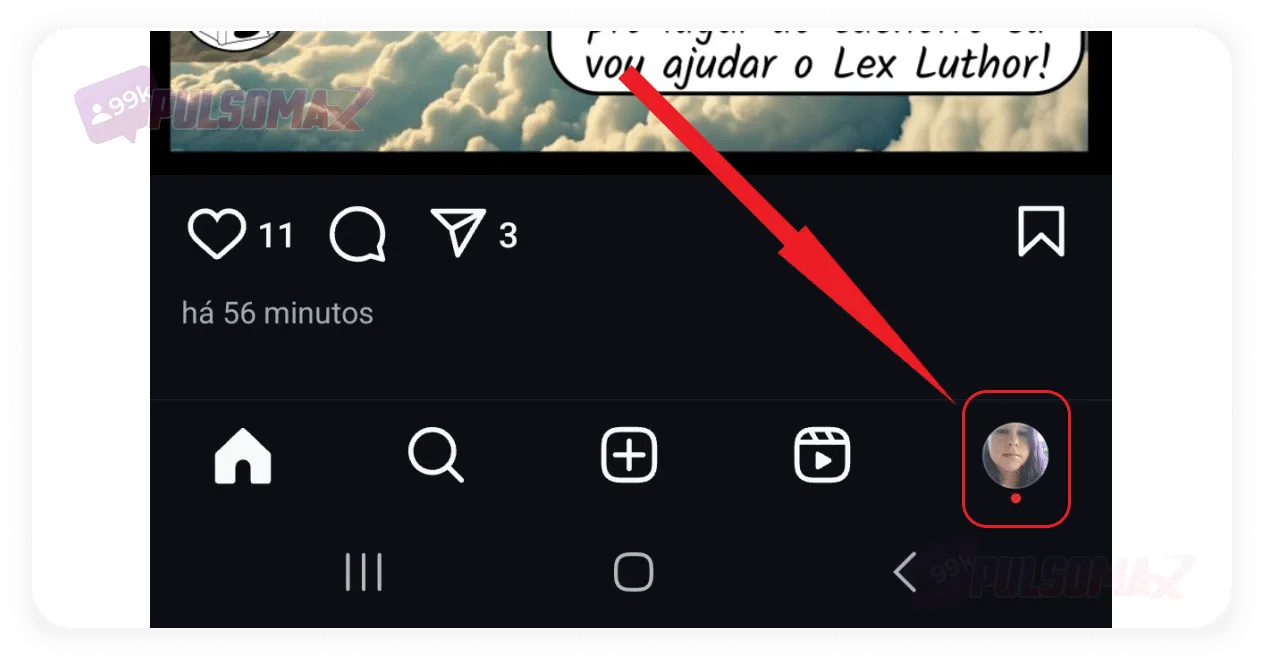 Then, access the menu using the three-line button in the upper right corner.
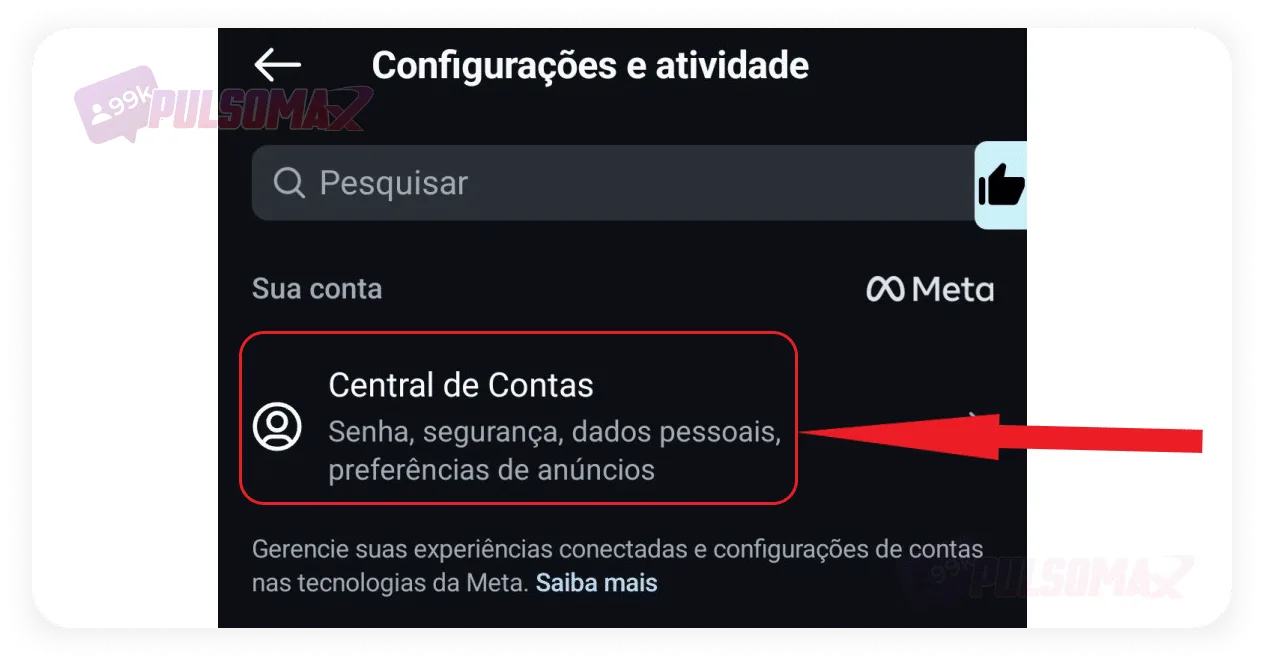
 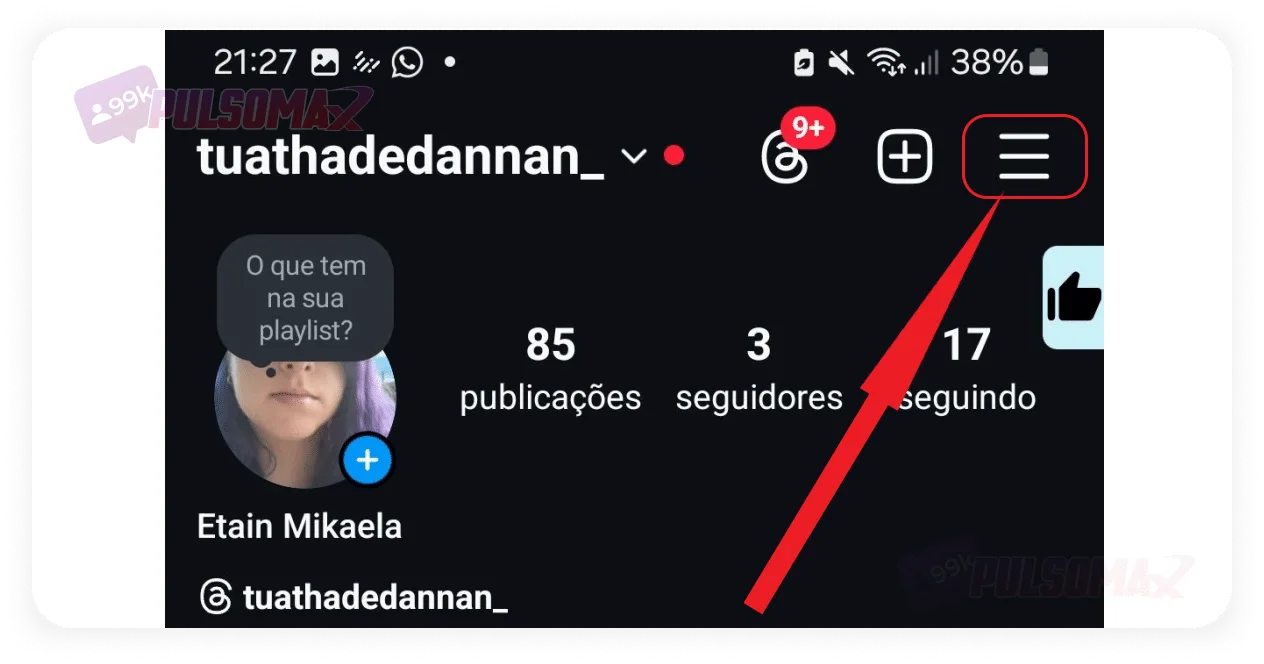 Now, log in to the Meta Account Center .
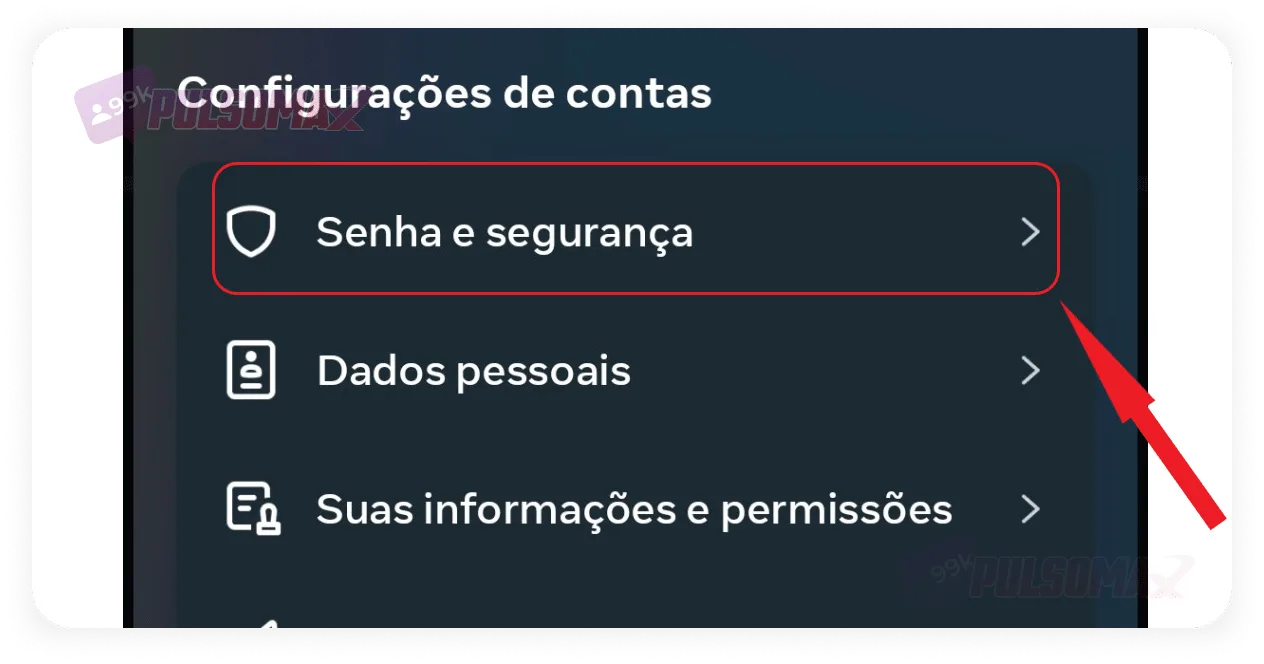
  Tap on passwords and security .
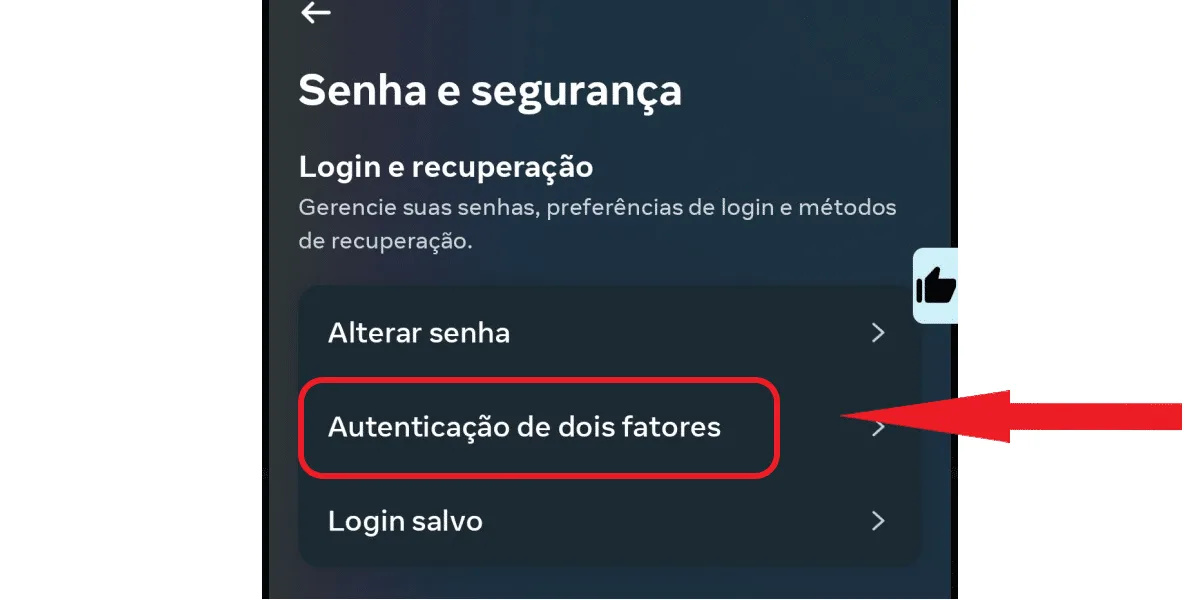
  Now, click on two-factor authentication .
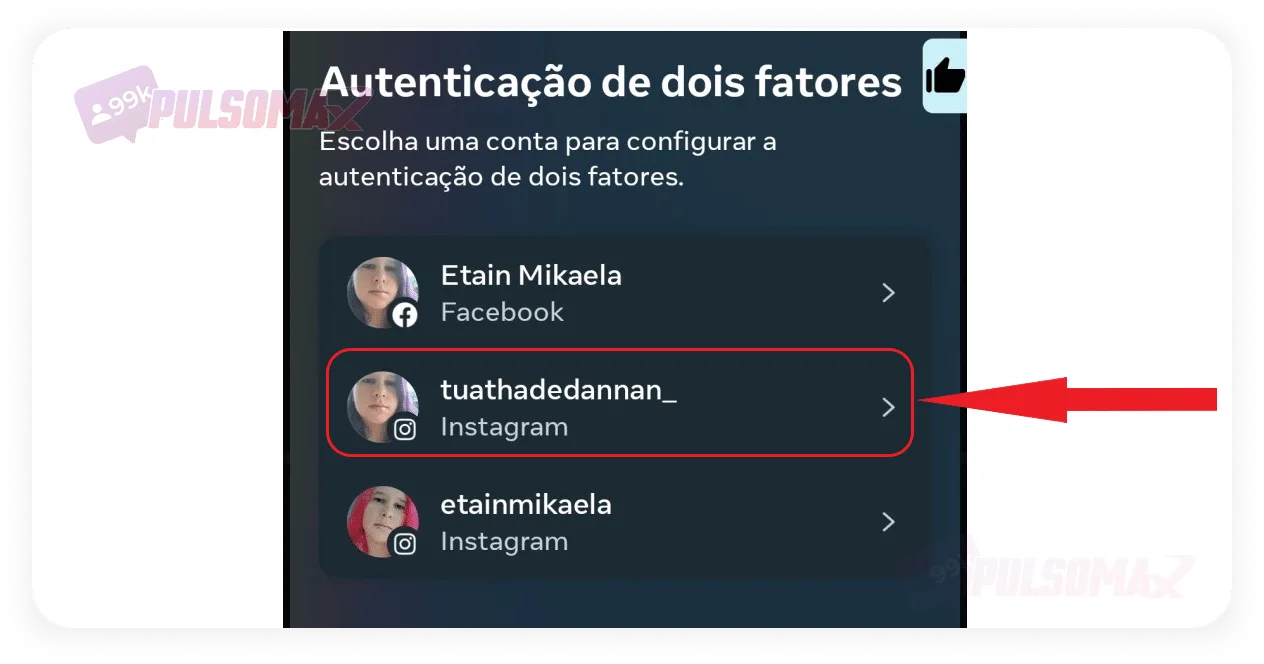
  If you have more than one account in the Meta Account Center, choose the profile where you want to apply two-factor authentication.
  On the next screen, choose between an authentication app and download an app recommended by Instagram, or SMS and WhatsApp as a means of approving a login request on an unknown device. If you choose to use an external app, the next tab will show a screen with instructions and an authentication code to be entered into the app of your choice. As a rule, Instagram recommends downloading Duo Mobile for this function. In this case, you only need to download the app and follow the step-by-step instructions already detailed by Instagram itself to enable it. But, if you choose SMS and WhatsApp, on the next screen enter the mobile phone number that will receive the two-factor authentication code and click next .
 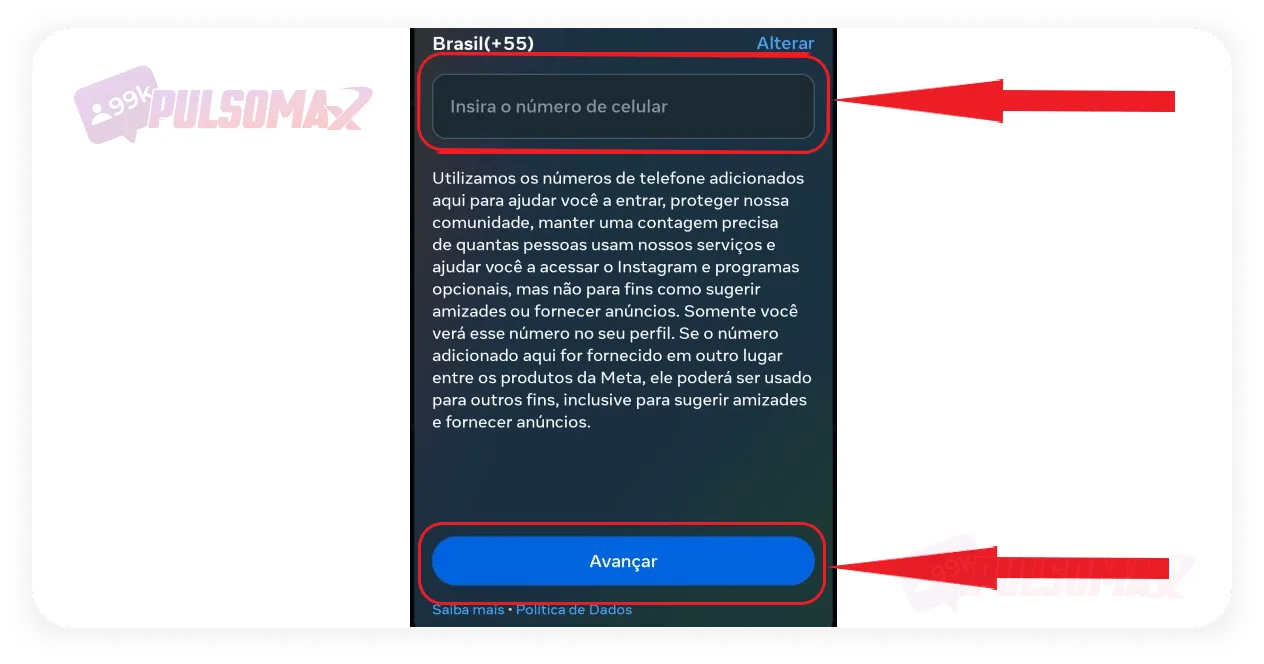 Important: Make sure you enter your number correctly. Instagram will send a verification code to the number you choose. Enter the code in the box and click next again.
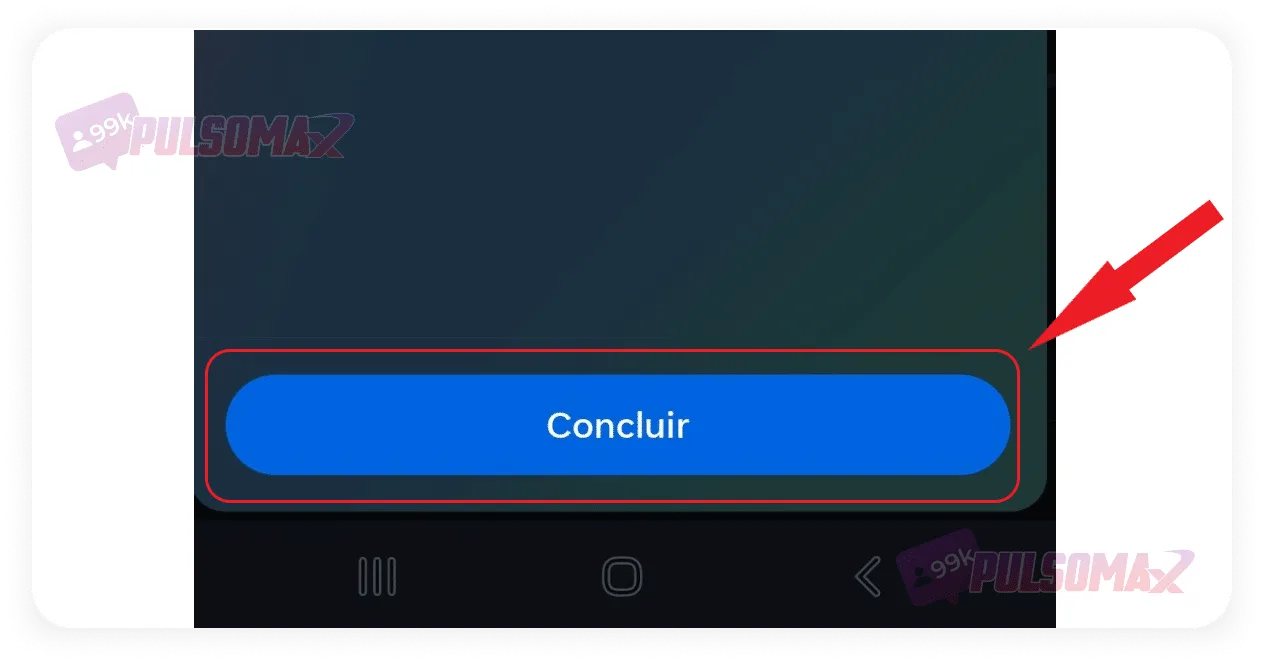
 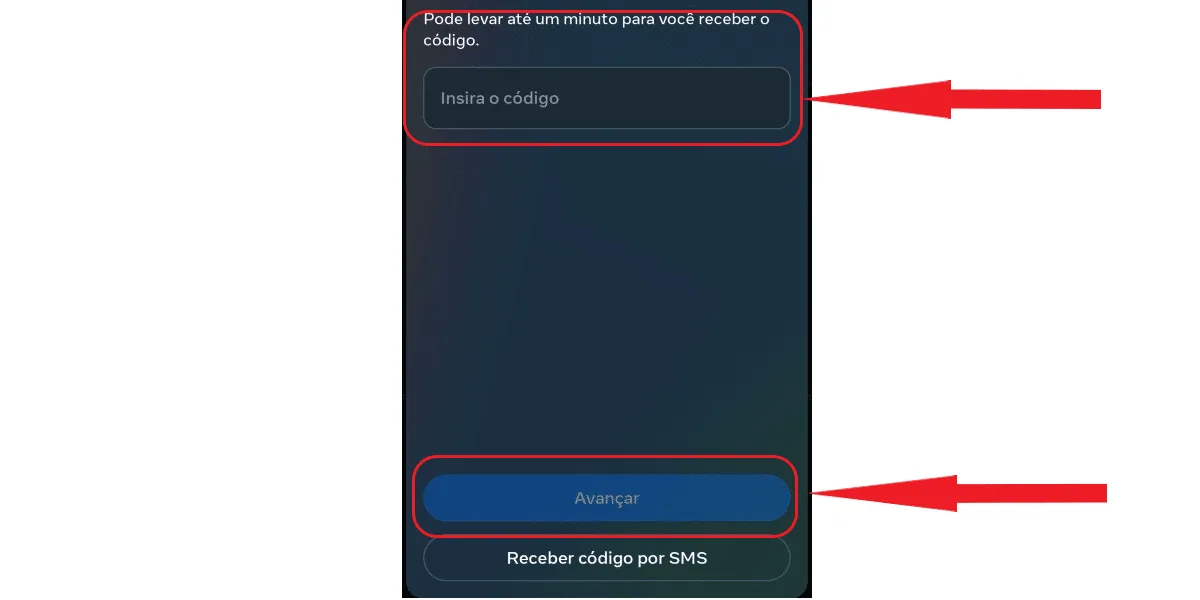 You will see the message "Two-factor authentication is enabled" on the next screen. To finish, click " Finish ".
  Want to download your favorite Instagram content but don't know how? Check out our essential Instagram download tools! It's free.
How do I set a password on Instagram using Android?
To learn how to password-protect Instagram on an Android phone , you can use the AppLock app, available on the official Google Play Store. It's a free and secure app that allows you to password-protect various types of applications, especially your social media accounts. This is the simplest and most practical way to solve the problem, allowing you to protect your Instagram app from unauthorized access by third parties. If you want, you can also do the same with other important apps, cool, right? Check out how to do it below!How to set a password on Instagram using AppLock, step by step.
Here on our blog, we're always thinking of helpful tips that answer users' questions, like in our complete guide on how to set a timer on Instagram . And AppLock is just one of those tips! To get started, first access the Google Play Store on your Android phone. Then, click on the search bar at the bottom of the screen, and type " AppLock ". Now, click install . And wait for the download to complete. Once the download is complete, tap open . On the next screen, create a 6-digit PIN code or an unlock pattern , as you prefer. Then tap "Create" on the button below. Verify your password by typing it or drawing the pattern again twice, and when finished, click save . On the next screen, enable the app's permissions . You will be directed to your phone's settings when you click allow, then simply enable the options the app is requesting and proceed. You will be redirected to the app once you're finished. Then, scroll down until you find the Instagram app . Just click on the padlock next to the app's name and it will automatically be added to your blocked list. See the image below: Important: The AppLock app will automatically block some apps when it receives the necessary permissions, so if Instagram doesn't appear in the list above, as in the image, click on "Blocked" and check if it's already on the list. Done! To test, open your Instagram app and check if it asks for the password you set in the app. If everything is correct, you will see a login screen like in the image below. How to set a password on Instagram on iPhone step by step
Now, if you're an iPhone user, you probably have specific questions about your operating system, right? For example, how to hide likes on Instagram and other Instagram settings, since iOS is really quite different from Android in many ways. The good news is that iPhone users don't need to download another app, as you can learn how to set a password on Instagram simply through your device's settings.- First, go to the settings section on your iPhone;
- Next, click on usage time ;
- On the next tab, click on app limits and tap on Instagram;
- Now, tap the option to select a usage limit and choose a time that suits you;
- Finally, tap add. If you prefer, you can choose which days you want to use this screen time restriction.
How to password-protect Instagram using Samsung's secure folder.
Samsung smartphone users can use an interesting feature to find out how to password-protect Instagram: Samsung's secure folder. This is a way to protect applications that some Galaxy line models have, and it can be enabled through the user's Samsung account. To activate the feature and encrypt the Instagram application, first go to settings on your Samsung Galaxy phone;- Next, click on biometrics and security ;
- On the next tab, select secure folder;
- Now, log in to your Samsung account using your details;
- Select the type of lock (you can choose between a PIN, password, or pattern);
- Confirm your choice and then click on applications ;
- Find the Instagram app in the list and click add.
How to set a password on Instagram using Xiaomi's app lock
Xiaomi is another popular mobile phone brand that has also innovated by offering its own option for users interested in learning how to set a password on Instagram and other apps. And since the brand is very popular, we're including this tip here for Xiaomi users!- First, go into your Xiaomi phone's settings ;
- Next, search for apps and click on them;
- Now, tap on app lock and create your password;
- Log in to your MI account using your credentials;
- Find the Instagram app in the list and select it;
- Select other apps if you want and enable app blocking to finish.
Enable two-factor authentication on Instagram.
Instagram's login request feature is another way to increase the security of your Instagram account. So, in addition to learning how to set a password on Instagram, it's important to keep this function enabled to further protect your data, and even your money if you are a digital influencer. This method requires that your login request on a new device be approved on your current device for the new login to be successful. This means that if someone steals your data and tries to access your Instagram account on another phone or computer, you will be notified of the unknown login and can prevent this attempt by declining the request.How to activate Instagram two-factor authentication step by step.
To enable Instagram login requests, first open the app on your Android or iOS device. Then, tap your profile picture thumbnail in the bottom right corner to access your profile. Then, access the menu using the three-line button in the upper right corner. Now, log in to the Meta Account Center . Tap on passwords and security . Now, click on two-factor authentication . If you have more than one account in the Meta Account Center, choose the profile where you want to apply two-factor authentication. On the next screen, choose between an authentication app and download an app recommended by Instagram, or SMS and WhatsApp as a means of approving a login request on an unknown device. If you choose to use an external app, the next tab will show a screen with instructions and an authentication code to be entered into the app of your choice. As a rule, Instagram recommends downloading Duo Mobile for this function. In this case, you only need to download the app and follow the step-by-step instructions already detailed by Instagram itself to enable it. But, if you choose SMS and WhatsApp, on the next screen enter the mobile phone number that will receive the two-factor authentication code and click next . Important: Make sure you enter your number correctly. Instagram will send a verification code to the number you choose. Enter the code in the box and click next again. You will see the message "Two-factor authentication is enabled" on the next screen. To finish, click " Finish ". Want to download your favorite Instagram content but don't know how? Check out our essential Instagram download tools! It's free.What does the "login request sent" message on Instagram mean?
After learning how to set a password on Instagram, you might encounter the message " login request sent " when trying to log into your account. If this happens, don't worry, as this setting is part of the security process you activate with Instagram's two-factor authentication. This message indicates that you need to access your phone, where you enabled authentication, to authorize a new login to your account from another device. So, if you are the one trying to log in, simply go to the Instagram app and confirm the request. Now, if you are not the one trying to log in, it means that someone has discovered your password and is trying to log into your account. In this case, you should deny the login request and change your Instagram password immediately.How do I view the Instagram login request?
Two-factor authentication is one of the best ways to find out how to set a password on Instagram. After all, it's a native setting of the app itself, isn't it? Despite this, some users don't know where to go to check and approve a login request. This will happen whenever they want to access their Instagram on another device. But it's very simple! You just need to log into your Instagram account and tap the heart icon in the upper right corner of the screen, accessing your account's notification bar. Any new login request will appear in this tab. Just tap on the notification, and if it's you trying to log into your account, click approve .Pay attention to the notification details.
Before approving the notification, check the details about it. This is an important point about how to set a password on Instagram with two-factor authentication. Any login request you receive will display data about the device type, operating system, and location. Therefore, verify this data and make sure you recognize the device as yours before approving the new login. If you realize it's an unknown device, reject the login, and as we've already mentioned, quickly change your Instagram password. Don't forget: if you don't activate two-factor notification, you won't receive new login requests on your account. Learn more about protecting your privacy on Instagram in " what is restricting on Instagram and how to do it ".Other apps to set a password on Instagram
While AppLock is currently the best app for learning how to set a password on Instagram, there are other alternatives you can try, check them out:- Lockit: an app very similar to AppLock, which offers options for setting passwords on different applications. You can choose between using a PIN or drawing a pattern, hide photos and videos, and even take selfies of prying eyes!
- Lockdown Pro: This app offers various locking methods. For example, you can choose between using your GPS location, your Wi-Fi connection, or a smartwatch. It even allows you to set temporary passwords depending on the time.
- Family Safety app (iPhone): Although the iPhone has fewer app options for this function, the Family Safety app allows you to limit the usage time of certain apps and even block them.