Instagram
  by
by 
 9 min read

So, how do you disable Instagram's disappearing mode? Instagram users know they can rely on various platform features. We've already discussed this on the blog in other articles, such as our tutorial on how to set the temperature on Instagram . Thanks to all these features, the photo and video network is one of the most complete social media platforms. And when it comes to the privacy of Instagram direct conversations, one of the most sought-after features is precisely the disappearing mode. With it, you can chat with your contacts normally, but everything said in this mode will disappear as soon as the direct chat is closed. However, it's common for users who activate this mode to simply not know how to turn it off afterward. So, if you've activated disappearing mode in an Instagram conversation but no longer want your messages to disappear every time you close the chat, keep reading and find out how to disable Instagram's disappearing mode!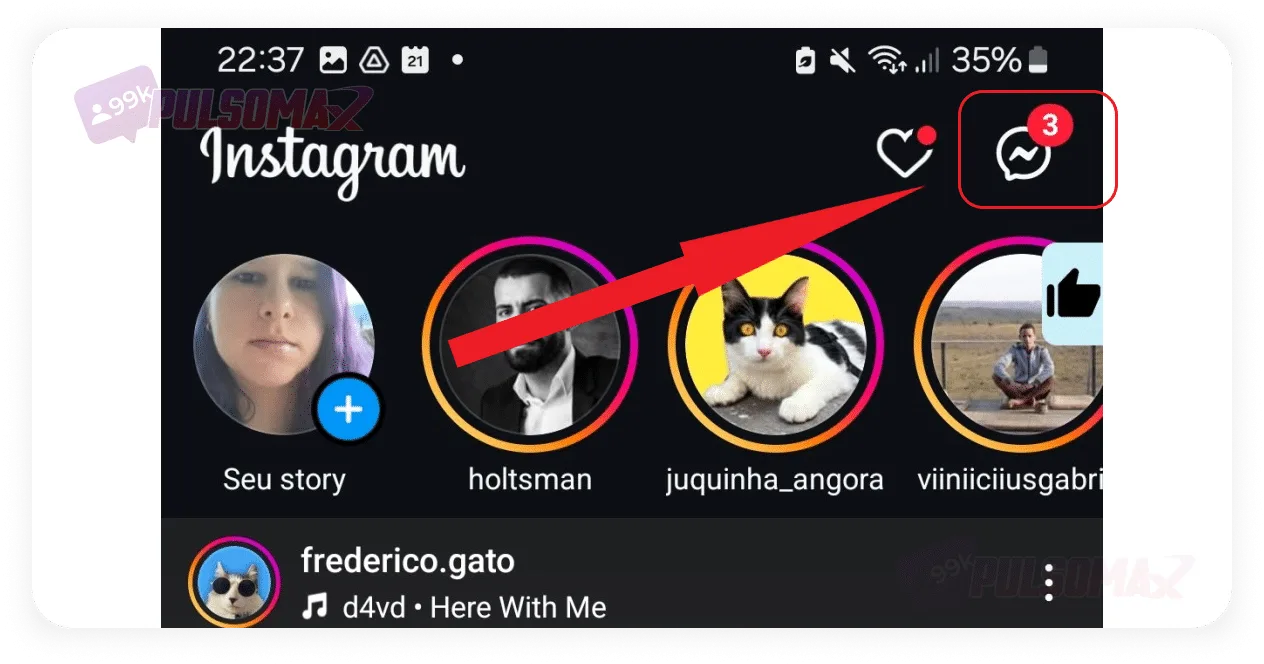 Select a conversation to enable/disable temporary mode.
 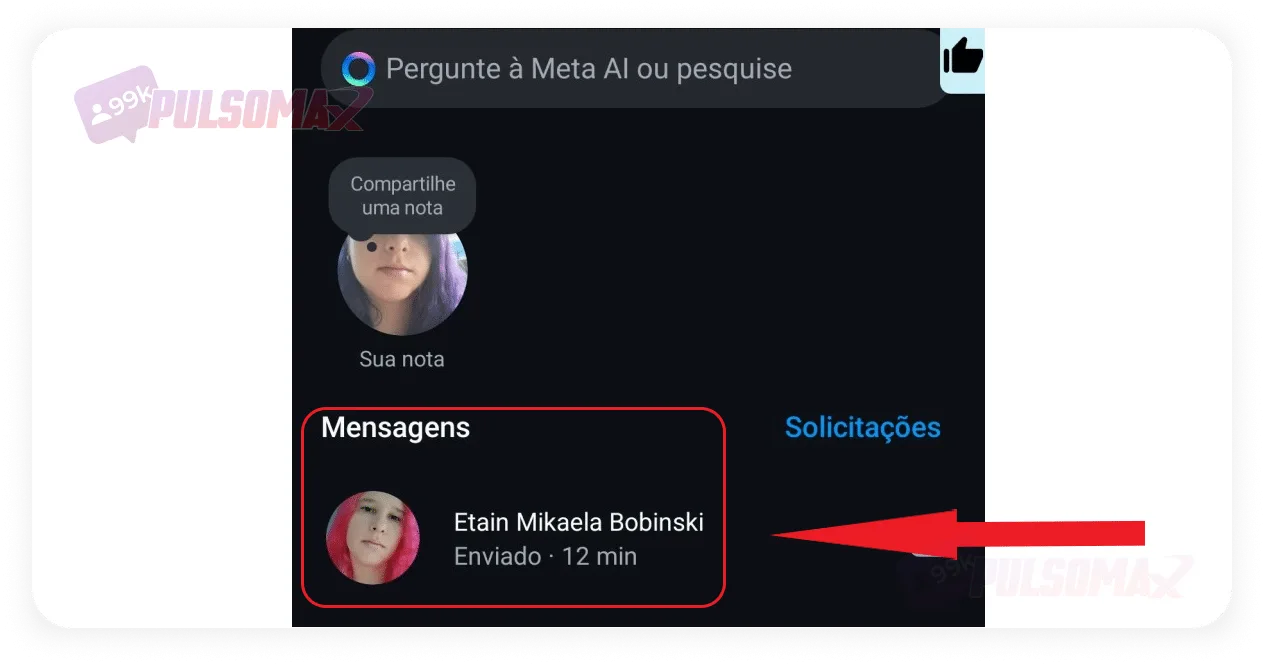 When you swipe your screen, Instagram displays the following message: "release to activate Instagram's temporary mode". Then, when you release the screen, temporary mode is activated, and Instagram displays a warning about it:
 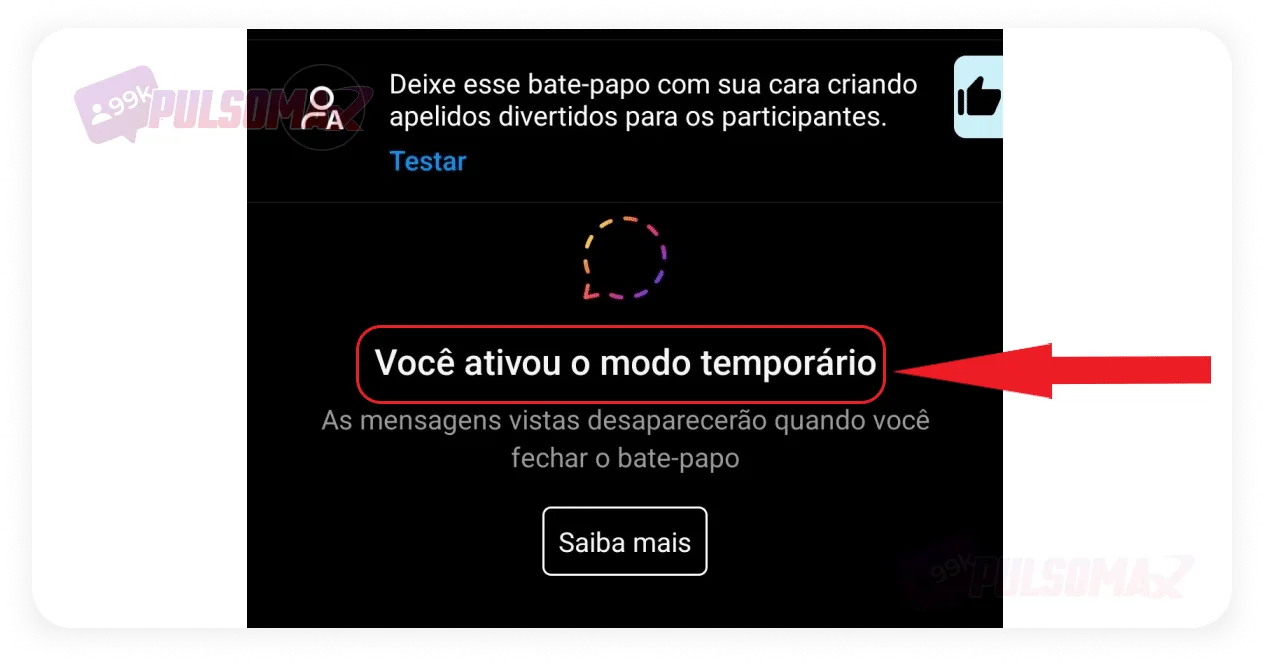 Now, if you look at the bottom of the screen in the chat, you'll see that the message box is dotted, indicating that temporary mode has been activated. You'll also see the message: swipe up to deactivate temporary mode.
 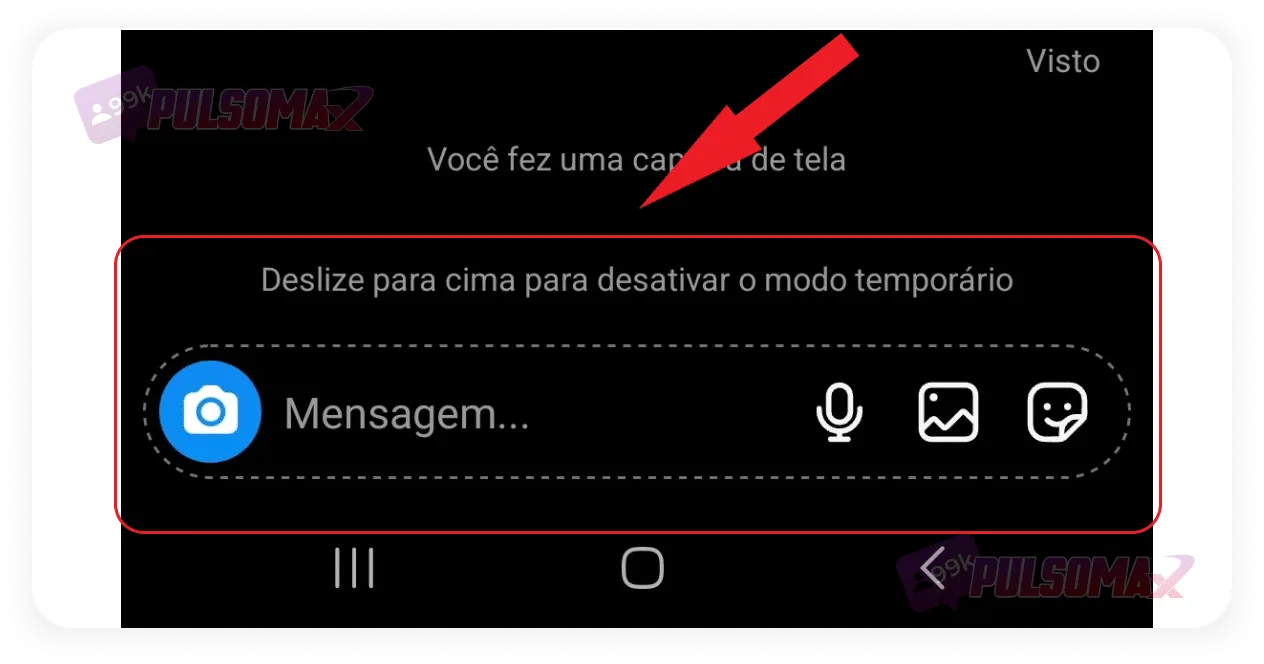 That's exactly what you need to do! Simply pull the screen upwards, the same way you did to activate this mode, and release it again. See in the image below that the message box has returned to normal, indicating that the temporary mode is inactive.
 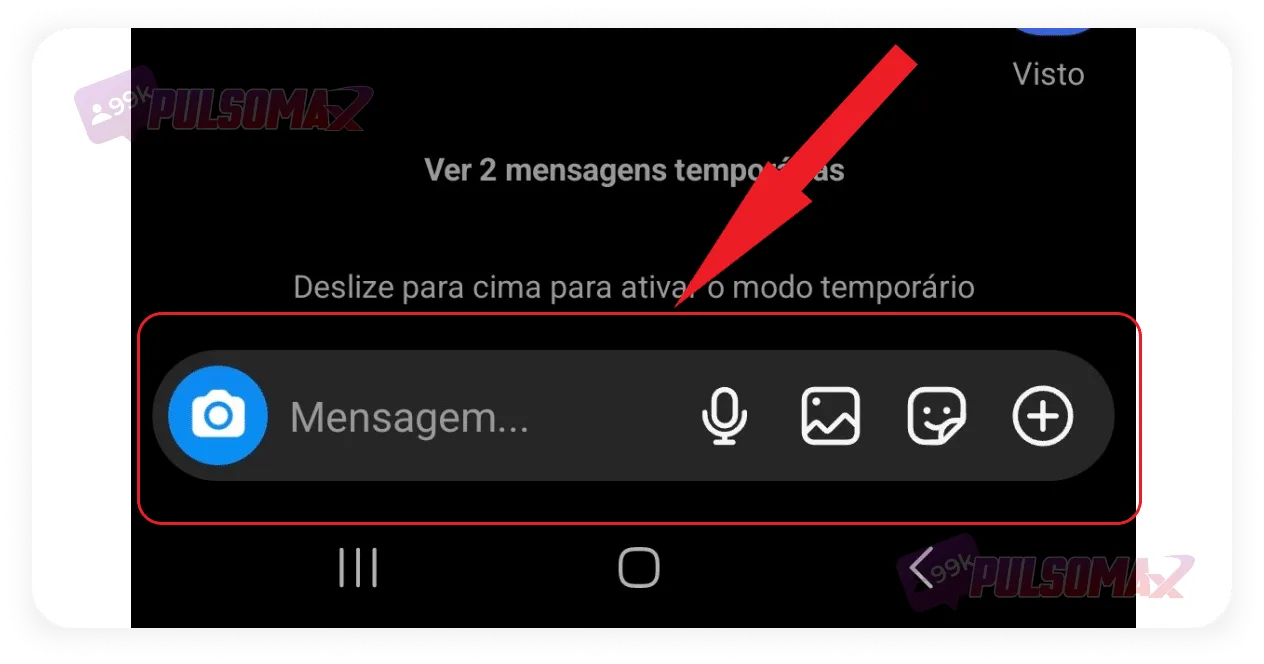 Done! Temporary mode is now deactivated, and your messages in this conversation will no longer be deleted when you close Direct Messages. Want to boost your profile growth? Try buying real followers and watch your account grow faster on the platform!
 Next, tap on privacy and security .
 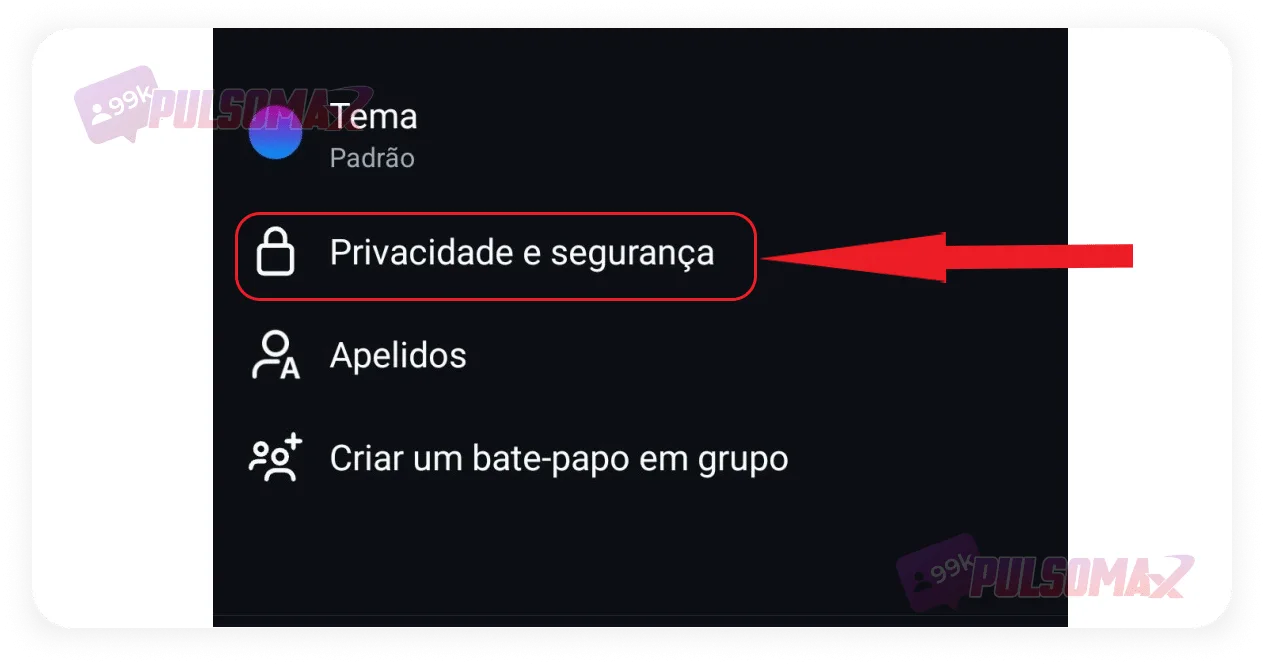 On the next screen, simply uncheck the temporary mode button, and you're done!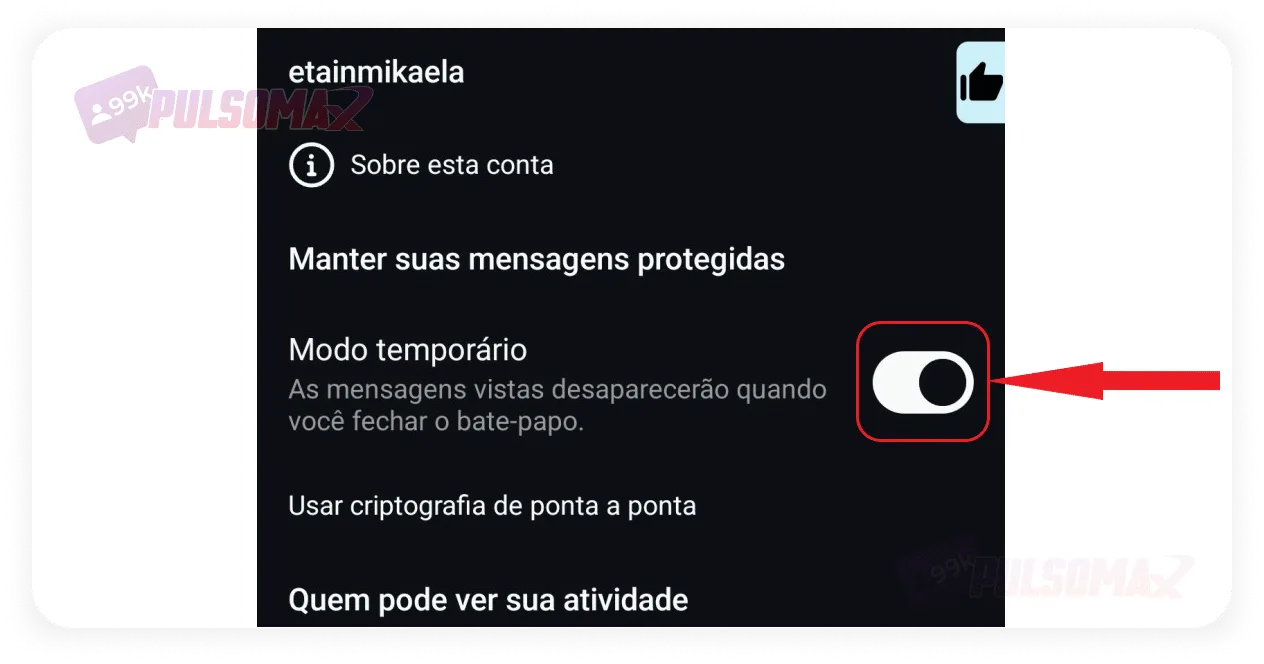
How do I disable Instagram's temporary mode?
The disappearing mode feature allows all messages and media to play indefinitely in the conversation as long as the chat is open. This means you can go back and reread everything, listen to audio again, watch videos again, and check any documents sent in the conversation. Therefore, for many users, disappearing mode is a more appealing feature than the one-time view photo, which simply disappears after the recipient views it once. The big problem, however, is that whenever conversations are closed, all exchanged content disappears and is not stored in Direct. That's why many people want to know how to disable Instagram's disappearing mode when it's no longer needed. But, as you'll see below, it's quite easy!How to disable Instagram's temporary mode step by step.
If you're here today, you probably know that activating Instagram's temporary mode is quite simple: just go to your direct messages, click on the desired conversation, and swipe up and release. Note: Go to Instagram and tap the chat bubble or airplane button , depending on your version. Select a conversation to enable/disable temporary mode. When you swipe your screen, Instagram displays the following message: "release to activate Instagram's temporary mode". Then, when you release the screen, temporary mode is activated, and Instagram displays a warning about it: Now, if you look at the bottom of the screen in the chat, you'll see that the message box is dotted, indicating that temporary mode has been activated. You'll also see the message: swipe up to deactivate temporary mode. That's exactly what you need to do! Simply pull the screen upwards, the same way you did to activate this mode, and release it again. See in the image below that the message box has returned to normal, indicating that the temporary mode is inactive. Done! Temporary mode is now deactivated, and your messages in this conversation will no longer be deleted when you close Direct Messages. Want to boost your profile growth? Try buying real followers and watch your account grow faster on the platform!How to disable Instagram's temporary mode in conversation settings.
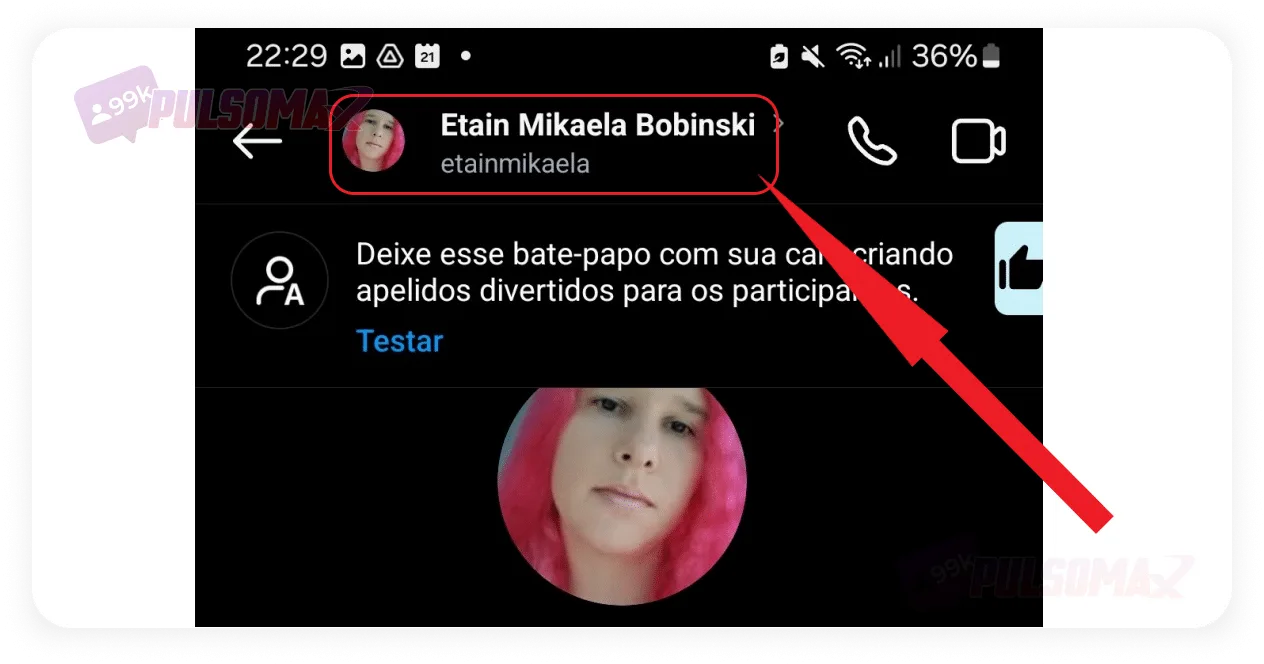
Now that you've learned how to disable Instagram's temporary mode by swiping your phone screen, you might be surprised at how easy and practical it is. However, if you prefer, there's another way: go to the conversation settings. To do this, first tap on the person's name in the direct chat , as shown in the image below. Next, tap on privacy and security . On the next screen, simply uncheck the temporary mode button, and you're done! What is the purpose of Instagram's temporary mode?
Instagram's disappearing mode emerged in 2020, offering users the opportunity to avoid leaving traces of conversations exchanged with others on the social network. Of course, some users want to know how to disable Instagram's disappearing mode, preferring to keep a record of their conversations. Regardless, have you ever stopped to think about the function of disappearing mode? Well, according to Instagram, the feature was created to give users a way to protect intimate and confidential conversations. This way, people can discuss more secret matters with peace of mind. However, Instagram itself warns that privacy is not 100% guaranteed, as it's possible to take screenshots of the conversation and even record the phone screen to document everything. Users could also use another device, such as a camera or phone, to record the smartphone where they were chatting in disappearing mode.Will the other person know if I take a screenshot in temporary mode?
When Instagram activates disappearing mode , conversation participants know that messages exchanged in that chat will disappear when the person who activated disappearing mode closes the chat. Therefore, someone might think about taking a screenshot to save an important message that was said in that conversation. But, unlike hiding likes on Instagram iPhone and Android, hiding that you took a screenshot in disappearing mode is not possible! Because if anyone in the conversation takes a screenshot, a notification visible to everyone will appear informing them about the screenshot. However, despite the chat notifying about screenshots, there is no way to know exactly which part of the conversation was captured, since Instagram does not indicate when or where in the chat the screenshot was taken.How can I prevent the other person from taking a screenshot of the conversation while it's in temporary mode?
There's no way to prevent the other person from taking a screenshot in temporary mode . Therefore, the only solution is to talk to the person and ask them not to do it. If you're talking to someone you trust, this probably won't be a problem. After all, learning how to disable Instagram's temporary mode makes it clear that if this mode is activated, it's because at least one of the people doesn't want to keep records of that conversation. However, this is usually a priority for both participants in the chat. So, think carefully before activating Instagram's temporary mode. If you don't want anything from that conversation recorded in screenshots or videos, it's best to only do this with people you trust . If you're chatting in temporary mode with someone who is taking screenshots of the conversation, be careful about the information you share in the chat. Have you ever thought about getting a lot of comments on that post you want to promote on Instagram? Try buying Instagram comments !What are the differences between Instagram's single-view photo and its temporary mode?
You already know how to disable Instagram's disappearing mode , but is this feature really that different from sending a one-time-view photo? Yes, it is! As we mentioned, with disappearing mode you can send all kinds of media during the conversation. And the one-time-view photo only allows you to send images. However, that's not the only difference. The one-time-view photo can be sent to any Instagram account, even those you've never contacted before. Disappearing mode, on the other hand, cannot be activated with people you've never connected with on the social network. Media sent during disappearing mode also leaves no trace after the chat is closed. The one-time-view photo remains recorded in the conversation, although it's not possible to open the image again. How about downloading your favorite Instagram content from any public post? Check out our essential Instagram download tools ! It's free and you only need the content link!Can I forward messages from Instagram's temporary mode?
There's no way to forward any messages from Instagram's temporary mode to other people. It's also not possible to save or copy these messages. If you consider everything we've explained in this article about how to disable Instagram's temporary mode, you'll see that the existence of this mode would be pointless if it were possible to save the conversation in some way, or forward it to other people. However, this doesn't mean that users aren't protected by Instagram's guidelines in temporary chat mode. It's possible to report messages to the platform, ensuring user protection in cases of bullying, harassment, threats, and other criminal situations. To report a message from temporary mode, simply tap and hold the message for a few seconds, and tap "report" when the option appears.How do I recover messages from temporary mode?
You've learned how to disable Instagram's temporary mode, but is there any way to recover the messages exchanged while it was active? Unfortunately, the answer is no! Once the chat is closed, all messages are deleted and there's nothing you can do. You've already read our article on how to recover deleted Instagram messages , and you know that there's no trash bin on the social network to store deleted messages, not even temporarily. All you can do is return to temporary mode by swiping the screen before closing the chat to redisplay the exchanged messages and take a screenshot of anything important to you. This is the only way to save these messages.I can't start temporary mode on Instagram.
Some people are also reporting problems activating the temporary mode. So, if you learned in this article about how to disable Instagram's temporary mode that this feature existed, but you can't activate it, check out the possible causes for the problem:- You're chatting on Instagram Web : using Instagram on a computer is really convenient, but there are features that are exclusive to the Instagram app on Android and iOS. Temporary mode is one of them.
- Messenger accounts: If you used your Messenger account to log in to Instagram, you may receive messages in temporary mode, but the feature will not be enabled.
- Group chat: the temporary mode is exclusive to individual conversations and cannot be activated in group chats.
- Temporary mode is not available in your region: Meta, the company that owns Instagram, reports that temporary mode is not available in Japan or Europe.
- You haven't connected with the recipient yet: if you're chatting with an account you don't follow, you won't be able to activate lingering mode.
- Business accounts: for some reason, there are Instagram Business profiles that cannot receive messages sent in temporary mode.