Instagram
  by
by 
 9 min read

Don't know how to update Instagram ? Keeping your Instagram app updated is important so you have access to the latest Instagram features. This includes access to possible bug fixes and error corrections that cause various problems, such as the Instagram app closing unexpectedly . However, many users forget to update the app or don't know how to do it. Therefore, when there are operational problems fixed by updates, these users miss out on the benefits of these fixes. And, for those who never remember to update Instagram, inevitably the time comes when important features of the social network stop working, becoming unavailable due to incompatibility with the app version. For example, the function to add temperature to Instagram . For all these reasons, it is recommended to learn how to update Instagram and keep your app always up-to-date. Check it out below!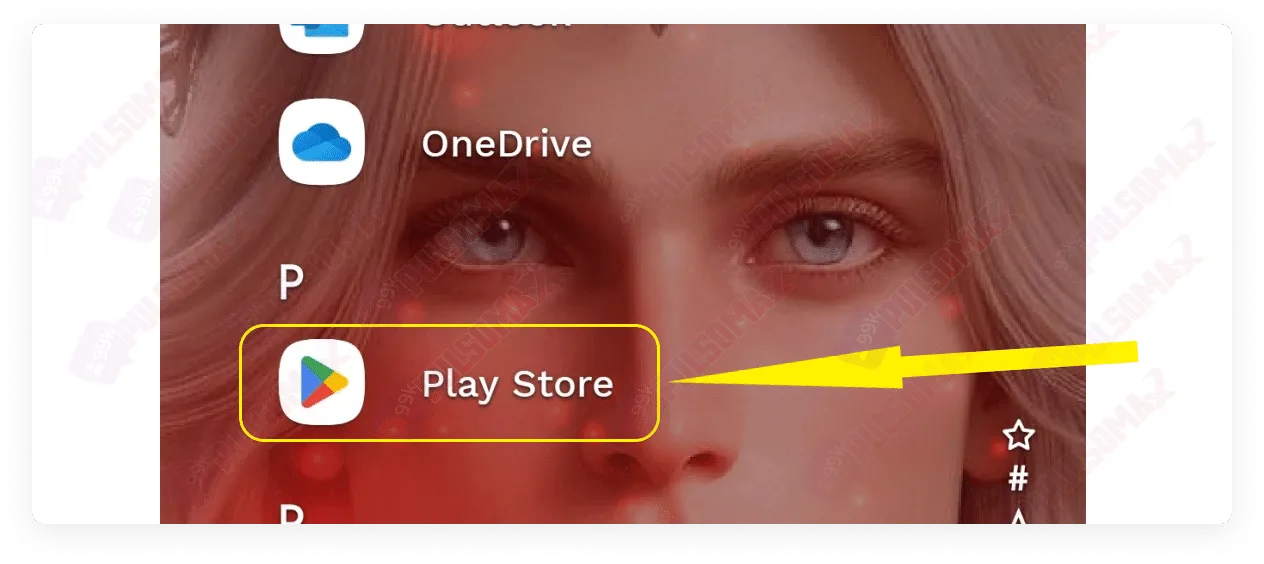 Next, tap on your profile picture in the upper right corner of the screen.
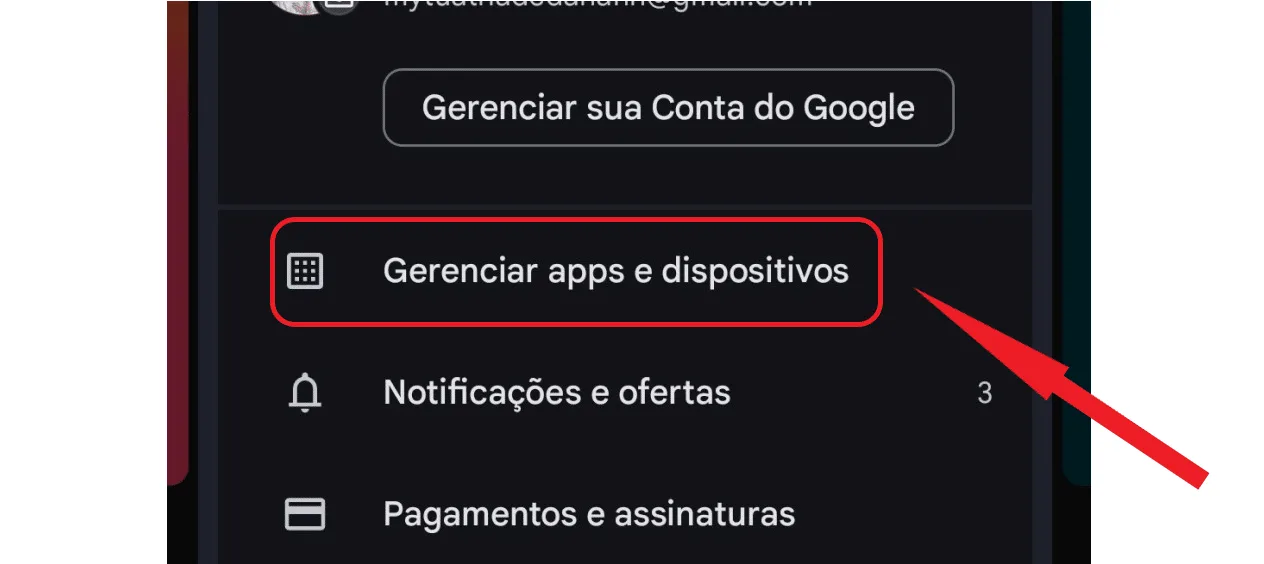
 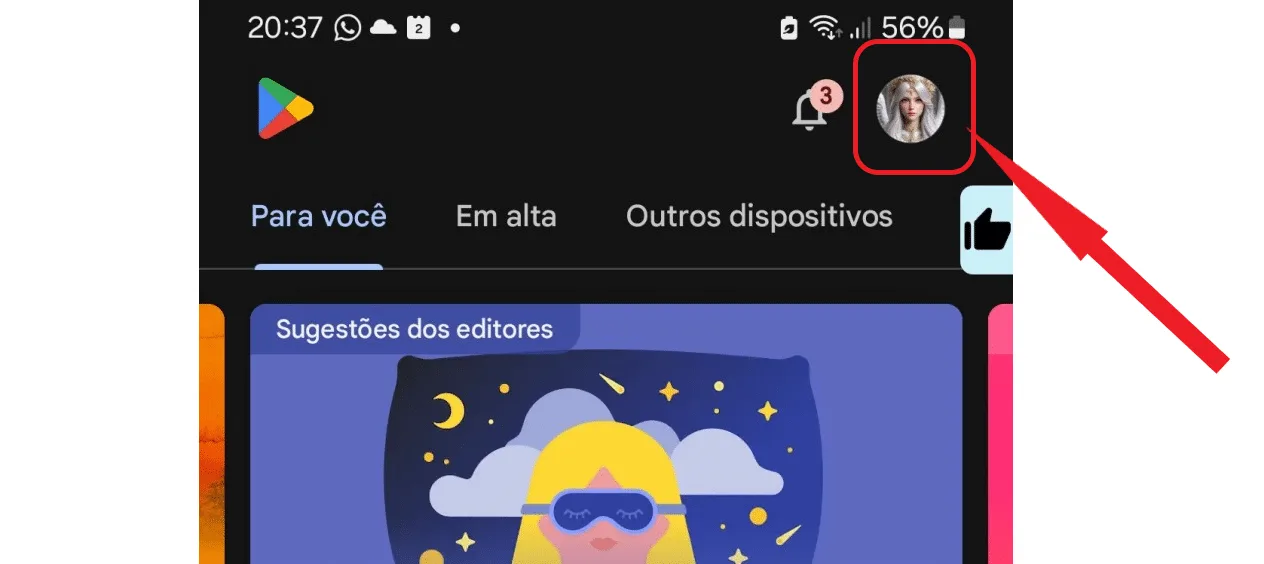 Now, click on manage apps and devices .
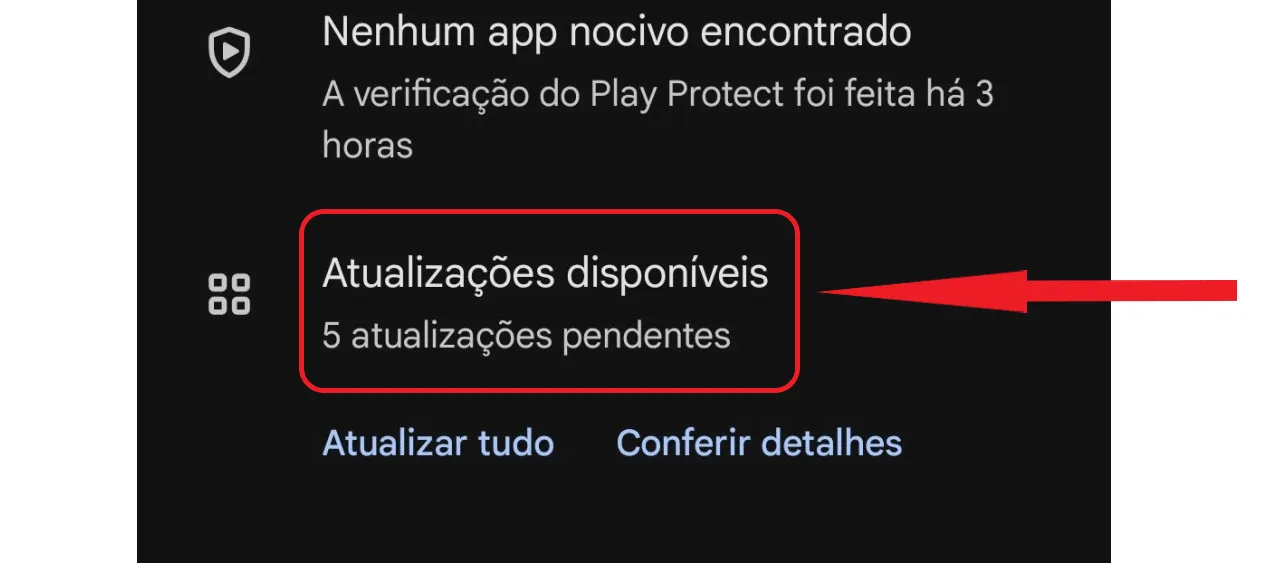
  Then, tap on the "available updates" option, which shows which apps need updating on your phone. See:
  If Instagram is out of date on your device, it will appear in the list on the next screen. But if the app is already up to date, it will not appear in the list. See:
 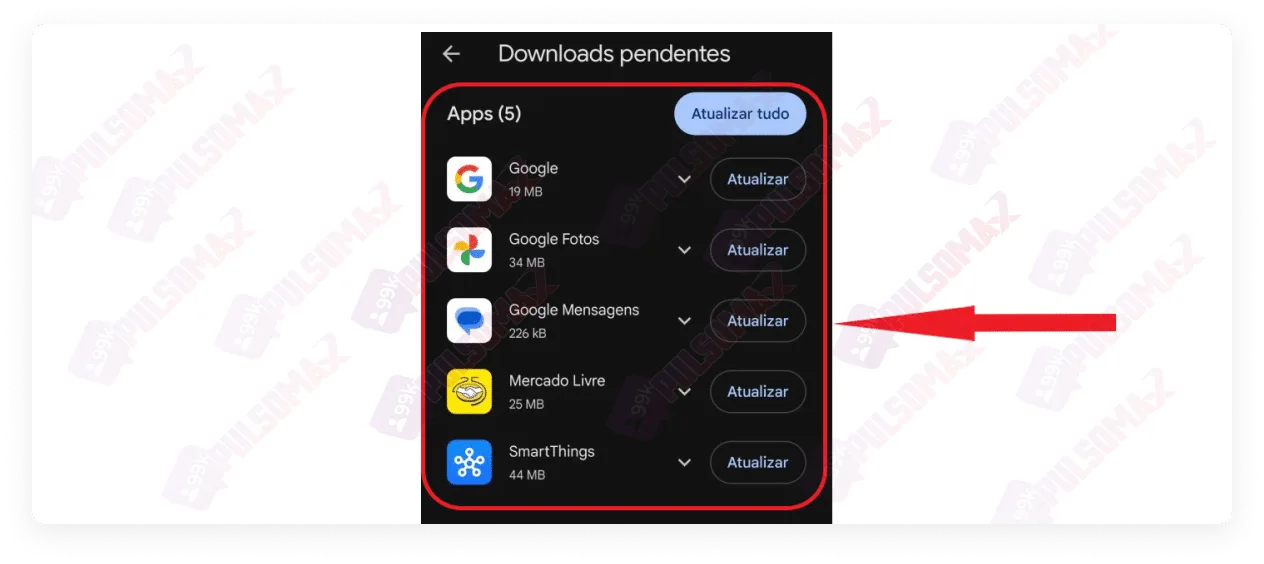 If your Instagram app is outdated, simply click the update button next to it, just like the other apps on the list. Alternatively, you can click update all. The process will then be automatic, and you don't need to worry! Alternatively, you can update the app by searching for its name in the Google Play Store search bar. See the next image:
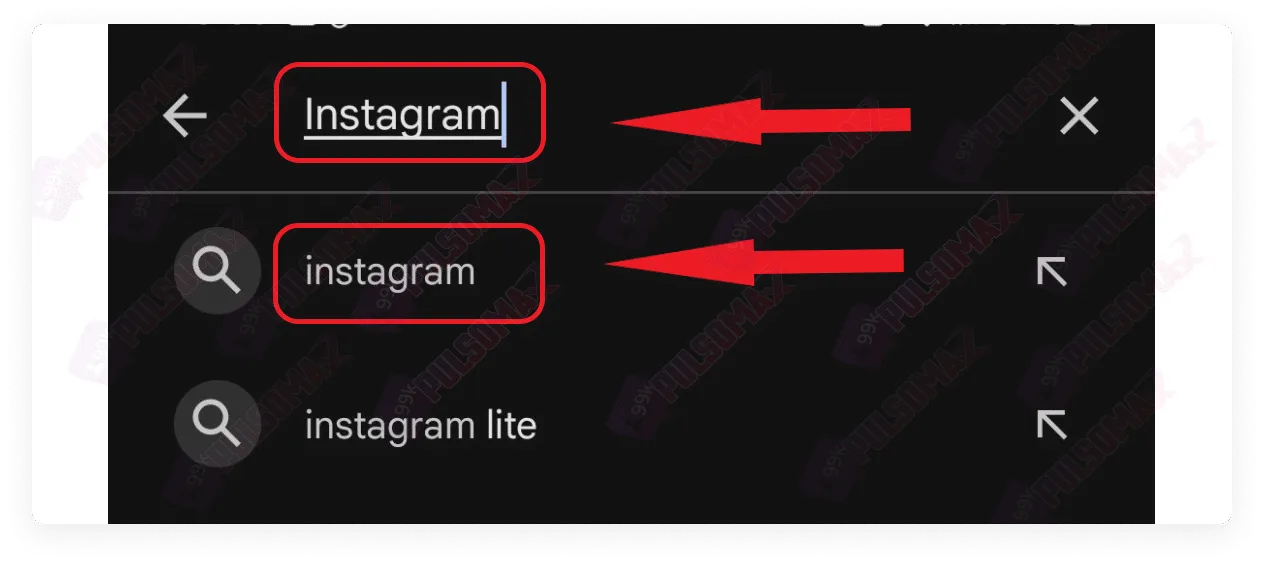
 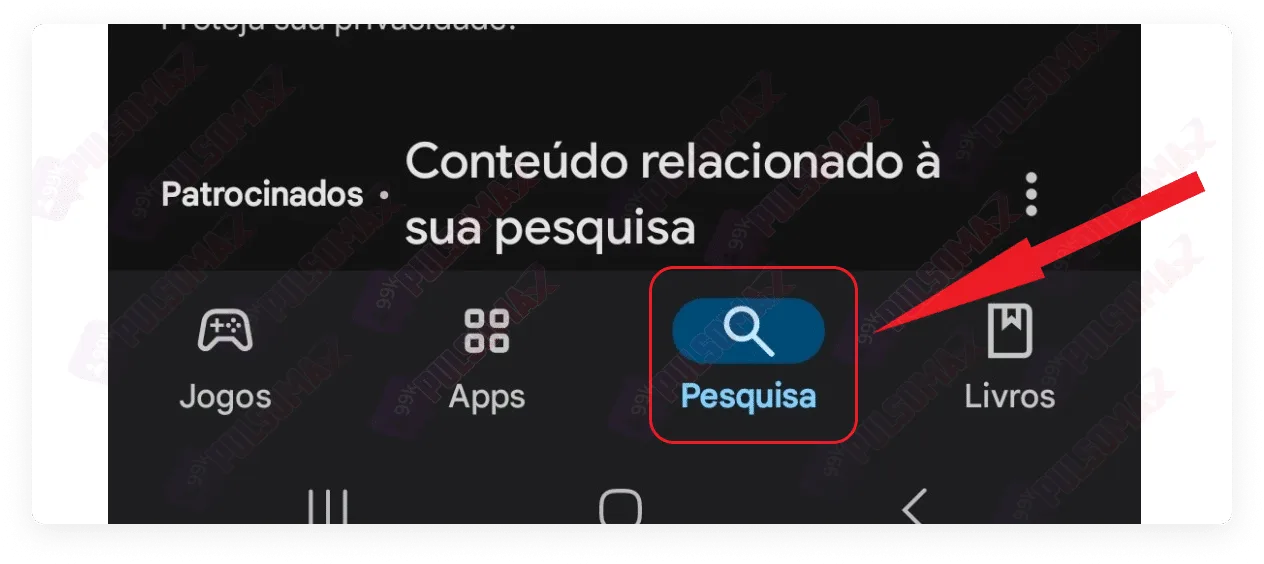 Now, type Instagram in the search bar and click on the first option.
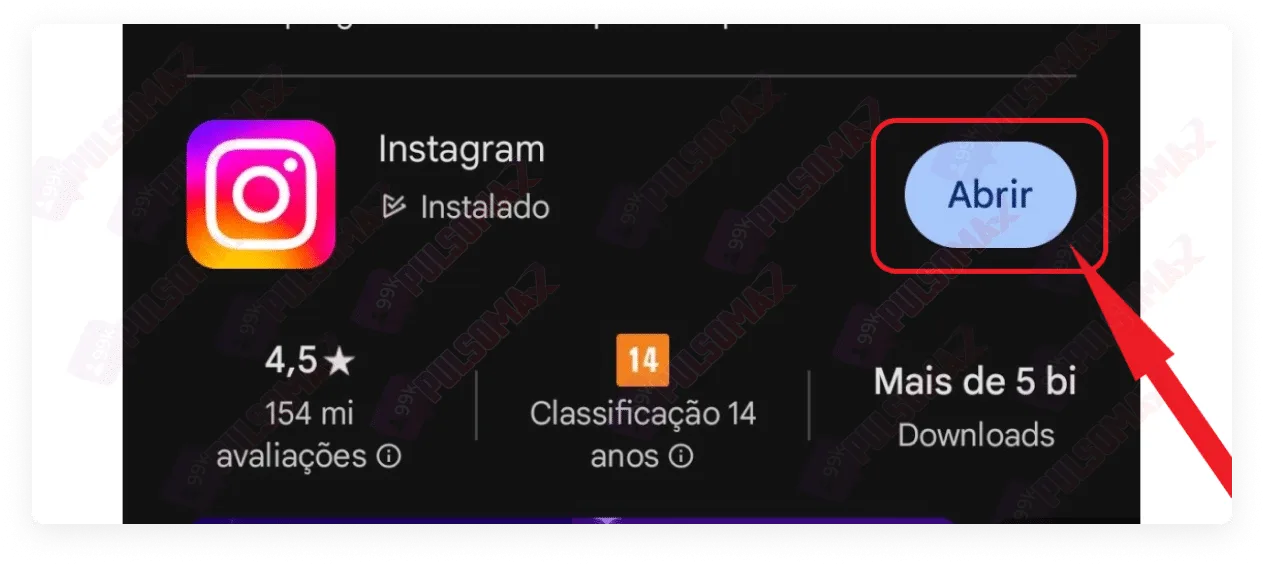
  So, check if your Instagram is updated. If it is, only the "open" option will appear next to the app icon, as in the next image. But, if it's not, instead of "open" you'll see the "update" option; just click on it and wait for the update process.
  Want to make your Instagram app more secure against unauthorized access? Also read our step-by-step tutorial on how to set a password on Instagram .
 Now, search for Instagram in the search bar, and click on the Instagram app when it appears in the list.
 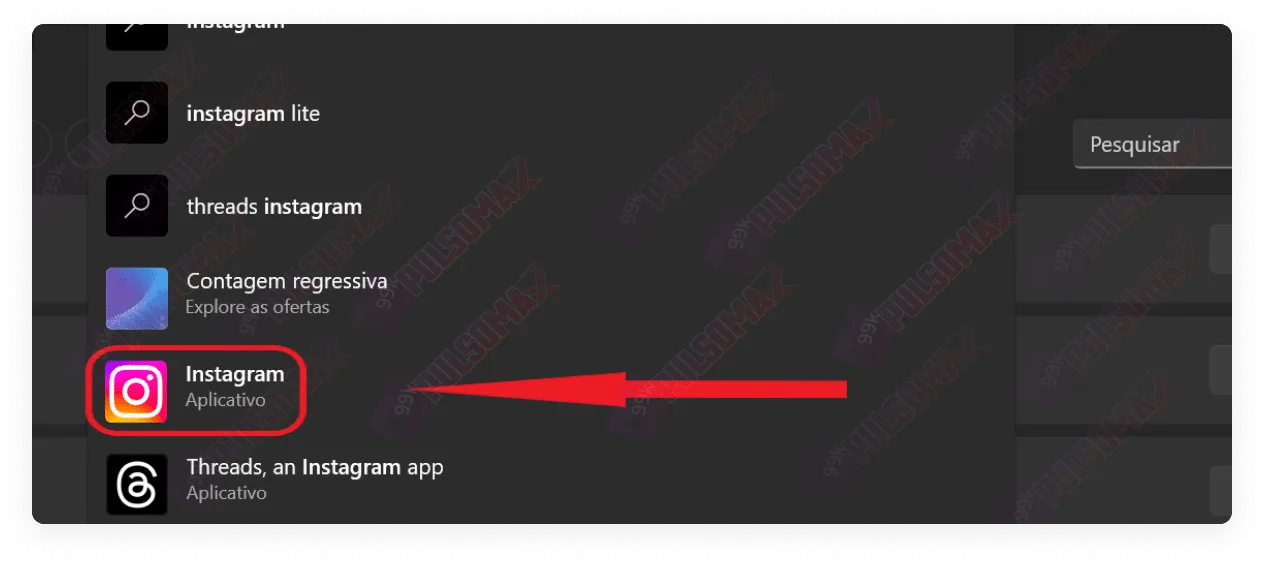 Next, check the Instagram app. If it's up to date, it will appear as in the following image, displaying the "open" option. But if it's out of date, it will display the "update" option instead; just click on it and wait for Windows to update the app.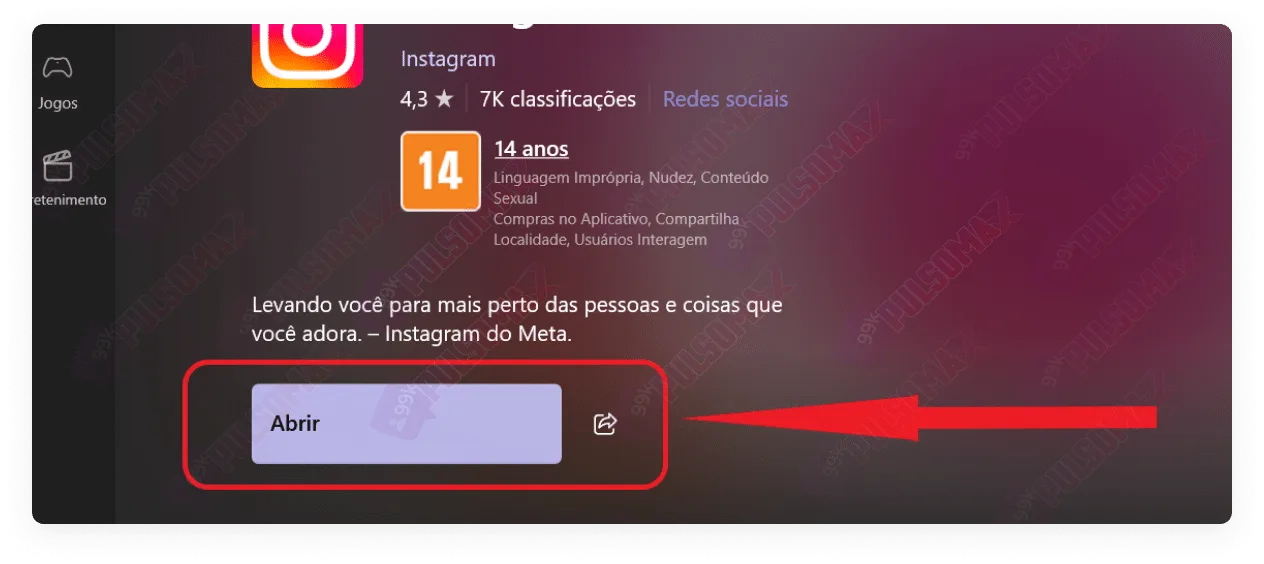
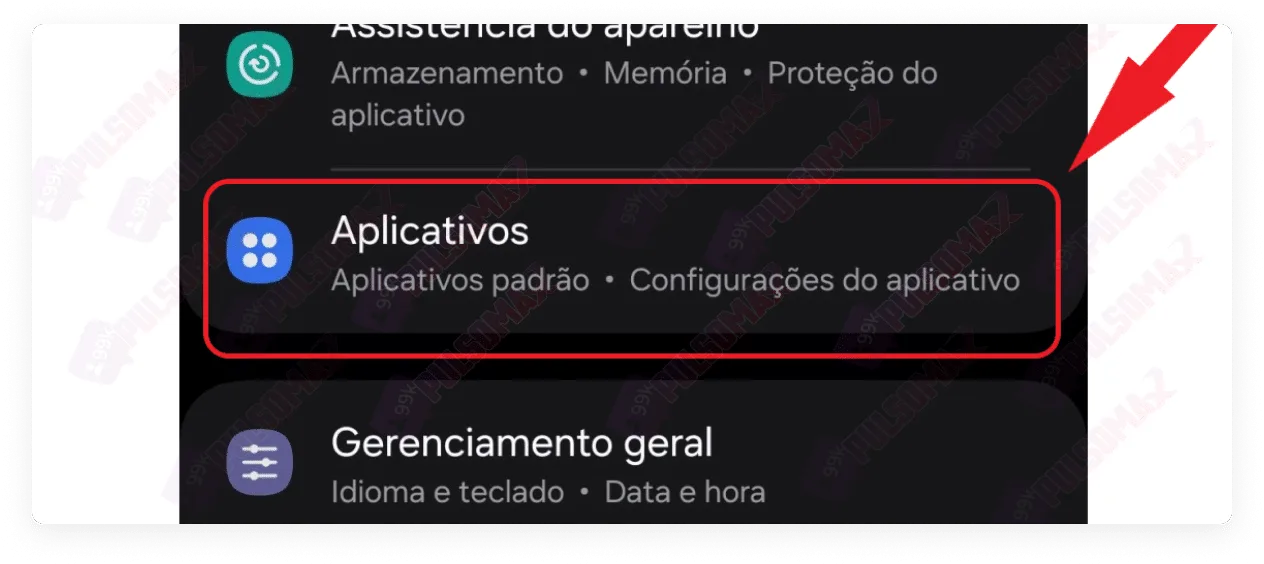
 Next, look for the option "applications" or "apps" .
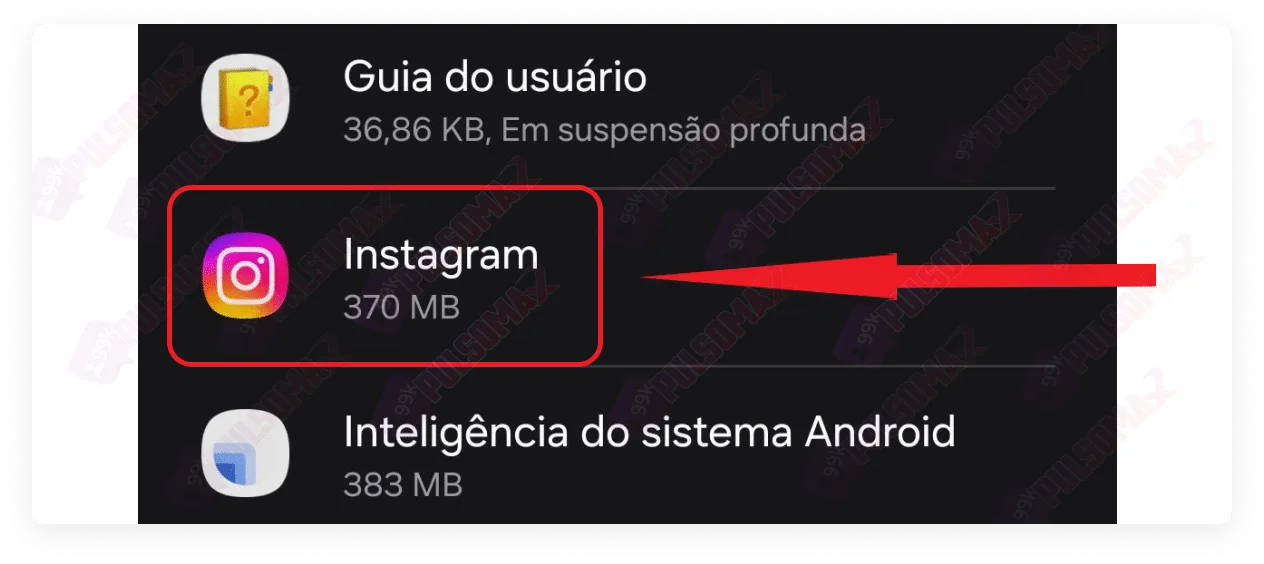
  Next, search for Instagram in the list of apps and click on the app icon.
  Now, scroll down to the app details option in the store.
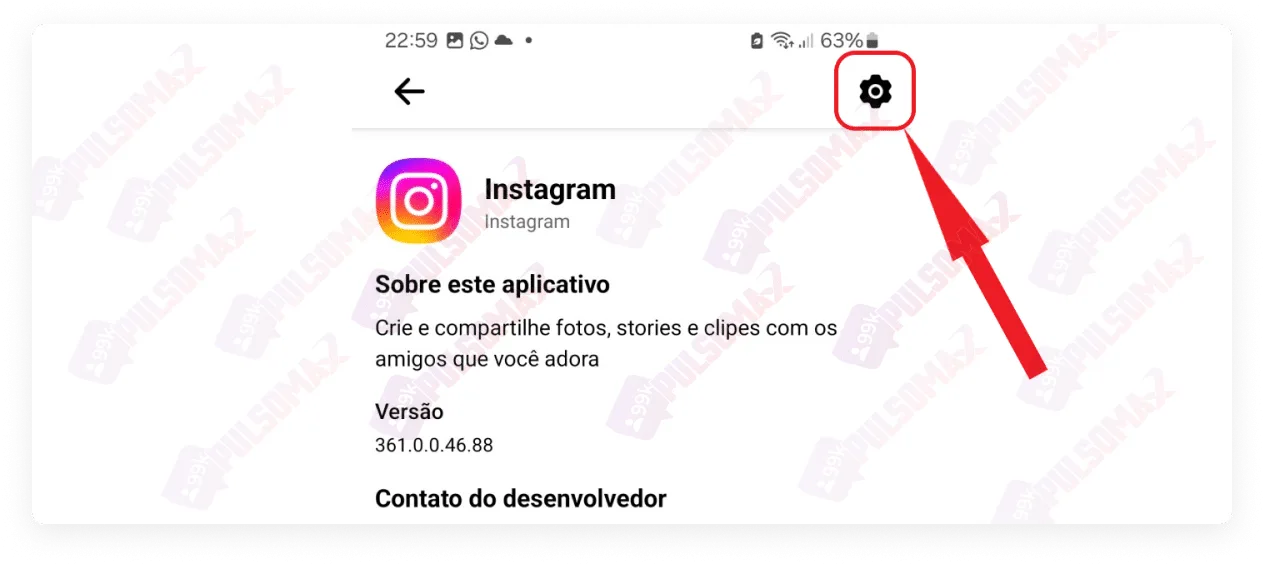
 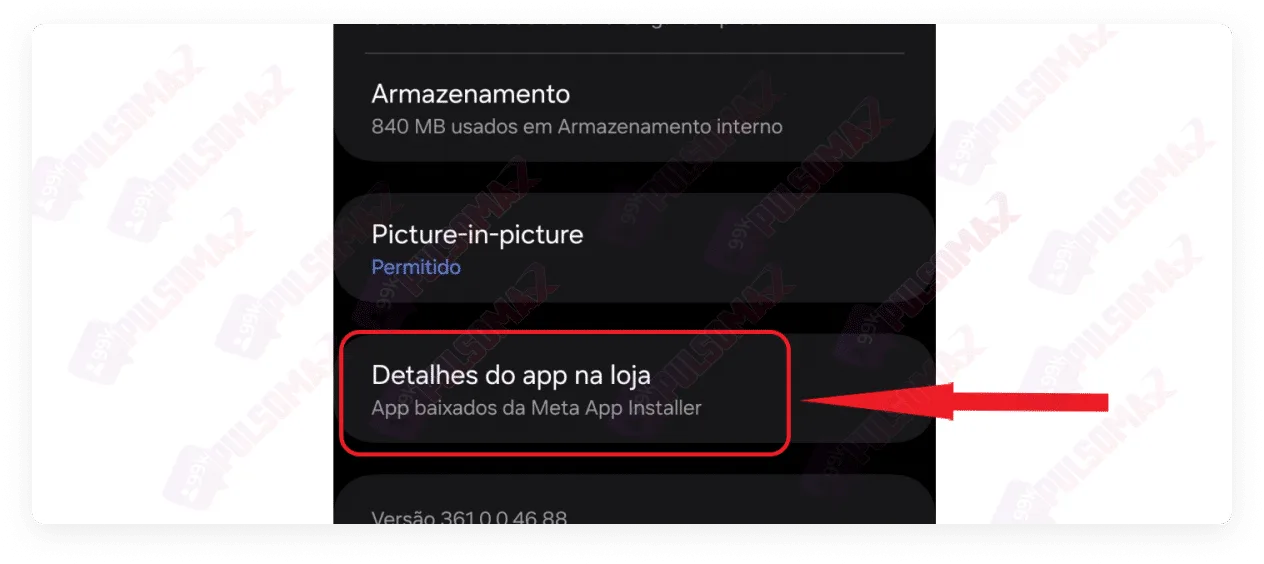 Tap the gear icon in the upper right corner of the screen.
  Check if Instagram's automatic update option is enabled; if not, enable it!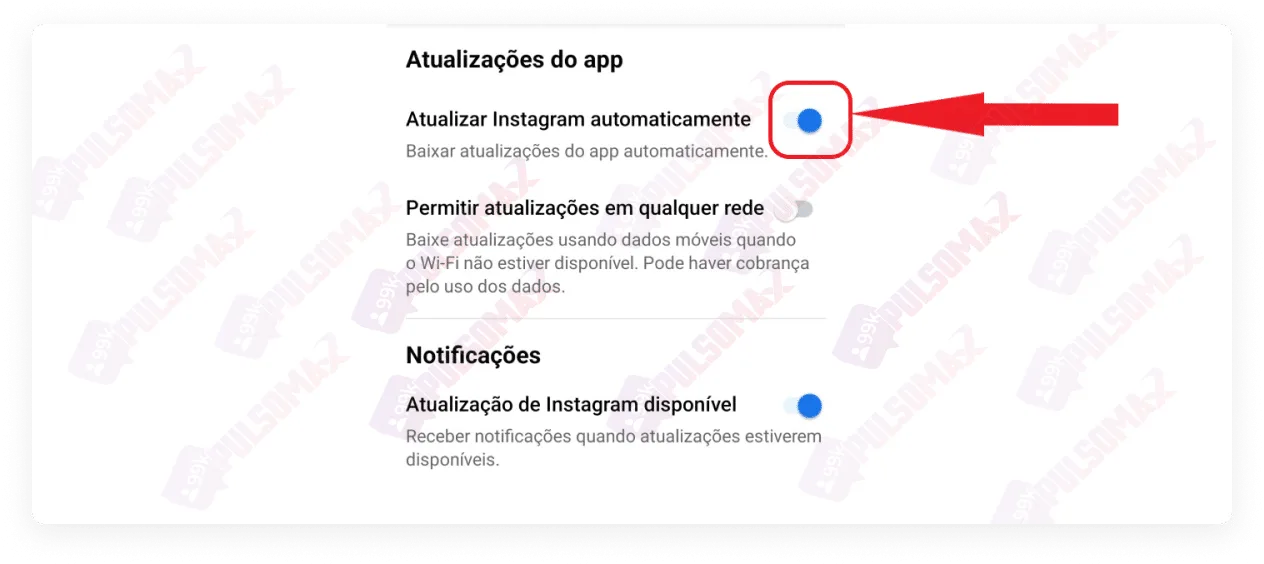
How to update Instagram on Android
First, let's learn how to update Instagram on Android. It's important to note that the process is slightly different on each operating system (Android and iOS), as it's done through the device settings. Also, depending on the version of the Play Store or Apple Store, the process may change in some details. However, it won't be anything so different that you won't be able to do it by following our step-by-step guide. So, enjoy!How to update Instagram on Android step by step.
To learn how to update Instagram on Android, first, you need to find the Play Store app, Google's app store, on your phone. See the image below. Next, tap on your profile picture in the upper right corner of the screen. Now, click on manage apps and devices . Then, tap on the "available updates" option, which shows which apps need updating on your phone. See: If Instagram is out of date on your device, it will appear in the list on the next screen. But if the app is already up to date, it will not appear in the list. See: If your Instagram app is outdated, simply click the update button next to it, just like the other apps on the list. Alternatively, you can click update all. The process will then be automatic, and you don't need to worry! Alternatively, you can update the app by searching for its name in the Google Play Store search bar. See the next image: Now, type Instagram in the search bar and click on the first option. So, check if your Instagram is updated. If it is, only the "open" option will appear next to the app icon, as in the next image. But, if it's not, instead of "open" you'll see the "update" option; just click on it and wait for the update process. Want to make your Instagram app more secure against unauthorized access? Also read our step-by-step tutorial on how to set a password on Instagram .How to update Instagram on iPhone step by step
iPhone users can also quickly update their Instagram through their smartphone settings. To do this:- First, find the Apple Store and open the app;
- Tap on your profile picture or icon on the store's main screen, usually located in the upper right corner;
- Your iOS device will display the apps that need updates;
- Find Instagram in the list and click refresh ;
- Wait for the app to update and you're all set!
How to update Instagram on your computer, step by step.
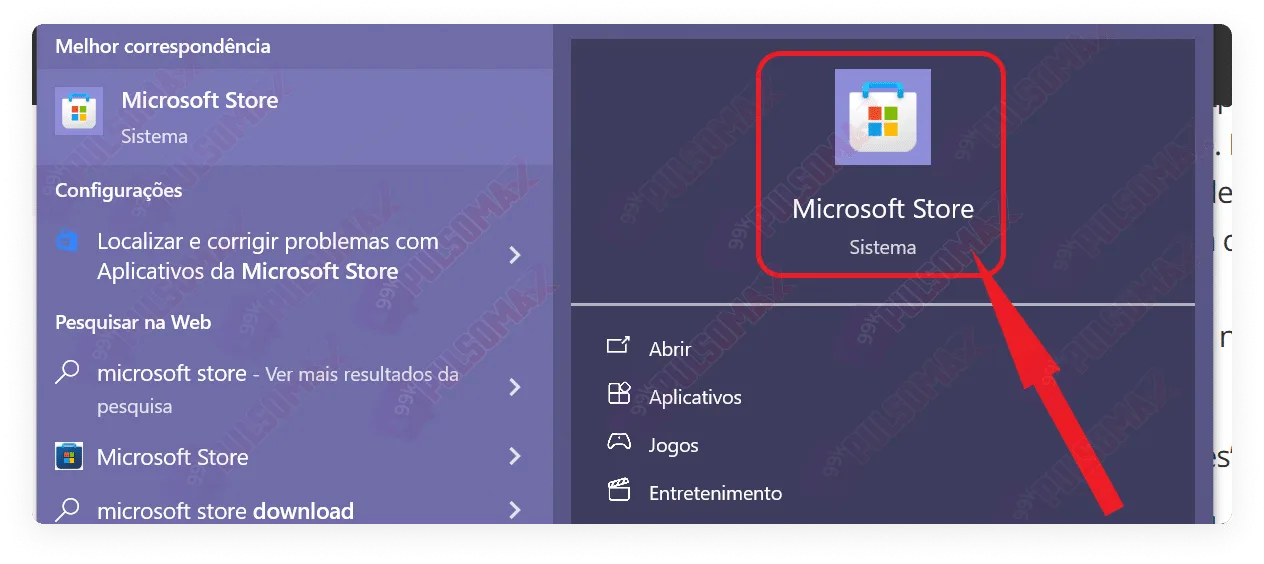
Those who use the Instagram app for Windows usually don't need to worry about updating it on their PC, as updates are automatic. However, it's still possible to search for the application in the Microsoft Store and check. First, type "Microsoft Store" in your computer's search bar and click on the application that appears, as shown in the image below. Now, search for Instagram in the search bar, and click on the Instagram app when it appears in the list. Next, check the Instagram app. If it's up to date, it will appear as in the following image, displaying the "open" option. But if it's out of date, it will display the "update" option instead; just click on it and wait for Windows to update the app. How do I enable automatic updates on Instagram for Android?
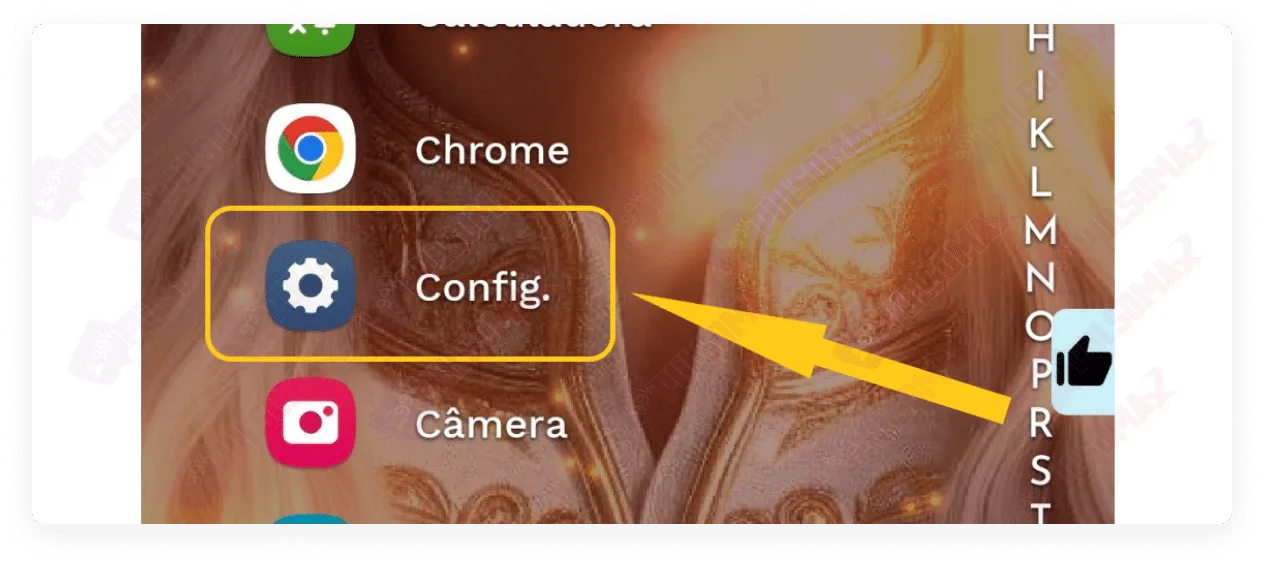
If you want to avoid all the trouble of figuring out how to update Instagram, you can enable the option to keep the app always updated on your device. This way, you can enjoy all the platform's features at your fingertips, learn how to find out who unfollowed you on Instagram , and other useful tips without worrying about your app version. To begin, find your phone's settings app , usually represented by a gear icon. Next, look for the option "applications" or "apps" . Next, search for Instagram in the list of apps and click on the app icon. Now, scroll down to the app details option in the store. Tap the gear icon in the upper right corner of the screen. Check if Instagram's automatic update option is enabled; if not, enable it! How do I enable automatic Instagram updates on my iPhone?
iPhone users can also enjoy the benefit of automatic Instagram app updates. This way, it's possible to keep the app always up-to-date without worrying about the version on your device being outdated. To do this:- Go to your device's settings ;
- Next, go to the Apple Store ;
- Next, find the automatic downloads option;
- Enable all available options.
What is the latest Instagram update?
After learning how to update Instagram, many people may be wondering what the latest version of the app is and what has changed. This is a relevant question, as Instagram always brings new features in its updates. And, when it comes to your growth on the social network, mastering the platform's features is as important as buying Brazilian Instagram followers . So, if you have this question in mind, know that the last Instagram update occurred on October 9, 2024, according to Meta, the company that owns Instagram, Facebook, WhatsApp, and Threads. On that occasion, Meta AI, Meta's artificial intelligence, was officially launched and is now available to Facebook, Instagram, and WhatsApp users. For iOS users, Instagram had a more recent update on December 16, 2024, which updated the app to version 361.0.0. The main objective of this update was to fix bugs and improve the overall performance of the app on iPhones. Therefore, if you are an iOS user, don't forget to check how to update Instagram to receive these improvements. Would you like to download audio, images, and videos from Instagram, but don't know how? Discover our essential Instagram download tools and enjoy!How do I know when there's a new Instagram update?
There are several ways to find out when new updates are available for Instagram. The simplest is to use the step-by-step guide you learned in this post about how to update Instagram and check your device's official app store to see if there's a new version available. But you can also keep an eye on the official Meta website or the Instagram Blog itself, following the latest news. This way, in addition to checking news about available updates, you can also learn more about the details of the changes each new update will bring. If you prefer, you can do your own research on other websites, for example, using Google. Or you can even ask your Instagram friends if they've recently updated their apps, and if so, what changes they've noticed on the social network after updating.When will the next Instagram update be released?
The next Instagram updates are planned for 2025, and one of the most anticipated features will be the full integration of Meta AI into Instagram. After all, the new artificial intelligence answers questions, creates simple images, and helps with general user queries, although it is not yet capable of creating more complex content. Despite this, the feature is not yet fully available on Instagram. In the photo and video social network app, users can access Meta AI in the search bar of the Instagram Direct chat; however, it only serves to search and find content on the social network, according to the questions or suggestions typed by users. Those who use Meta AI on WhatsApp or Facebook Messenger know that the feature is more complete there. For Instagram, the inclusion of other artificial intelligence tools to improve the user experience is also planned for 2025. And also features such as the creation of personalized avatars and notes, which will allow Instagram users to share updates and short thoughts. So, keep an eye out and don't forget how to update Instagram in 2025!What are the main changes brought about by Instagram updates in 2024?
Those who learned how to update Instagram in 2024 and kept their app updated can enjoy new features, bug fixes, and improvements to Instagram's features, enhancing the user experience on the platform. All of this made it even better to create quality content on the network and even invest in the platform, for example, by buying comments from verified Instagram users to improve the reach of posts. But what were these changes? Check it out!- Changes to hide content that is inappropriate for children and teenagers;
- Super HDR image support on the Galaxy S24;
- Simplifying searches using hashtags;
- New messaging features;
- Ability to edit messages sent via Direct up to 15 minutes after sending;
- Pin up to 3 chats in Direct;
- Choose to disable message read receipts for specific conversations, or for all conversations.