Instagram
  by
by 
 10 min read

So, how do you create a group on Instagram? Groups can be very useful and fun in a variety of situations. You can create a group with friends, family, work colleagues, and even a group to promote your online work, facilitating direct contact with your audience. This way, you can exchange messages and send any type of content you find interesting to several people at the same time. For example, if you invest in your Instagram, want to grow on the social network, and even buy Instagram followers , it's important to think about a creative content strategy. And groups are an excellent way to promote each post, expanding the reach of your publications. Instagram, as one of the most complete social networks, also offers this feature to its users. However, despite the tool's wide usefulness, many users interested in using the group function on Instagram don't know how to create one. That's why we prepared this article. Keep reading and learn how to create your Instagram group with our step-by-step guide with images!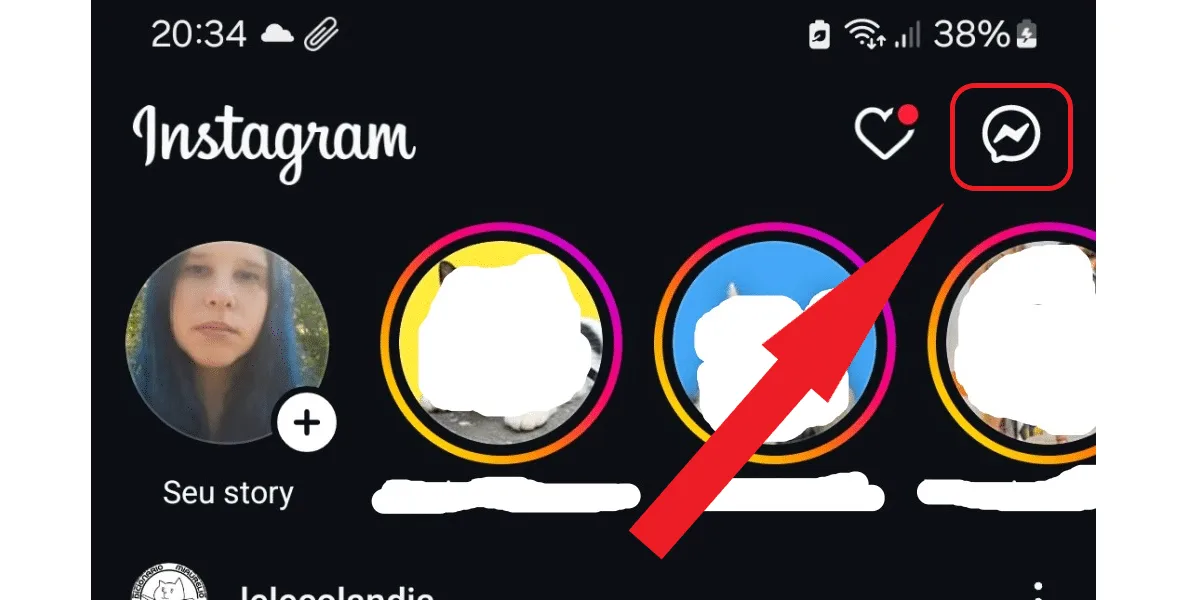
 Now you can start sending messages in your new group. But pay attention, you need to add at least 3 people to be able to create a group on Instagram. The maximum number of users is 250 people.
How to create a group on Instagram
Learning how to create a group on Instagram is actually quite simple. Mainly because groups are located within Instagram's DMs , making interaction and message viewing easier. To begin, first open the Instagram app on your Android or iOS device, then:Tap the Instagram messaging icon.
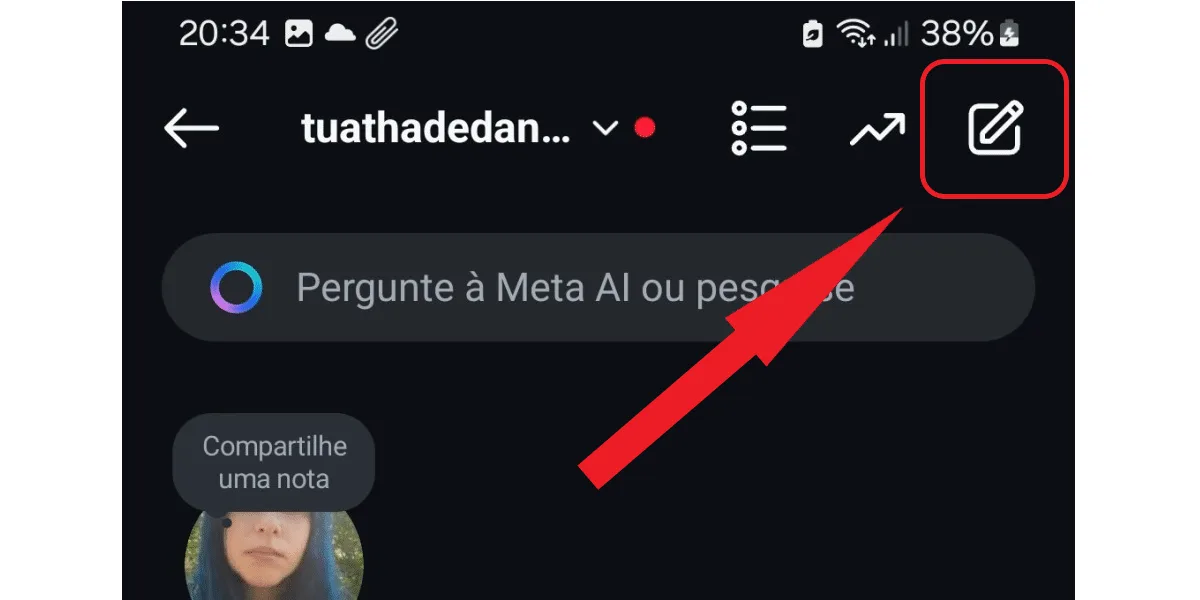
Then, click the button to write a new message.
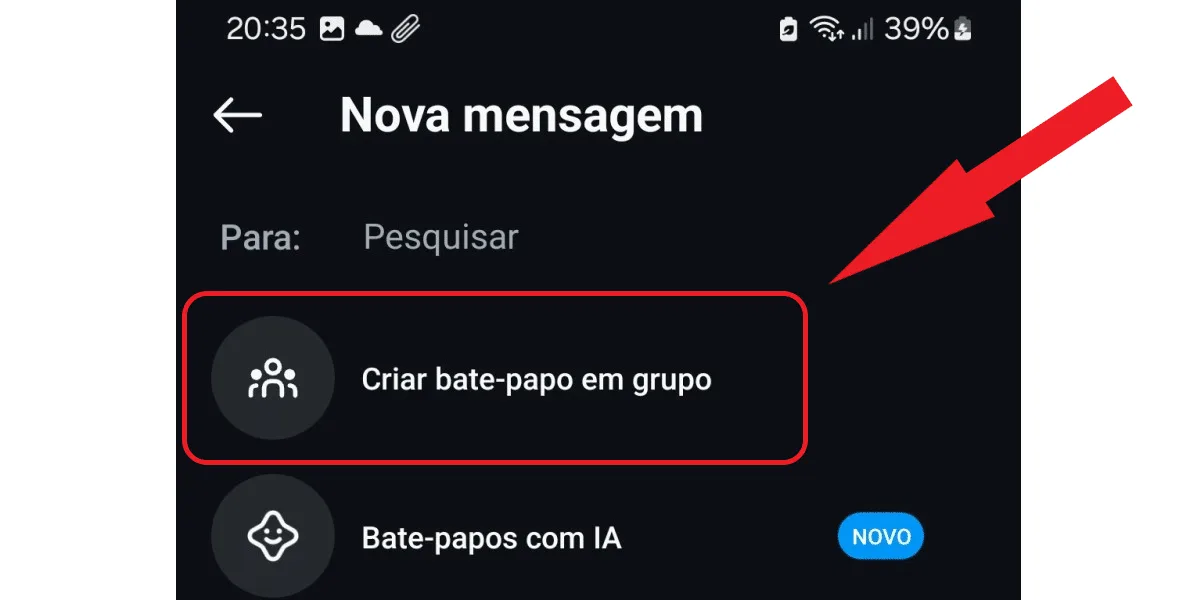
Now, tap on the option to create a group chat .
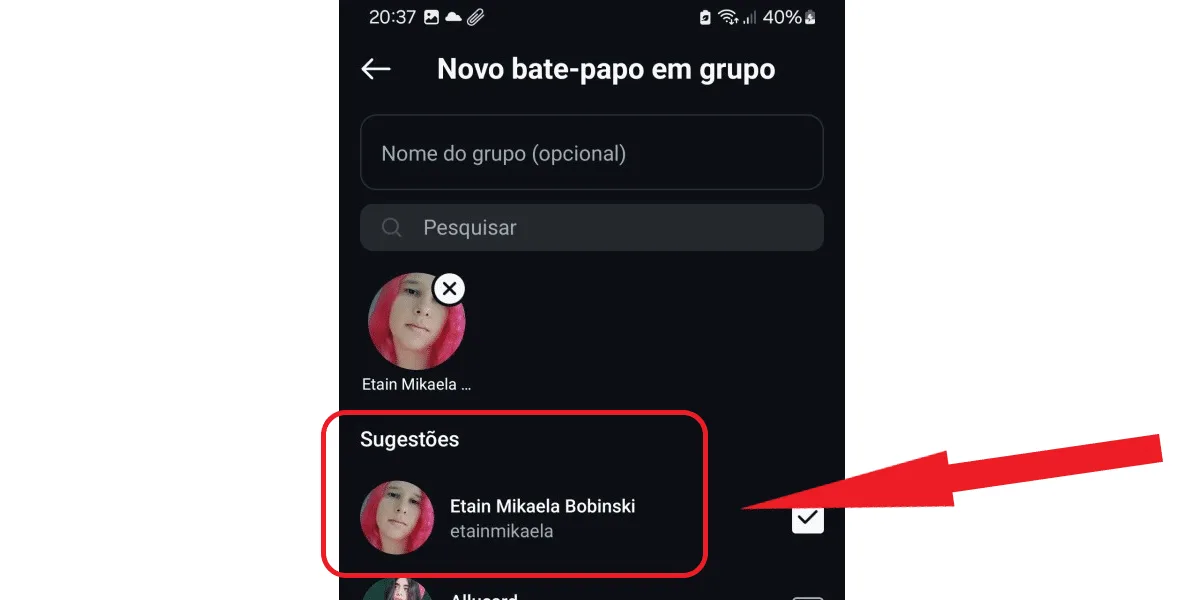
Select the people you want to add to your group and create a name.
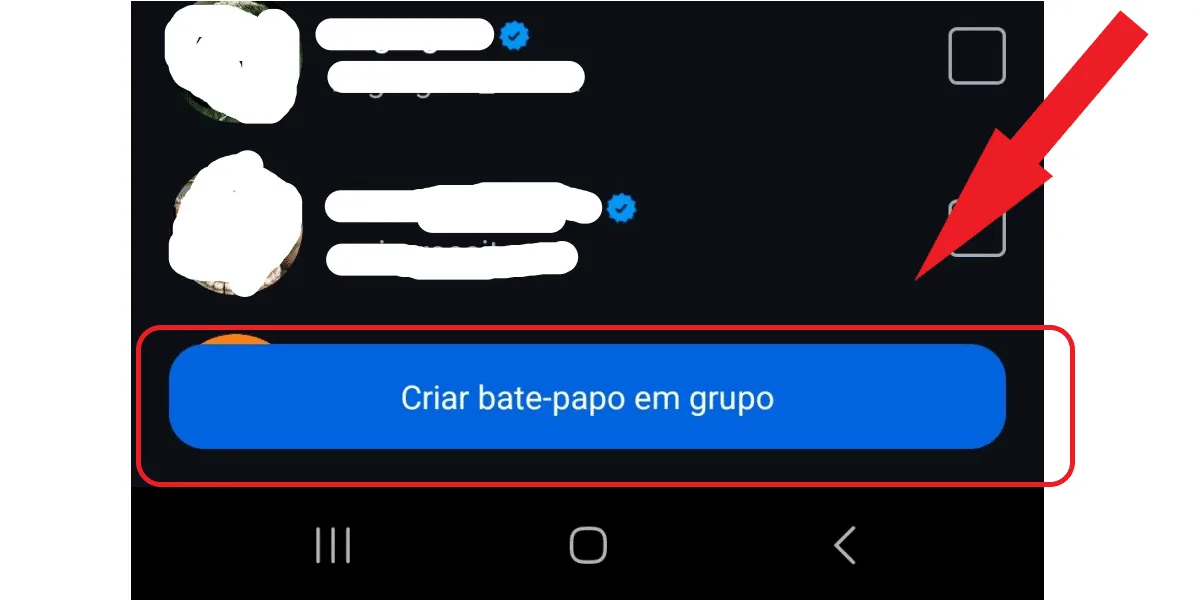
Finally, tap on "create group chat" and you're done!
Now you can start sending messages in your new group. But pay attention, you need to add at least 3 people to be able to create a group on Instagram. The maximum number of users is 250 people.Can I create a group with end-to-end encryption on Instagram?
Those learning how to create a group on Instagram might be concerned about the security of their information. While some other apps where we're more accustomed to creating and participating in groups, like WhatsApp, offer end-to-end encryption without requiring any concern, as the feature is automatically enabled. However, this isn't the case on Instagram. End-to-end encryption for group chats is only available for chats that don't include professional Instagram accounts as participants. Therefore, you need a personal account to create a group with encryption, and you must only add users with personal accounts for the feature to be maintained in your group.Can everyone interact freely in Instagram groups?
Yes, all participants can interact freely in Instagram groups . This is something you need to keep in mind when learning how to create a group on Instagram. Because, even if you are not present, or offline, your group members can still talk and send media normally in your absence. Therefore, it's important that you monitor the messages and files exchanged in the group, moderating it. You can also create rules for group participants and remove people who are disrespecting the norms. This is especially important in groups created to discuss specific topics, to ensure that the group's content adheres to the purpose for which it was created.Can I remove or add people from my Instagram group?
Yes, you can! By learning how to create your Instagram group and doing so, you become the administrator. You can add new members to your group and remove people who cause problems using Instagram's own group administration functions. To add people to your Instagram group, simply click on the group name, then on "add ," choose the user, and click " done" to finish. You can also use the "invite link" option, which creates a personalized invite link for your group that you can send to anyone. You can even copy and paste this link into other apps to promote your Instagram group. Now, to remove people from your group, the process is also very simple: just access the members area , tap the 3-dot icon next to the user's profile, and click "remove." Need tips for posting? Also check out:what to post on Instagram, content tips .Can I delete my group on Instagram?
Yes, you can delete your group on Instagram. Therefore, when learning how to create a group on Instagram, you don't need to worry. Because if for any reason you no longer want the group or it's no longer necessary, it's possible to remove it. To delete your group, you have two options:- In the first option, you can remove all participants and then keep the conversation history. This is a smart way to delete your group and still have access to important messages that may have been exchanged during the interactions.
- Or, you can simply delete the group. But this will cause you to lose all the messages that were exchanged in the conversation.
How do I leave a group on Instagram?
Learning how to leave an Instagram group is simpler than learning how to create one. Just enter the desired group, tap on its name, and in the options that appear, click "leave." After you leave the group, you will no longer receive notifications about messages, nor will you be able to view new content in the group. However, you may be added back to a group you left on Instagram. So, if this happens to you repeatedly and is annoying, the solution is to report the profile that insists on adding you back to the group you don't want to be part of. Important: simply deleting the group chat on Instagram will not remove you from the group, nor will it delete the group. As soon as someone sends a new message there, the conversation will return to your DMs. Therefore, although you delete the old messages when you delete the group chat, you will continue to receive each new message that appears.Where can I access my groups on Instagram?
All groups on Instagram are located in the same place, in Instagram's direct chat. This means that now that you've discovered how to create a group on Instagram, your groups will appear as normal Instagram conversations; simply tap on the message bubble when you log into the social network and you'll be able to view all the new interactions from your groups.What is the difference between a group and a channel on Instagram?
Groups are very useful for influencers in certain outreach strategies. But now that you know how to create a group on Instagram, you also know that this space is limited to 250 people. So, depending on your strategy, especially the number of people you want to reach, it may be more useful to opt for creating a broadcast channel on Instagram . A broadcast channel is a space similar to a group, but unlike groups, only the channel owner and moderators are allowed to publish content. Other users can follow the posts, but they cannot chat by sending messages or interact by sending files, as is possible in groups. Remember this when thinking about how to create a group on Instagram. So, when you publish content on the channel, users can only like it and interact with emojis. Users added to the channel can also answer polls, which can be very useful for conducting research directly with your audience. And for formulating more precise content for your audience, based on the users' own responses. For example, new content to publish in the feed or even scheduling Instagram stories more effectively. The most important thing is to focus on understanding your audience so that the content can truly appeal to them. It's worth noting that streaming channels aren't limited to 250 people ; they can have thousands of users. Therefore, this is a very useful tool for digital influencers and brands that want to concentrate their audience in one place and interact with them directly, in a way that closely resembles a conversation.Can I apply a theme to my Instagram group or channel?
Yes, that's possible! Right after learning how to create a group on Instagram, you can personalize the space by adding a profile picture for the group, and also a theme to be applied to the chat, with a wallpaper. To apply a theme to your group:- Join the group via Instagram DM chat;
- Click on the group name, which is located at the top;
- Then click on theme;
- Choose the theme you prefer, tap on it, and you're done!
How do I mute a group or channel on Instagram?
After learning how to create a group on Instagram, you might find yourself bothered by the volume of messages that group will generate. Or, other groups you participate in might be bothering you for whatever reason. If this happens, know that it's possible to mute those groups. To mute a group or channel on Instagram, first:- Open the Instagram DM chat and find the group conversation.
- Tap and hold on it.
- In the options that appear, choose to mute messages, or mute messages and calls.