Instagram
  by
by 
 10 min read
Don't know how to change your Instagram password? For many people, Instagram is a true photo album, a collection of videos and records of the most important moments in their lives. This includes those daily moments, shared with followers with great affection to generate more engagement, or simply to share a little piece of the day with friends and family. For companies and digital influencers, Instagram can be even more important, a true work tool. After all, these accounts contain strategic content, planned with marketing strategy, time investment, and even financial resources. For influencers, in particular, accounts with thousands or millions of followers are their profession, containing important content, especially advertisements for brands. So, thinking about how to protect all of this is fundamental. Therefore, as important as learning how to update Instagram to avoid bugs, is knowing how to change your Instagram password. This is a procedure that should be done regularly to maintain the privacy of your information. Keep reading and learn how to change your Instagram password with our step-by-step guide!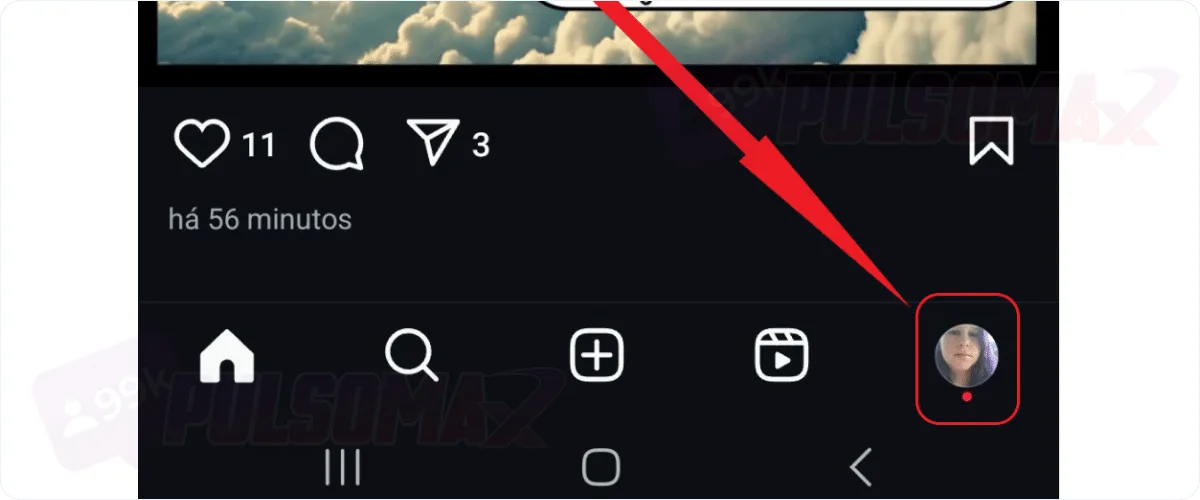
 Important: If you only have an Instagram account and no Facebook account, this step will not appear for you.
 Done! You've learned how to change your password on Instagram for iPhone and Android. If you've reached this step but have forgotten your current password, simply click on "forgot password " below the text boxes in the image above, and Instagram will send you an email to reset your password. However, to use this method, you need access to the account's email address. Looking for a way to accelerate your growth on Instagram? Try buying real Instagram followers and watch your profile stand out faster on the social network!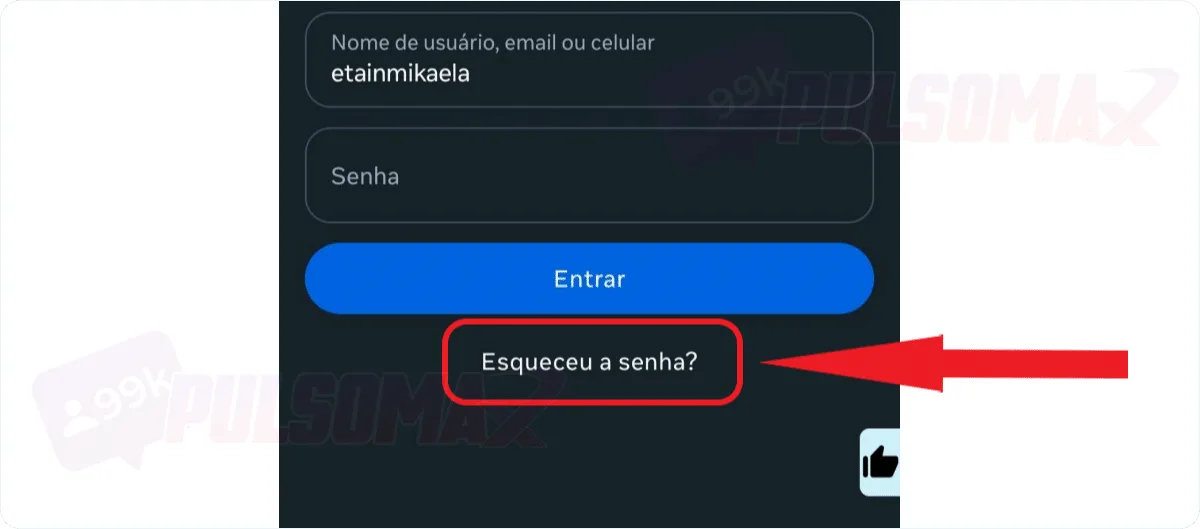
 Done! You've just learned how to recover access to your Instagram account. However, this method will only work if you know your username correctly and have access to the email or phone number registered to the account. Also, remember that if you select the option to disconnect your account from other devices where you're logged in, you'll need to log in again with your new password on all of them. But, if you suspect someone has hacked your Instagram account, check this box even if it's difficult to log in again, as it will log you out of any unauthorized devices. And if someone has actually hacked your profile, they won't have your new password to get back in.
How to change your Instagram password on iPhone and Android step by step.
Learning how to change your Instagram password on iPhone and Android is quite simple. And you can follow the same step-by-step instructions we'll present below, because although the operating systems are different, the process of changing the password in the Instagram app is the same for both. Now, if you want specific tips for iPhone, take a look at this other post: how to hide likes on Instagram iPhone . So, let's go to the step-by-step guide on how to change your Instagram password! To begin, first open your Instagram app on your Android or iOS device. Then:Tap your profile picture icon in the bottom right corner of the screen.
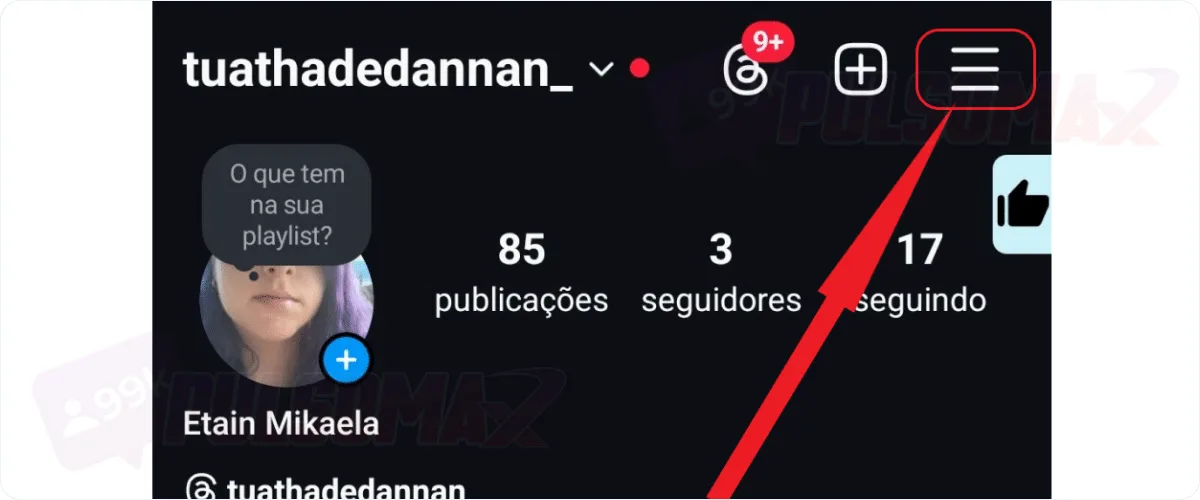
Next, tap the 3-line button in the upper left corner of the screen.
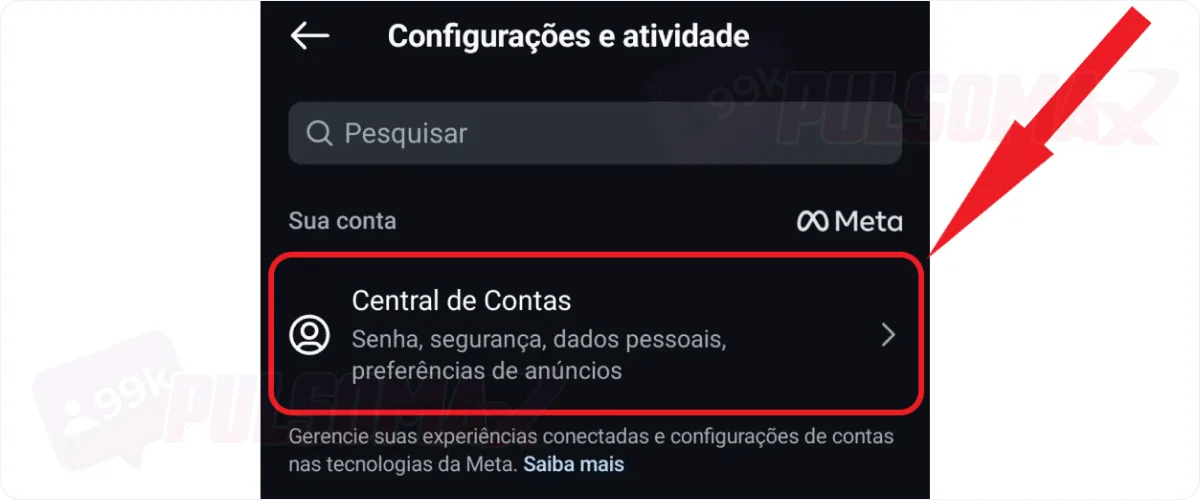
On the next screen, tap Account Center.
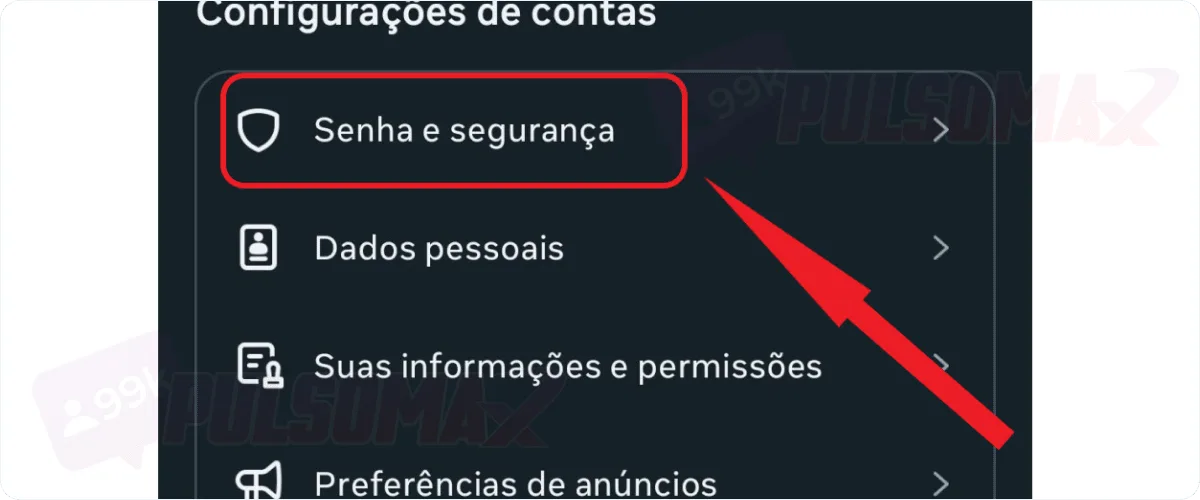
Next, click on password and security.
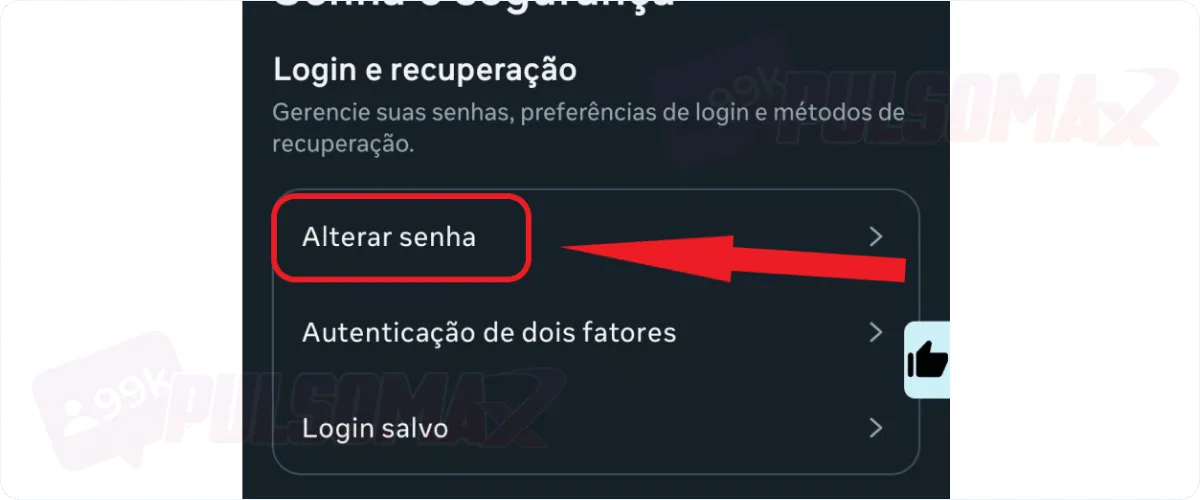
Now, tap on change password.
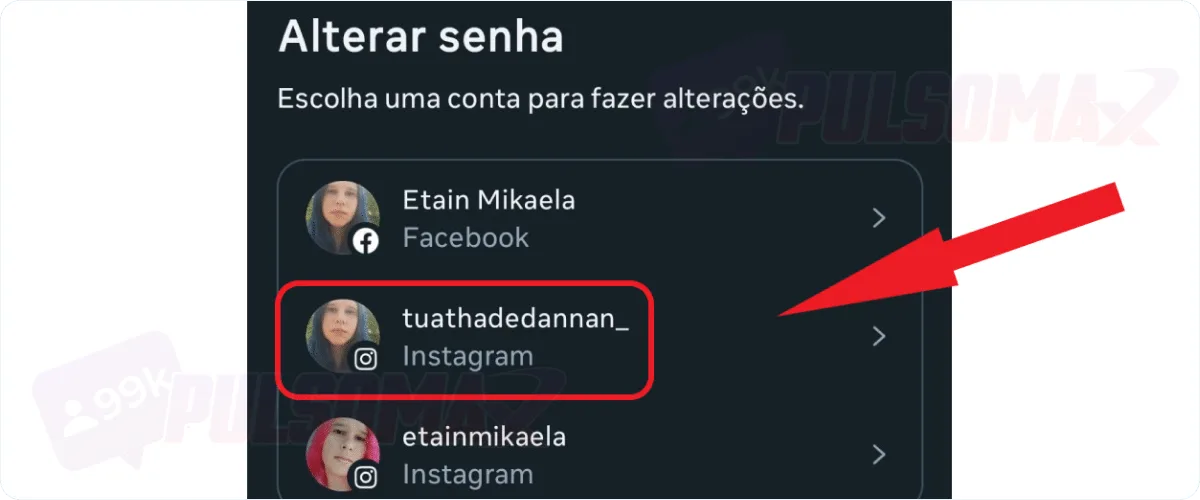
If you have more than one profile, tap on the one you want to change.
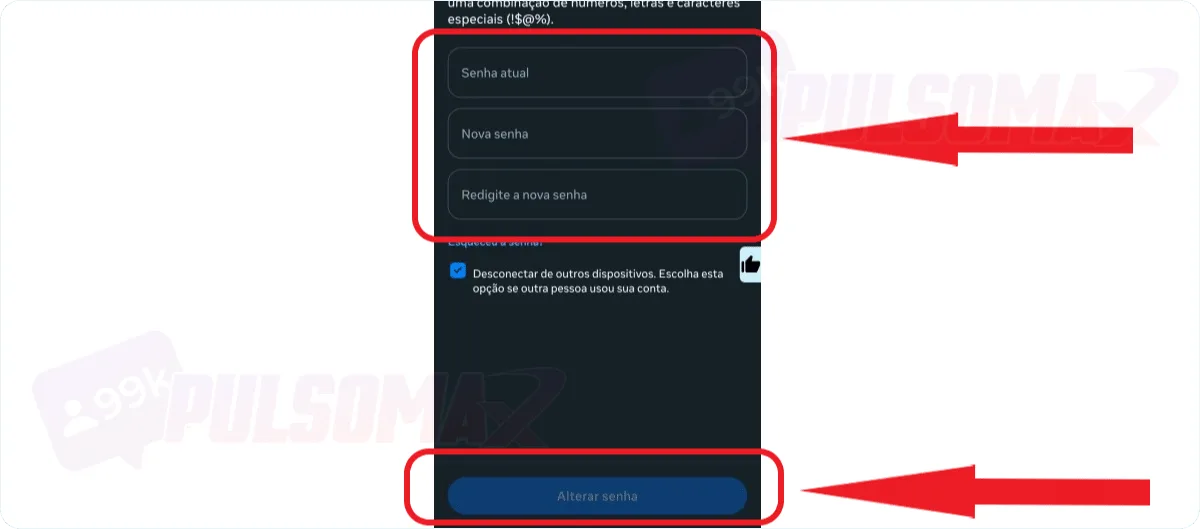
Important: If you only have an Instagram account and no Facebook account, this step will not appear for you.Enter your current password, then your new password, and tap change password.
Done! You've learned how to change your password on Instagram for iPhone and Android. If you've reached this step but have forgotten your current password, simply click on "forgot password " below the text boxes in the image above, and Instagram will send you an email to reset your password. However, to use this method, you need access to the account's email address. Looking for a way to accelerate your growth on Instagram? Try buying real Instagram followers and watch your profile stand out faster on the social network!How to change your Instagram password on Lite
Instagram Lite is a lighter version of the Instagram app, recommended for users looking for an app that takes up less space and memory on their phone. Therefore, Instagram Lite doesn't have all the features of the full Instagram app, but it delivers on its promise, allowing users to post content and even change important settings like their Instagram bio . However, when it comes to security and account settings, Lite offers most of the features of the full Instagram app. So, you can easily change your password with this app as well. Here's how: Log into your account through the Instagram Lite app.- Tap your profile picture icon in the bottom right corner of the screen.
- Tap the 3-dot button in the upper right corner of the screen.
- Tap on settings , then on Account Center .
- On the next screen, tap on password and security .
- Click on change password .
- Choose the profile whose password you want to change.
- Enter your old password, then enter your new password twice to confirm.
- Click on change password to finish.
How to change your Instagram password using a computer.
You can also learn how to change your Instagram password on your computer if you prefer that option. After all, despite not having all the features of the app, Instagram for PC is quite popular among many users. To change your Instagram account password on your computer, first log in with your credentials on Instagram Web , then:- Click the three-line button in the bottom left corner of the page.
- Next, tap on settings , then click on Account Center .
- On the next page, tap on password and security .
- Now, click on change password .
- Choose the profile whose password you want to change, if you have more than one account.
- On the next page, enter your old password, and then your new password twice to confirm, and click change password .
How to change your Instagram password through Facebook
If you use Facebook, you can learn how to change your Instagram password without logging out of your Facebook account. This is because Meta owns both social networks, Facebook and Instagram. Therefore, it's possible to adjust the settings of both profiles in the Account Center without needing to log into your Instagram account if you're not currently logged in. To do this: Tap your profile picture in the upper left corner of the screen.- Next, click on settings and privacy, then settings.
- On the next screen, tap Account Center .
- Click on password and security , then tap on change password .
- Choose your Instagram profile from the list that will appear.
- On the next screen, enter your old password, then enter your new password twice, and click "Change Password" to confirm.
I forgot my Instagram password, how do I change it?
If you forgot your Instagram password without being logged into your account, or if your account was hacked, there's still a way to recover access. Check out below how to change your Instagram password in this situation:Open the Instagram app and tap "forgot your password" on the home screen.
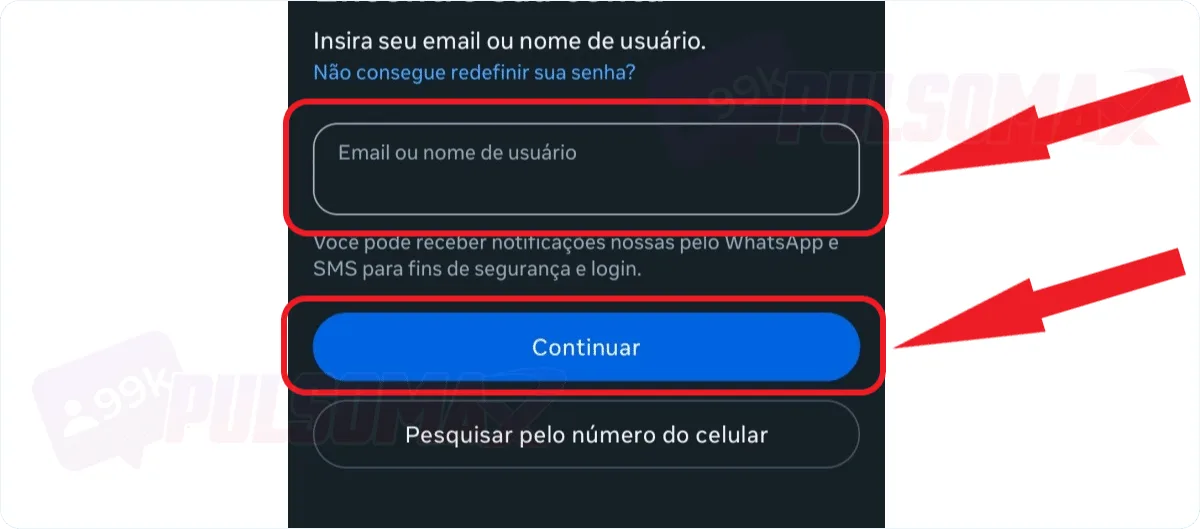
Now, enter your username, phone number, or email address, and tap continue.
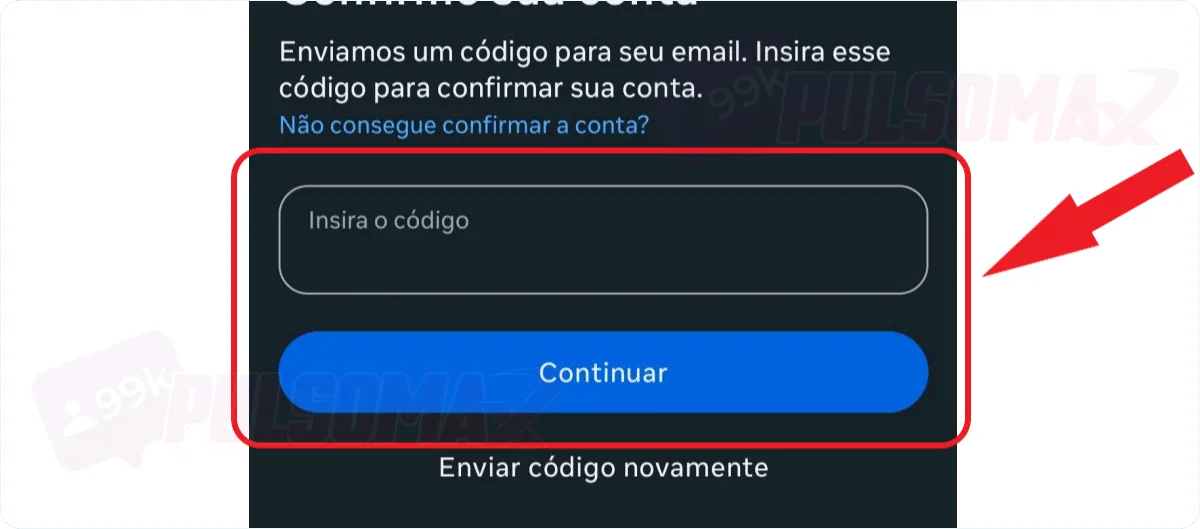
If you choose email or mobile phone, enter the code received on the next screen.
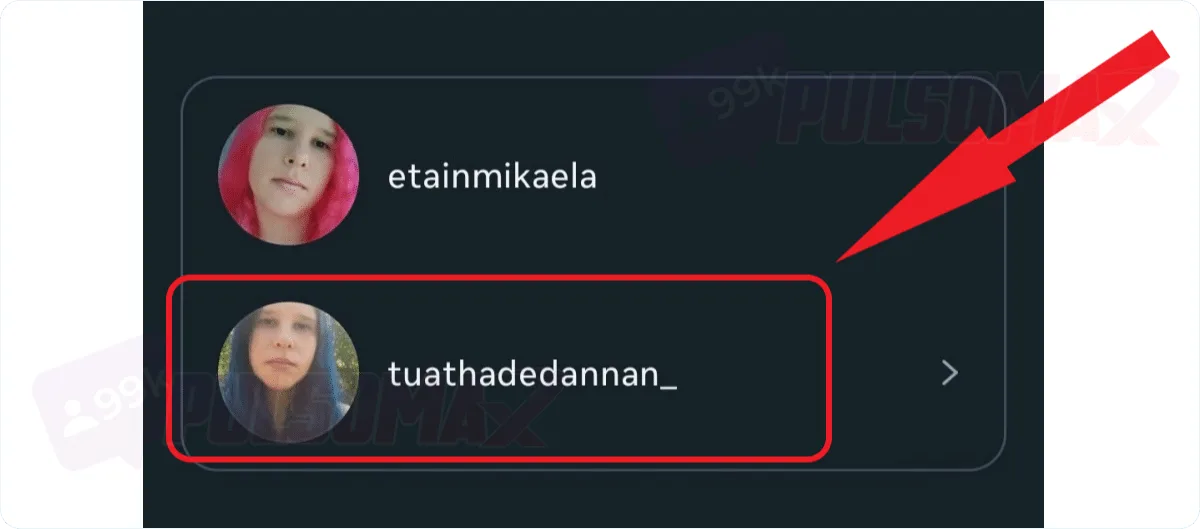
If you have more than one account registered, choose the correct profile.
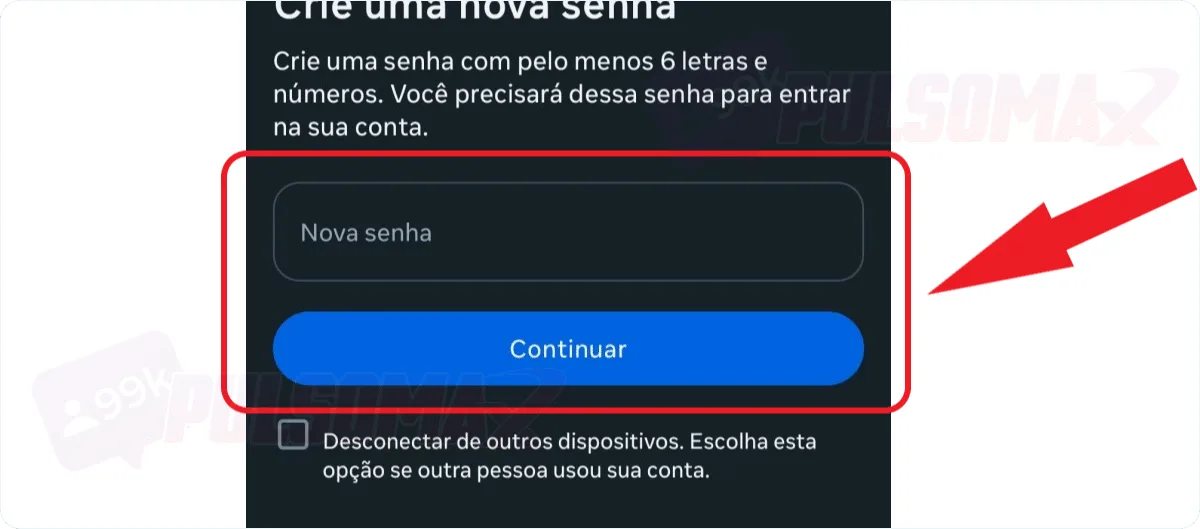
Create your new password and tap continue to confirm.
Done! You've just learned how to recover access to your Instagram account. However, this method will only work if you know your username correctly and have access to the email or phone number registered to the account. Also, remember that if you select the option to disconnect your account from other devices where you're logged in, you'll need to log in again with your new password on all of them. But, if you suspect someone has hacked your Instagram account, check this box even if it's difficult to log in again, as it will log you out of any unauthorized devices. And if someone has actually hacked your profile, they won't have your new password to get back in.How do I regain access to my Instagram account using Lite?
If you use Instagram Lite and can't log into your account because you forgot, lost, or no longer know your password, it's also possible to recover access without having to use another app, like the full Instagram app. Just follow these steps to find out how to change your Instagram password on Lite:- Open the Instagram Lite app.
- Click on "Forgot your password? ".
- Enter the Instagram username, the email address linked to the account, or the mobile phone number.
- Enter the login code in the space provided on the next screen to regain access to your account, and tap next.
- Choose the profile whose password you want to change, if you have more than one account, and click on it.
- Click on your profile picture to log in if your account appears on the next screen.
- Or change your password.