 Instagram
  by
by 
 9 min read

Don't know how to add a timer on Instagram? It's normal to feel a little lost when using Instagram. After all, even the most experienced users on the platform don't know all the features the social network offers. That's why it's important to learn and research the different resources Instagram offers. Recently, we published a complete tutorial on how to add a temperature to Instagram , which has been a hit with our readers. We also have many other interesting articles, perfect for those who want to grow on the photo and video social network, learning every detail about the tools available there. And in today's article, we've prepared a complete tutorial with screenshots on how to add a timer to Instagram. Keep reading and enjoy!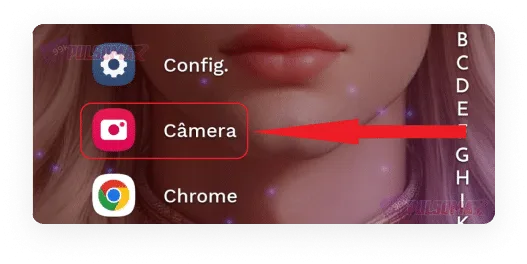 Now, find the timer function , which is usually indicated by a clock-shaped icon. See the image below.
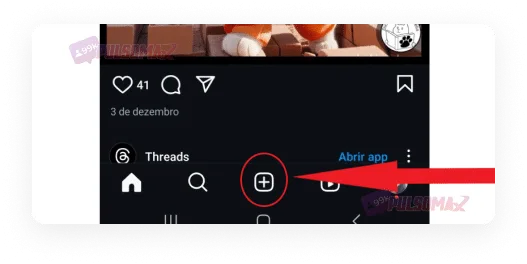
 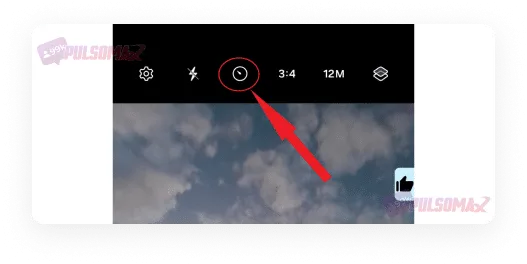 Set your timer according to the available options, which are usually 3, 5, and 10 seconds. With the timer set, click the shutter button and wait for the timer to start. You can adjust the camera to get the best angle for the image, or run and position yourself in the desired pose while you wait, if you are photographing yourself alone. That's it, your photo is taken. Now, open the Instagram app and tap the + button to publish your image.
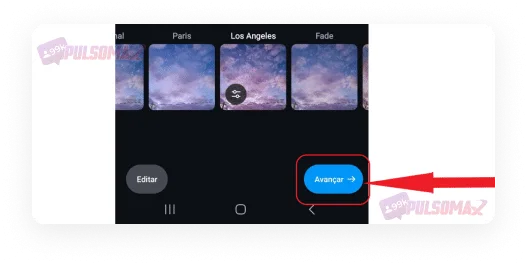
  Select the image, adjust the filters as desired, and click next again.
  Now, tap share to finalize the image.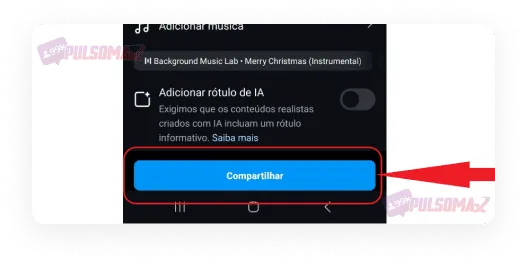
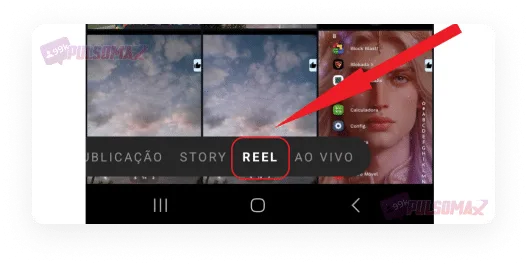 Once you're in the Reels video recording area, tap the timer on the right and choose the length you want your video to be.
 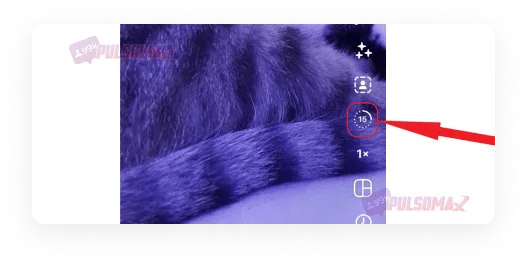 Once you've selected the time, simply click the record button to activate the timer. Note that the timer starts counting down and automatically records your video according to the programmed time. In other words, this timer is to easily ensure the exact duration of your video, not to adjust the camera image while waiting, like the timer on a cell phone camera. See the image below:
 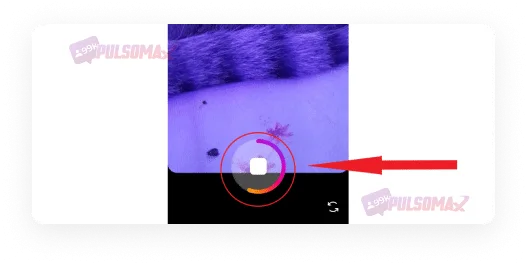 After you finish recording, you can edit your video however you like; just click the edit button . After editing, return to this screen and click next . See the image below.
 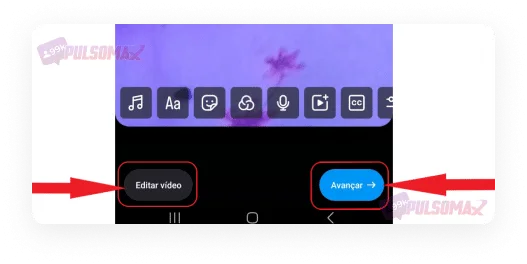 On the next screen, you can adjust other settings for your Reel video. Once you're done, tap " Next" again. Finally, click the "Share" button and you're done! Your Reel is published.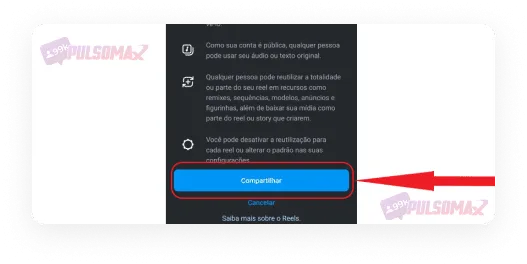
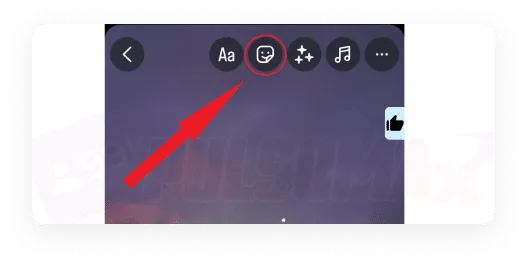 Type "countdown" in the search bar to make it easier, select the countdown image once it appears, and click " create new" .
 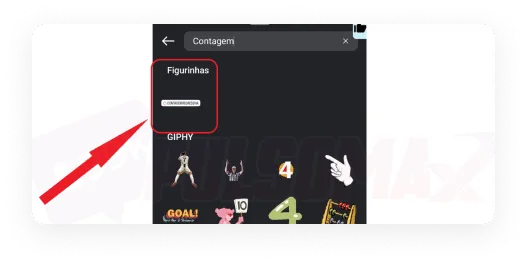 Note above that there are also several timer GIFs . So, after you set your timer, you can still go back to that tab and select as many GIFs as you want for your story. Moving on, the timer has been selected , and it will appear to you as follows.
 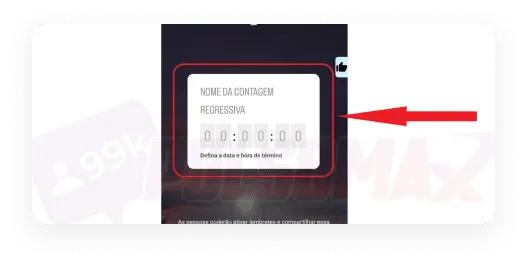 Tip: You can change the sticker color by tapping the small colored circle above the timer. Now, you need to customize your timer. To do this, give the event a name and choose an end date for the countdown.
 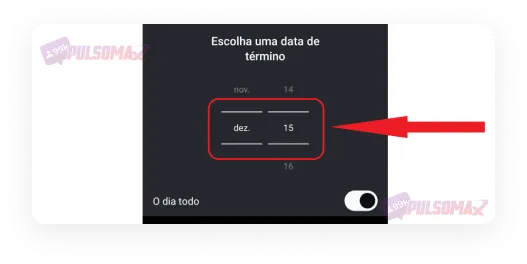 Next, you can select where the timer will appear in your story by dragging it across the screen. If you want, you can also change the event name by tapping the small arrow that appears on the sticker. See.
 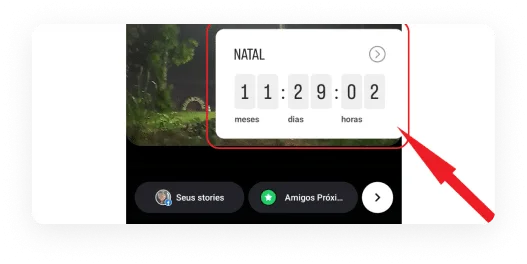 Now all you have to do is publish the story and you're done! Your timer will appear exactly as you programmed it.
 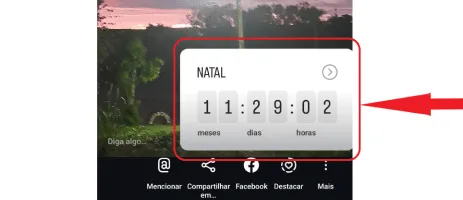 Furthermore, other users who view your story can choose to activate a notification that alerts them when your timer reaches zero. Therefore, this feature has great potential to increase engagement with your posts if used strategically.
How to set a timer on Instagram to take a photo.
Getting the best photo to post on Instagram can be a complicated task. After all, those who dedicate themselves to managing their profile, buying real Instagram followers , and wanting to grow in the digital world to promote their content or business can't just post photos any old way. Planning is essential, including taking the photo at the right angle. But unfortunately, the timer feature that was previously available on the Instagram camera is no longer available. In other words, if you want to take a perfect photo and have those precious seconds of the timer to adjust the image before the camera captures it, you'll need to use your phone's camera timer. Fortunately, the quality will be very good this way, and then you can post your photo on Instagram normally. Check it out and learn how!How to set a timer on Instagram to take photos, step by step.
Discovering how to set a timer on Instagram to take photos is quite simple. First, choose what you want to photograph. Once everything is ready, just follow our step-by-step guide! Access your phone's camera by clicking on the camera icon . Remember that this process is possible on both Android and iOS models. However, the location of the settings may be slightly different depending on the phone model. Now, find the timer function , which is usually indicated by a clock-shaped icon. See the image below. Set your timer according to the available options, which are usually 3, 5, and 10 seconds. With the timer set, click the shutter button and wait for the timer to start. You can adjust the camera to get the best angle for the image, or run and position yourself in the desired pose while you wait, if you are photographing yourself alone. That's it, your photo is taken. Now, open the Instagram app and tap the + button to publish your image. Select the image, adjust the filters as desired, and click next again. Now, tap share to finalize the image. Tips for taking photos with a timer
Those who use the timer to take photos are often alone and need to photograph themselves. This can be a difficult task, especially when you need to create a good photo to post on Instagram. Therefore, the timer on your phone's camera, or another camera you're using, becomes a fundamental aid. But to get the most out of the timer, there are some tips that can help. Check them out:- Use a tripod to keep your cell phone or camera stable. This will prevent the image from coming out blurry.
- Find a suitable background in a place that will make the photo even better;
- Use lamps and lighting fixtures, if possible, to achieve the ideal light for your photographs;
- Don't rush. Take more than one photo, experimenting with different angles and poses;
- After taking your photo with the timer, take advantage of Instagram's filters and other features to get the photo just the way you want it before posting.
How to add a timer to Instagram Reels
Instagram Reels is the social network's short video platform . Posting there is great for content creators looking to increase engagement and gain new followers for their profiles. Instagram Reels has an interesting feature to make recording short videos easier: the timer. Simply set it, wait for the timer to start, activate it, and you can record your video for the exact duration you want, without worrying about timing. Want to further optimize your Instagram posts and create unique content production strategies using Instagram hashtags? Read also: what is TBT and how to use it !How to add a timer to Instagram Reels step by step
To learn how to add a timer to Instagram Reels, first open your Instagram app on Android or iOS. It's not possible to add a timer on Instagram Web. Then, click the + button in the bottom bar, the same place you always go to post. Now, in the Instagram posting interface, click the camera button , as shown in the image below. Next, in the bottom bar, select the reel option. Once you're in the Reels video recording area, tap the timer on the right and choose the length you want your video to be. Once you've selected the time, simply click the record button to activate the timer. Note that the timer starts counting down and automatically records your video according to the programmed time. In other words, this timer is to easily ensure the exact duration of your video, not to adjust the camera image while waiting, like the timer on a cell phone camera. See the image below: After you finish recording, you can edit your video however you like; just click the edit button . After editing, return to this screen and click next . See the image below. On the next screen, you can adjust other settings for your Reel video. Once you're done, tap " Next" again. Finally, click the "Share" button and you're done! Your Reel is published. How do I add a timer to my Instagram Story?
People love posting content on their stories. Some even want to learn how to view stories anonymously on Instagram . After all, stories, unlike other posts, aren't permanent. After 24 hours, they disappear, allowing Instagram users to post temporary content that only makes sense for that day, or that they don't want to remain pinned to their profile like a regular post. And for those who want to personalize their stories, Instagram has a number of useful features, including a countdown timer. With it, you can simply start a countdown to any event you want!How to add a timer to your Instagram story, step by step.
Learning how to add a timer to your Instagram Story is quite simple. To begin, open your Instagram account via the Android or iOS app and tap the "Your Story" button, located on your profile picture in the top bar. Then, take a photo or select media to create a new story, and tap the "Sticker" button . Type "countdown" in the search bar to make it easier, select the countdown image once it appears, and click " create new" . Note above that there are also several timer GIFs . So, after you set your timer, you can still go back to that tab and select as many GIFs as you want for your story. Moving on, the timer has been selected , and it will appear to you as follows. Tip: You can change the sticker color by tapping the small colored circle above the timer. Now, you need to customize your timer. To do this, give the event a name and choose an end date for the countdown. Next, you can select where the timer will appear in your story by dragging it across the screen. If you want, you can also change the event name by tapping the small arrow that appears on the sticker. See. Now all you have to do is publish the story and you're done! Your timer will appear exactly as you programmed it. Furthermore, other users who view your story can choose to activate a notification that alerts them when your timer reaches zero. Therefore, this feature has great potential to increase engagement with your posts if used strategically.Can I see the Instagram story timer when it disappears?
Yes, you can! And this is a very interesting detail about how to add a timer to your Instagram Story. Some people don't know this, but all the stories they publish are saved in the archive folder , which you can access in the Instagram settings within the app. So, whenever you want to retrieve a timer, simply access this folder, click on the chosen story, and your timer will be there, as it's part of your post.Is it possible to add more than one countdown timer on Instagram?
Yes, you can. But you need to do it in different stories. That is, make sure you have set your countdown correctly, and all the timer GIFs you want, before publishing the story. Because it will not be possible to change this once the story is published! In fact, it's not possible to edit your countdown after publishing. The only way to correct possible errors with your story, now that you've learned how to add a timer to your Instagram Story but got the countdown wrong, is to delete that content and publish a new story, this time with everything correct. Want to download your favorite Instagram content, even from other users' posts? Check out our essential Instagram download tools and start downloading images, videos, and audio for free. You only need the post link!How do I set a timer on Instagram on an iPhone?
Learning how to set a timer on Instagram on an iPhone isn't difficult. In practice, the process is very similar to that on an Android phone . You just need to:- Access the camera on your iPhone;
- Find the timer in the settings (it usually looks like a clock);
- Set the timer for the desired time, according to the options available on your iPhone;
- Position yourself however you prefer, or position the object you are going to photograph;
- Wait for the timer to start counting down and then take the picture;
- Go to Instagram and post the image however you like.
![Como ocultar curtidas no Instagram iPhone [Passo a Passo]](https://pulsomax.com.br/assets/uploads/blog_ai/wordpress-featured-como-ocultar-curtidas-no-instagram-iphone-a6f2c4cfa1.webp)